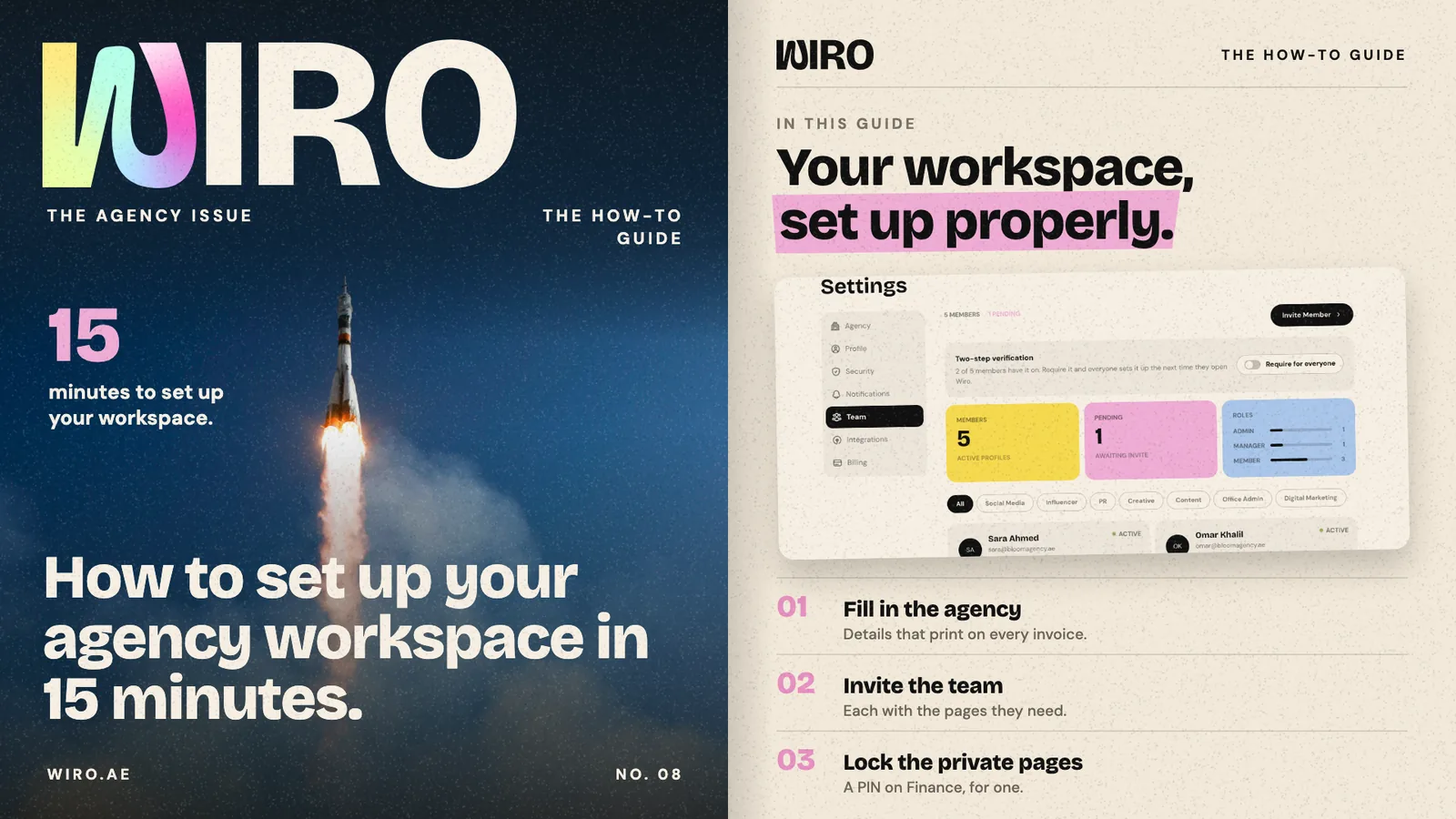
The first fifteen minutes in a new workspace decide how the next year feels: whether invoices print with the right details, whether a junior can see salaries, whether a client looking over your shoulder sees your margins. This guide sets up a sample agency, Bloom Agency in Dubai. The screens are Wiro's Settings with sample data.
Step 1: Fill in your agency details (5 minutes)
Open Settings. The Agency tab holds the details that print on every invoice, quote and report: your logo, agency name and legal name, email, website and phone, country and currency, emirate and city, trade licence number and who issued it, address and TRN. Fill them in once and every document picks them up.
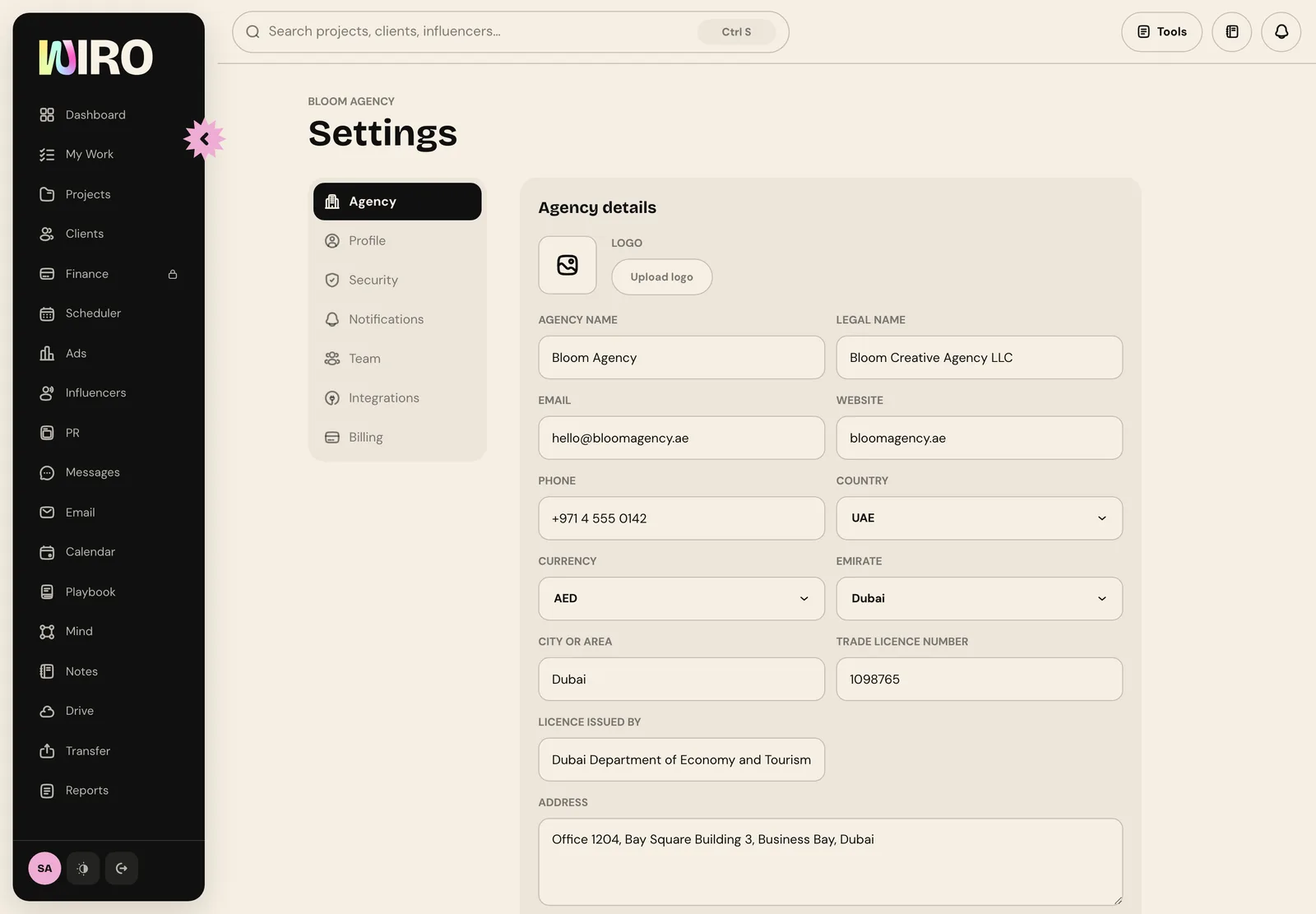
- Use the legal name exactly as it appears on your trade licence. It is what a tax invoice needs.
- Upload a logo with a transparent background so it works on light and dark pages.
- Set the currency you invoice in most. Each invoice can still use another.
Step 2: Invite the team (5 minutes)
Open the Team tab. You see everyone in the workspace with their department, job title, role and whether they have two-step verification on, and anyone still to accept an invite. Choose Invite member.
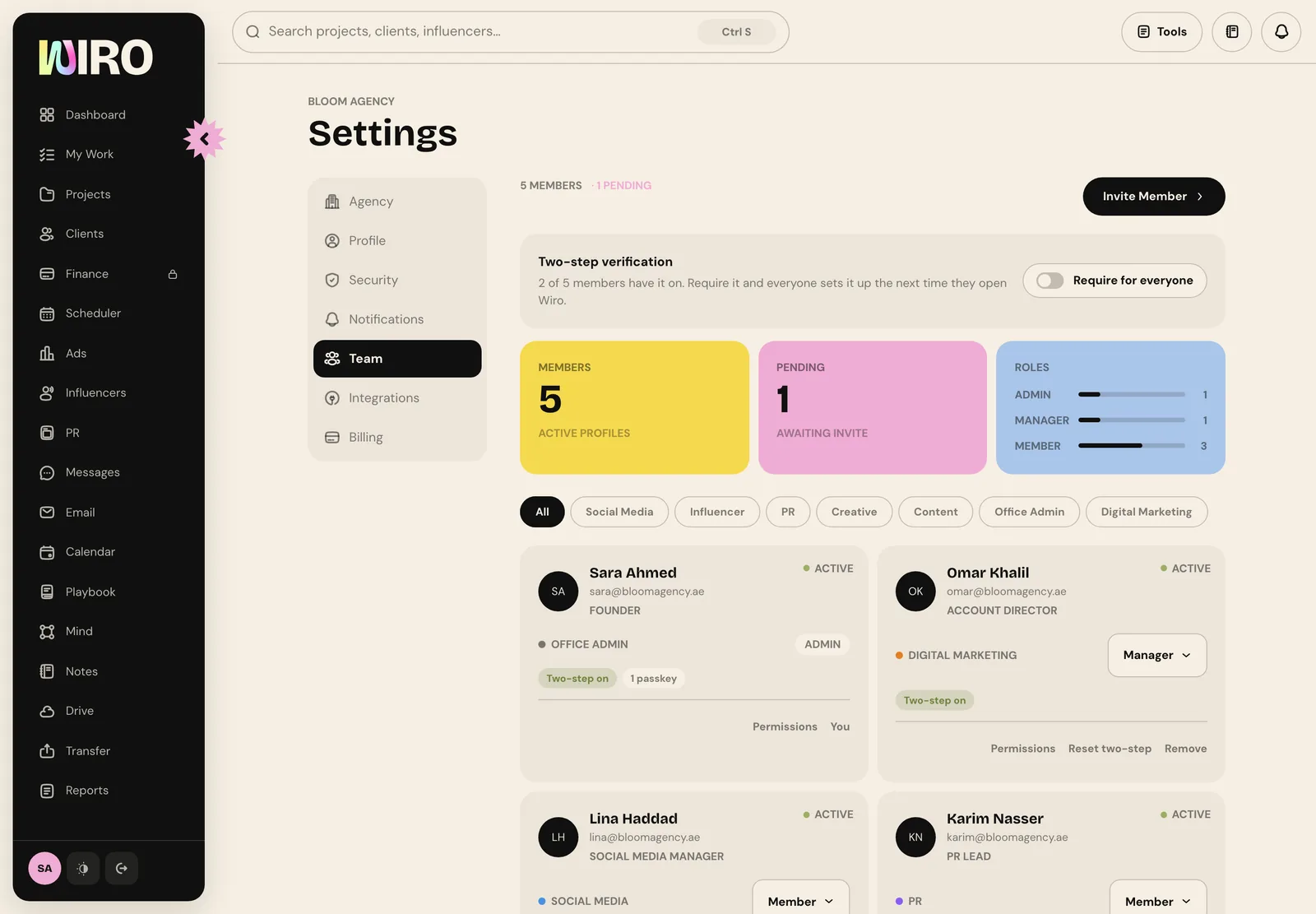
Type their work email, pick their department and job title, and choose a role: member, manager or admin. Picking a department applies a page access preset, so an influencer executive starts with the pages influencer work needs and without Finance or Ads. Change any box before you send.
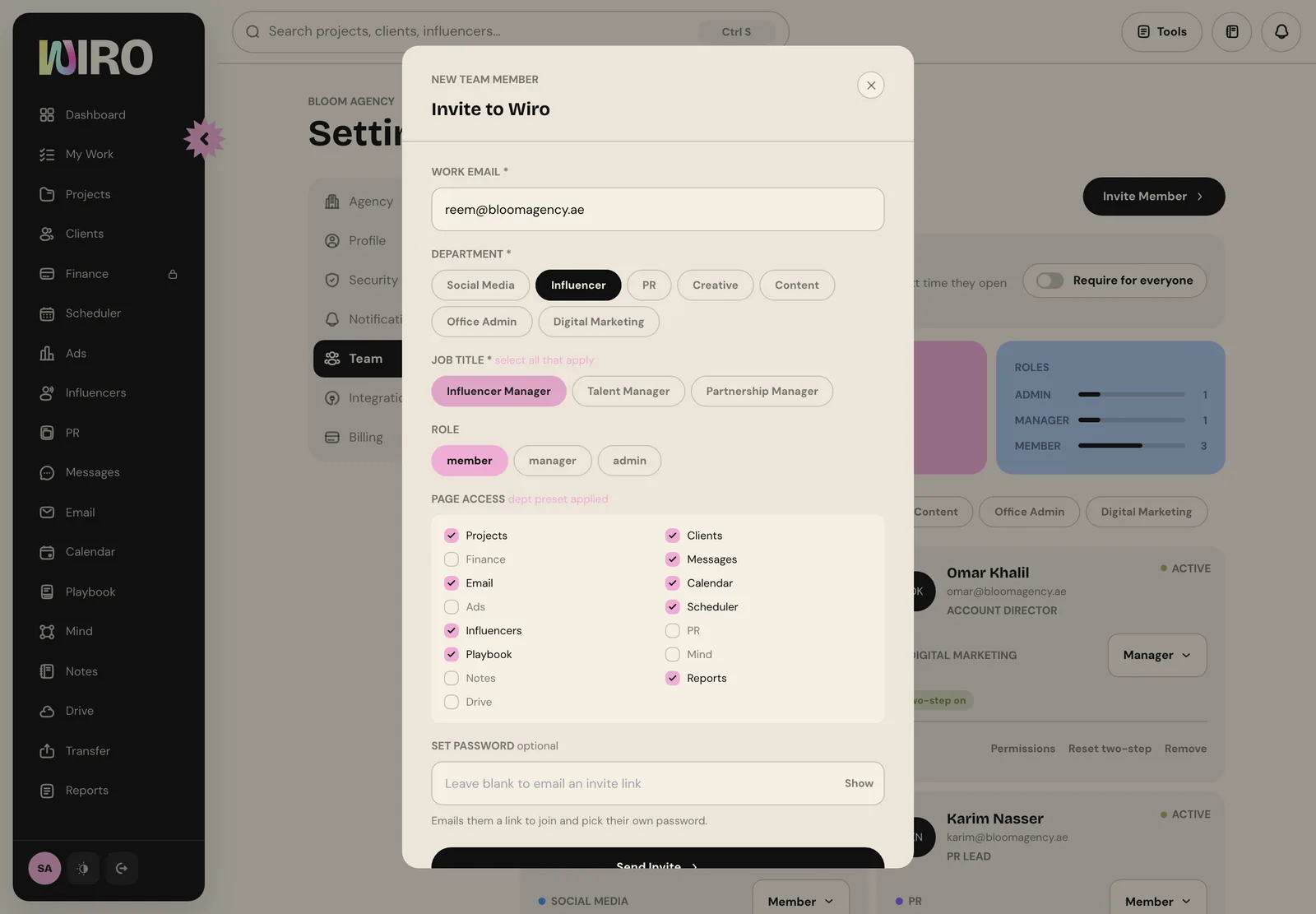
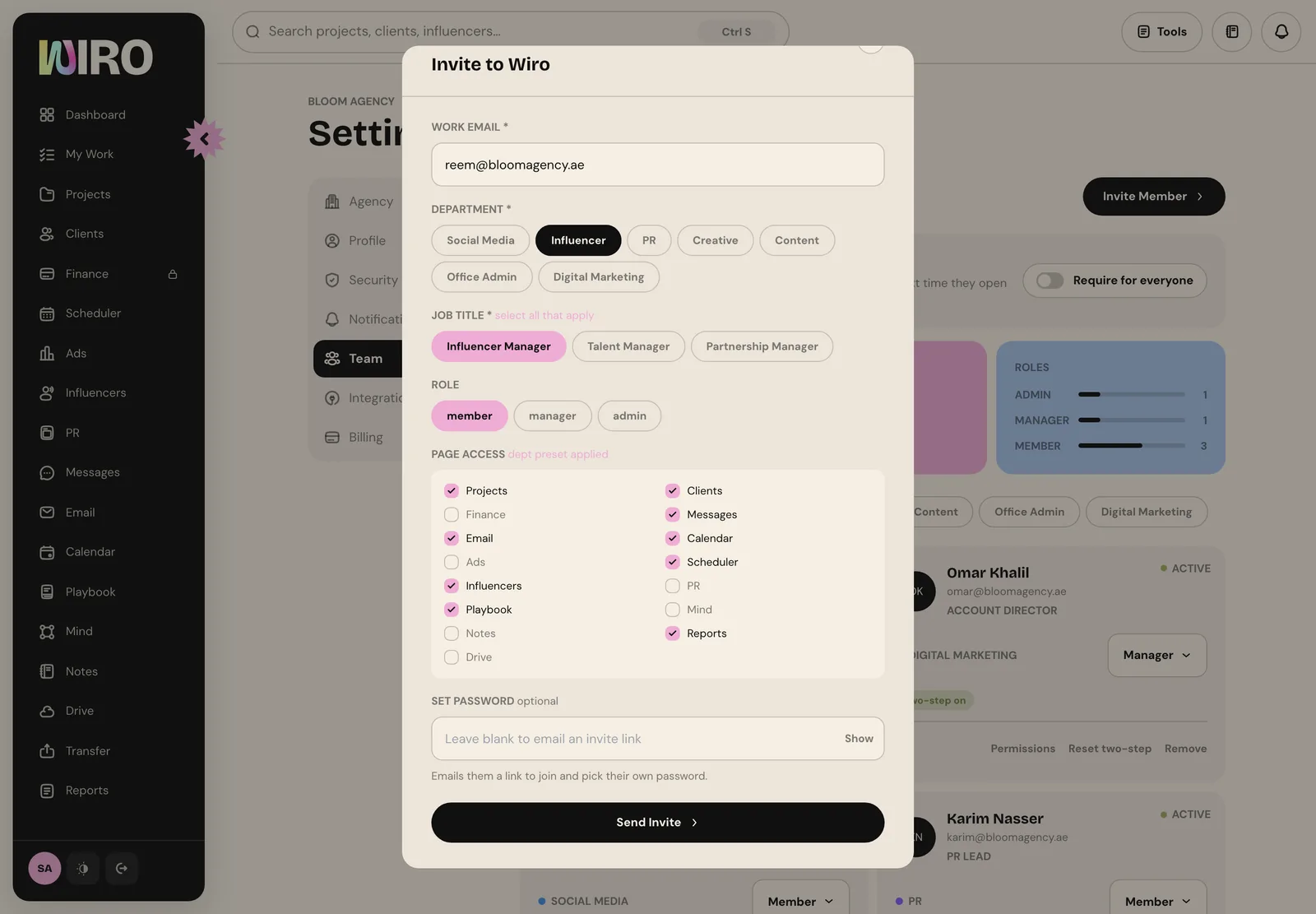
Leave the password empty and Wiro emails them a link to join and choose their own password, which is the safer default. Setting a password instead creates the account straight away with no email, so you would have to pass it on yourself.
Step 3: Adjust anyone's access
On any team member's card, choose Permissions to see the pages they can open. Tick or untick each page, or use All on and All off, then save. Pages that are not in the list, like My Work and Transfer, are open to every member. Admins can also change a member's role from the card.
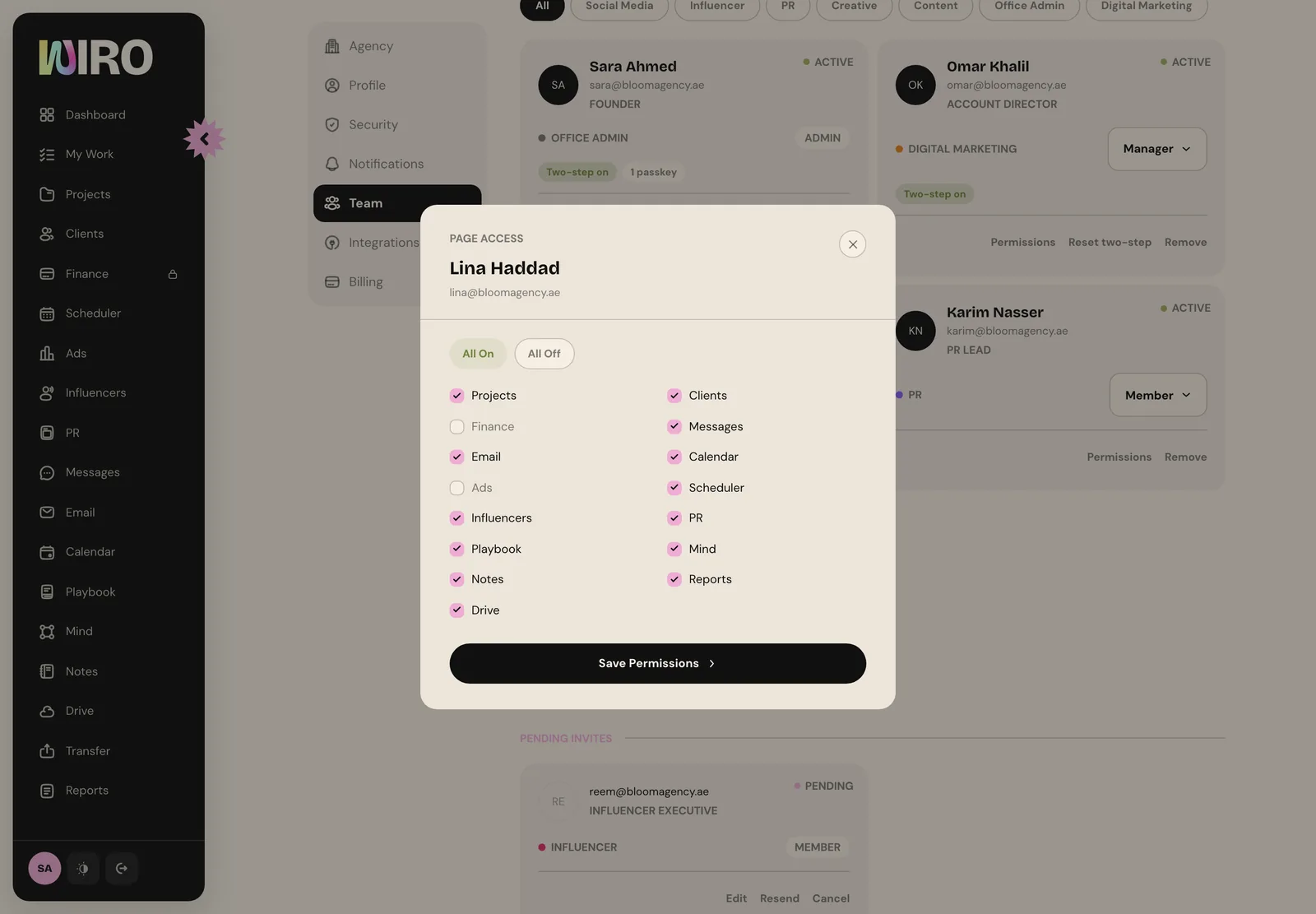
While you are on the Team tab, consider Require for everyone under two-step verification. Each member is asked to set it up the next time they open Wiro.
Step 4: Lock the private pages (5 minutes)
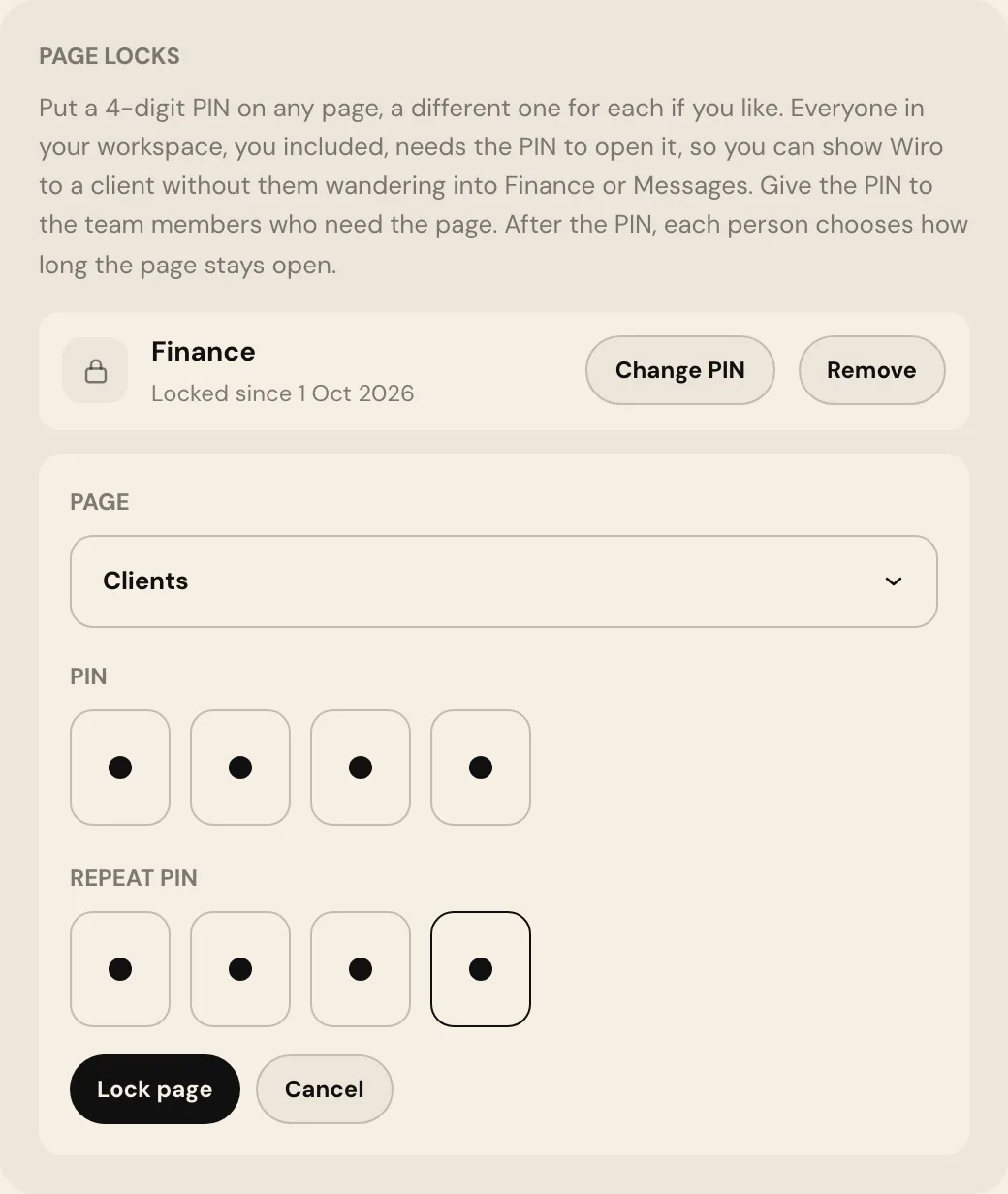
Permissions decide who can open a page. Page locks add a second layer for the moments when the wrong person is looking at the right screen: a client in a meeting, a laptop on a shared desk. Open the Security tab and scroll to Page locks.
Choose Lock a page, pick the page, and type a 4-digit PIN twice. Everyone in the workspace, you included, needs that PIN to open the page, and you can use a different PIN for each page. Give it to the people who need the page. After entering it, each person chooses how long the page stays open: just this visit, from half an hour to two hours, or the rest of the day.
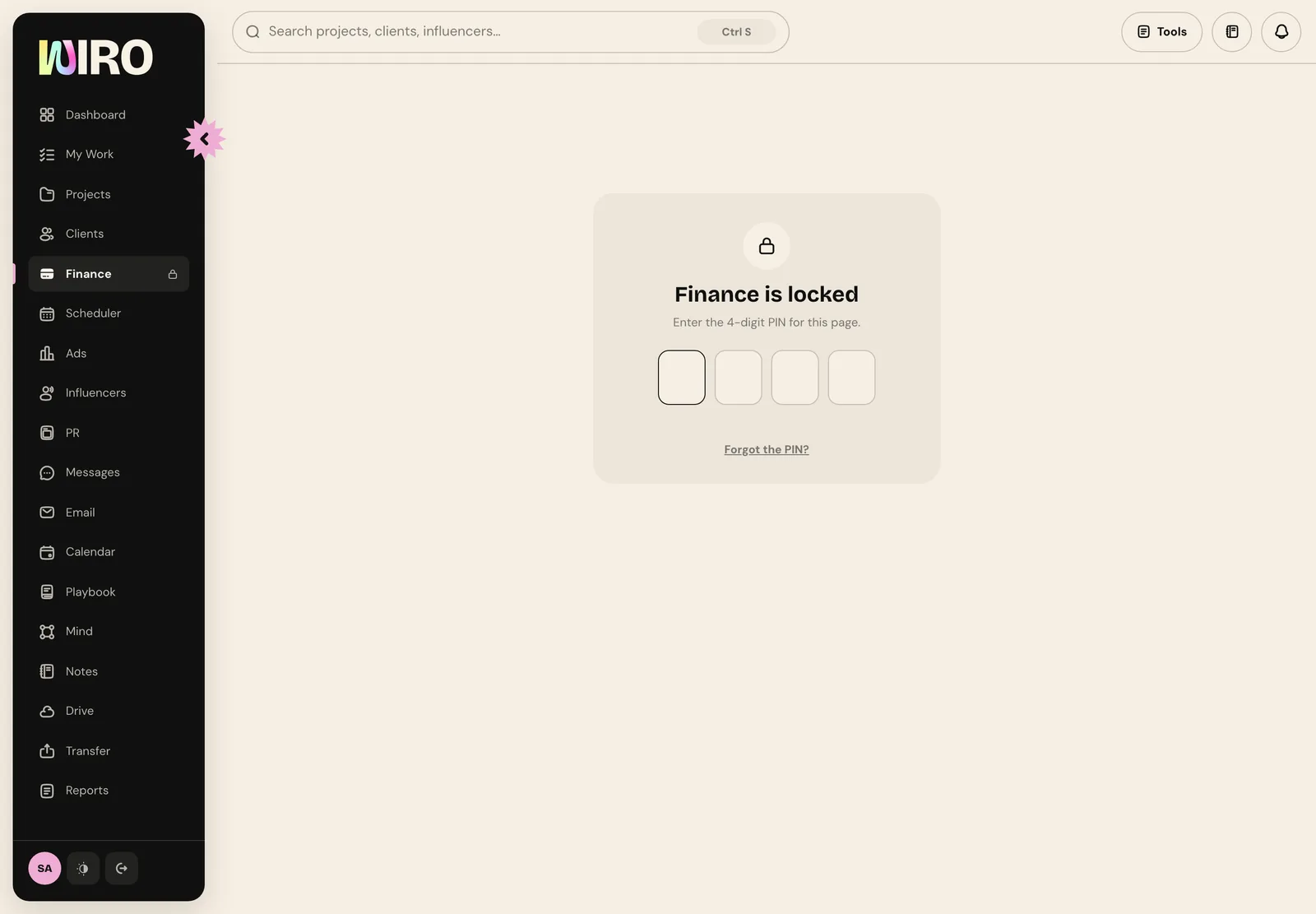
A locked page shows a lock in the sidebar, and opening it asks for the PIN. Only admins and managers can add, change or remove locks, so a forgotten PIN is a question for one of them.
What to do next
- Add your clients in Clients, with their TRN and address, so invoices fill in by themselves.
- Connect your clients' social accounts in Scheduler so posts can publish.
- Ask each member to fill in their Profile, with a photo, so the team recognises who did what.
Set up access on day one, when nobody is offended by it. On day ninety, every restriction feels personal.
That is the workspace done: details that print correctly, a team that sees what it needs, and the private pages behind a PIN.