
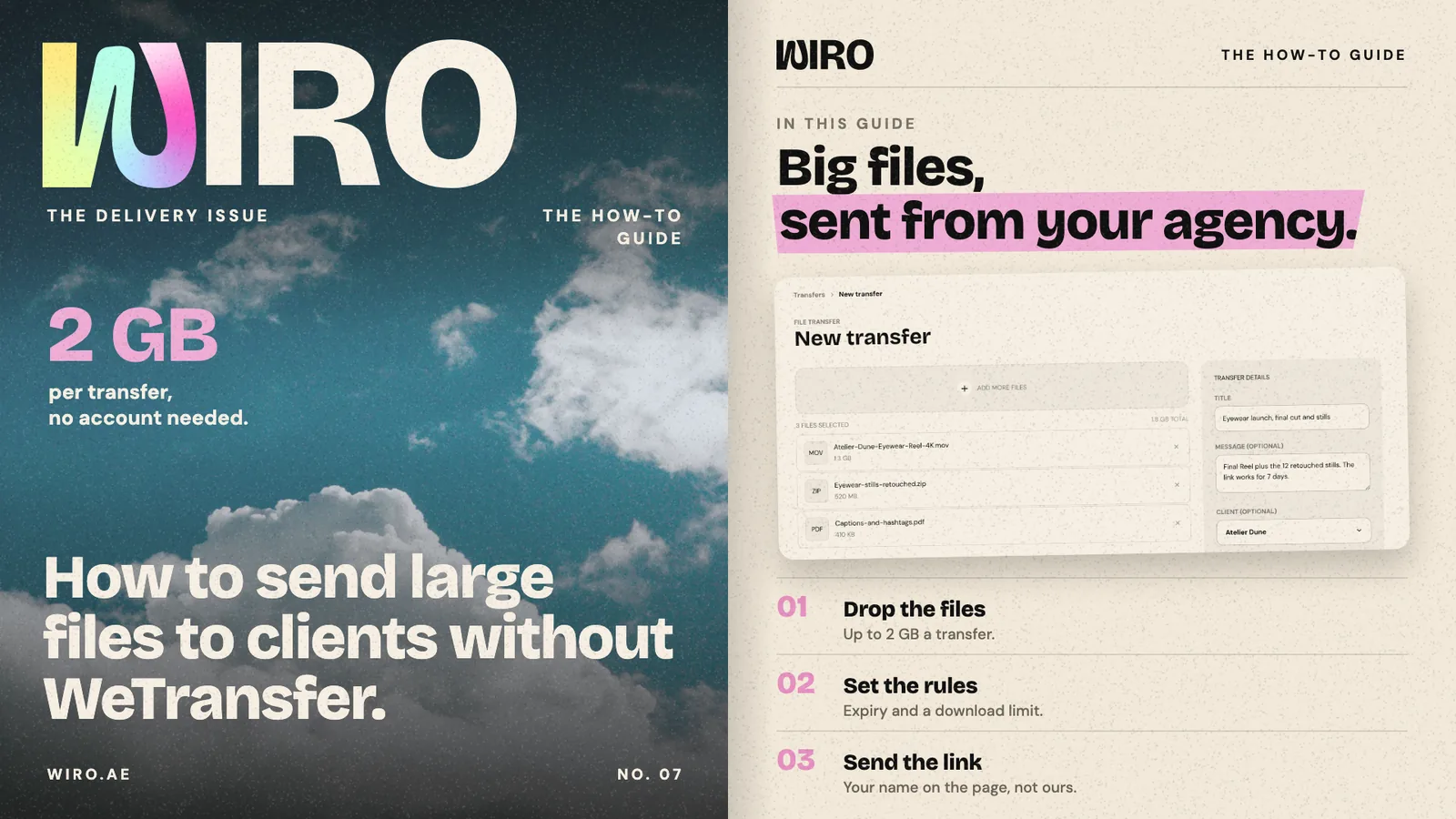
Sending a client the final files is the last thing an agency does on a job, and it is often done on someone else's site, with someone else's name on the download page. Transfer is built into Wiro, so the delivery comes from your agency and stays attached to the client. This guide follows Bloom Agency sending an eyewear launch's final cut and stills; the screens are Wiro with sample data.
Step 1: Open Transfer
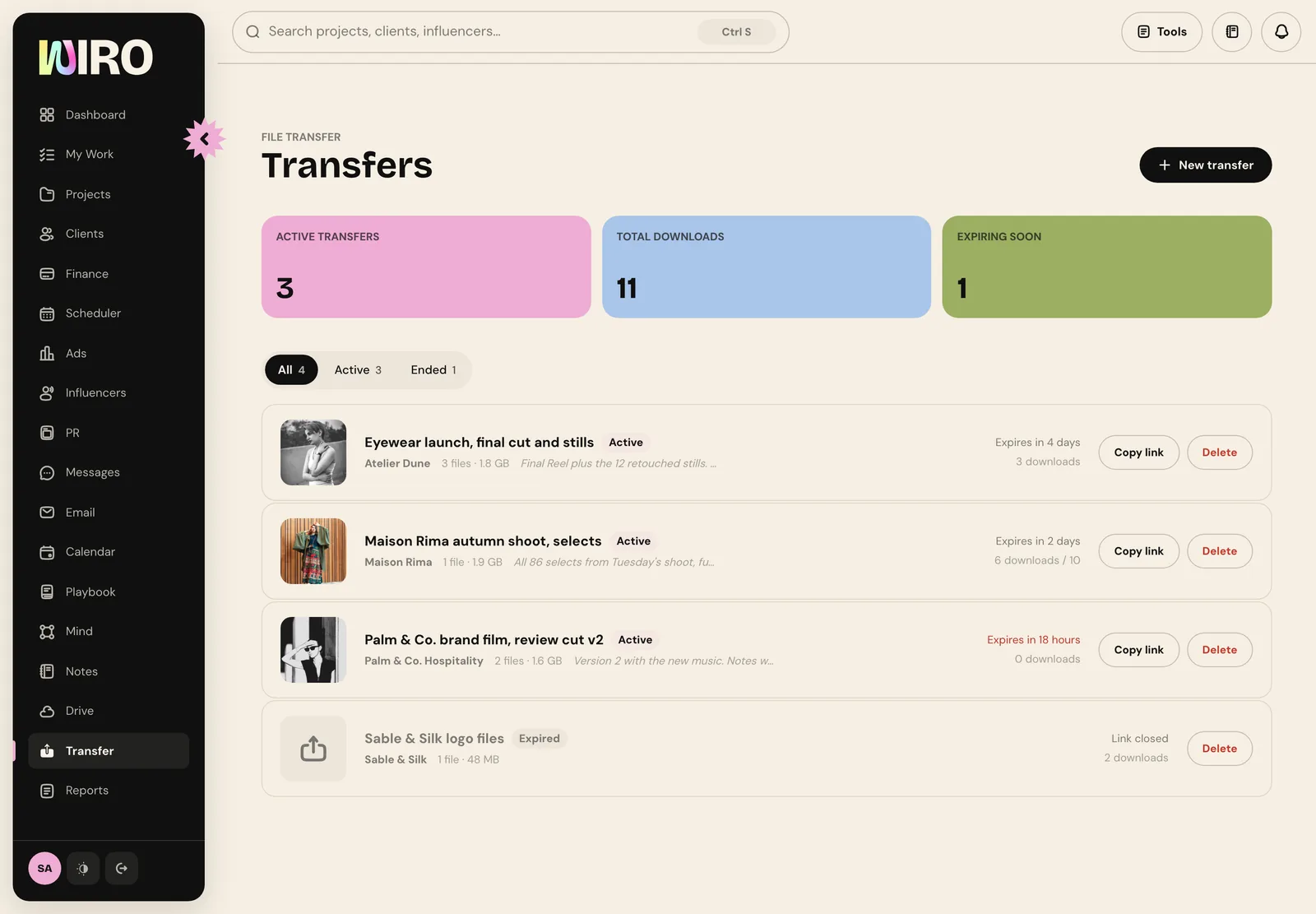
Open Transfer in the sidebar. You see every transfer you have sent with its client, files and size, when it expires and how many times it has been downloaded. The totals at the top count active transfers, total downloads and transfers expiring soon, and the tabs split active from ended.
Step 2: Add the files
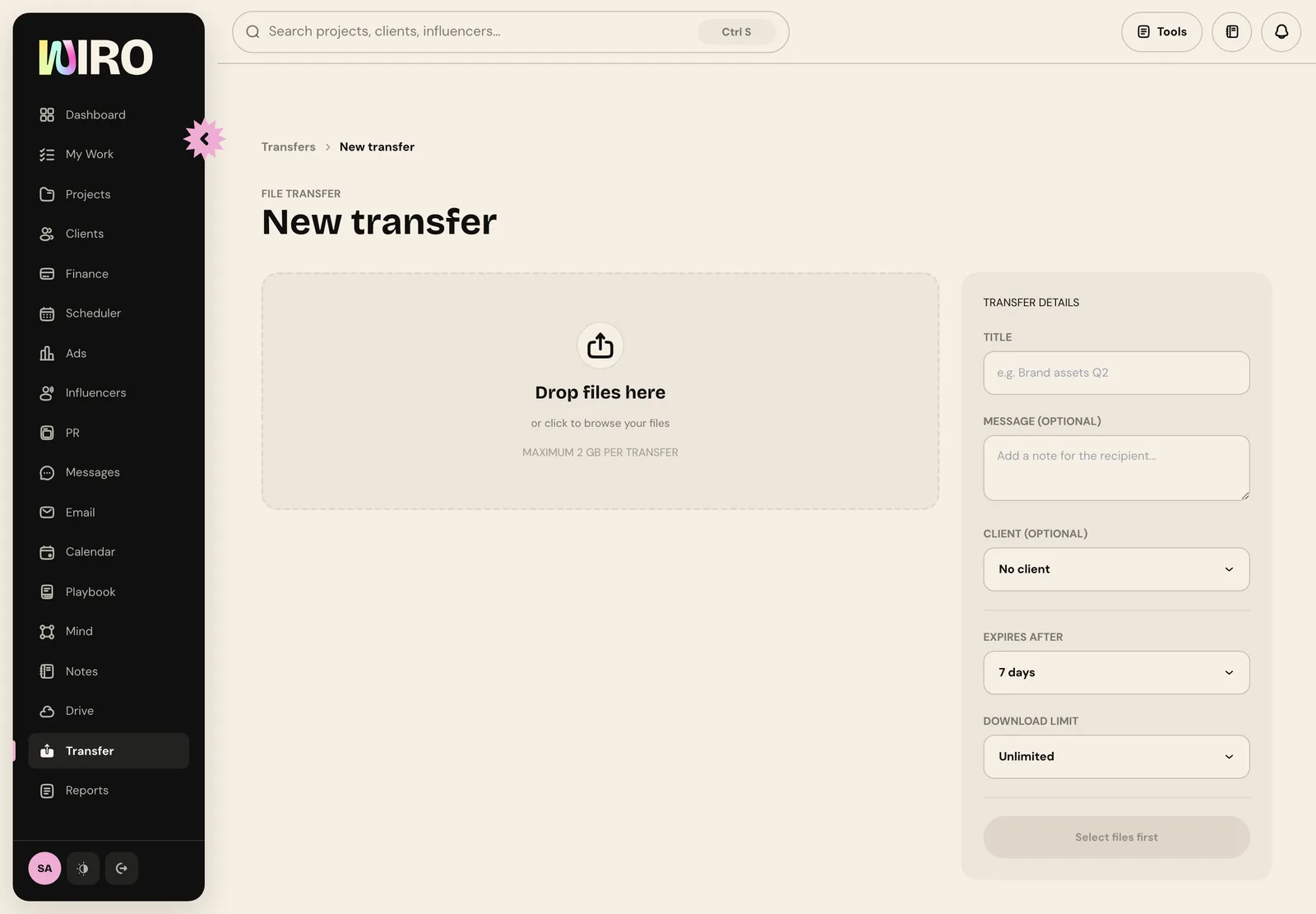
Choose New transfer and drop the files in, or choose them. Add more files as you go and remove any by mistake. Each transfer takes up to 2 GB in total, and Wiro shows the running total as you add files, so you know before you send if you need to split it in two.
Step 3: Set the details
Give the transfer a title the client will recognise and an optional message. Pick the client, so the transfer is filed under them. Then set the rules:
- Expires after: 1, 3, 7, 14 or 30 days. After that the link stops working and the files are removed.
- Download limit: unlimited, or 1, 5, 10 or 25 downloads. One visit counts once, however many files the client takes in it.
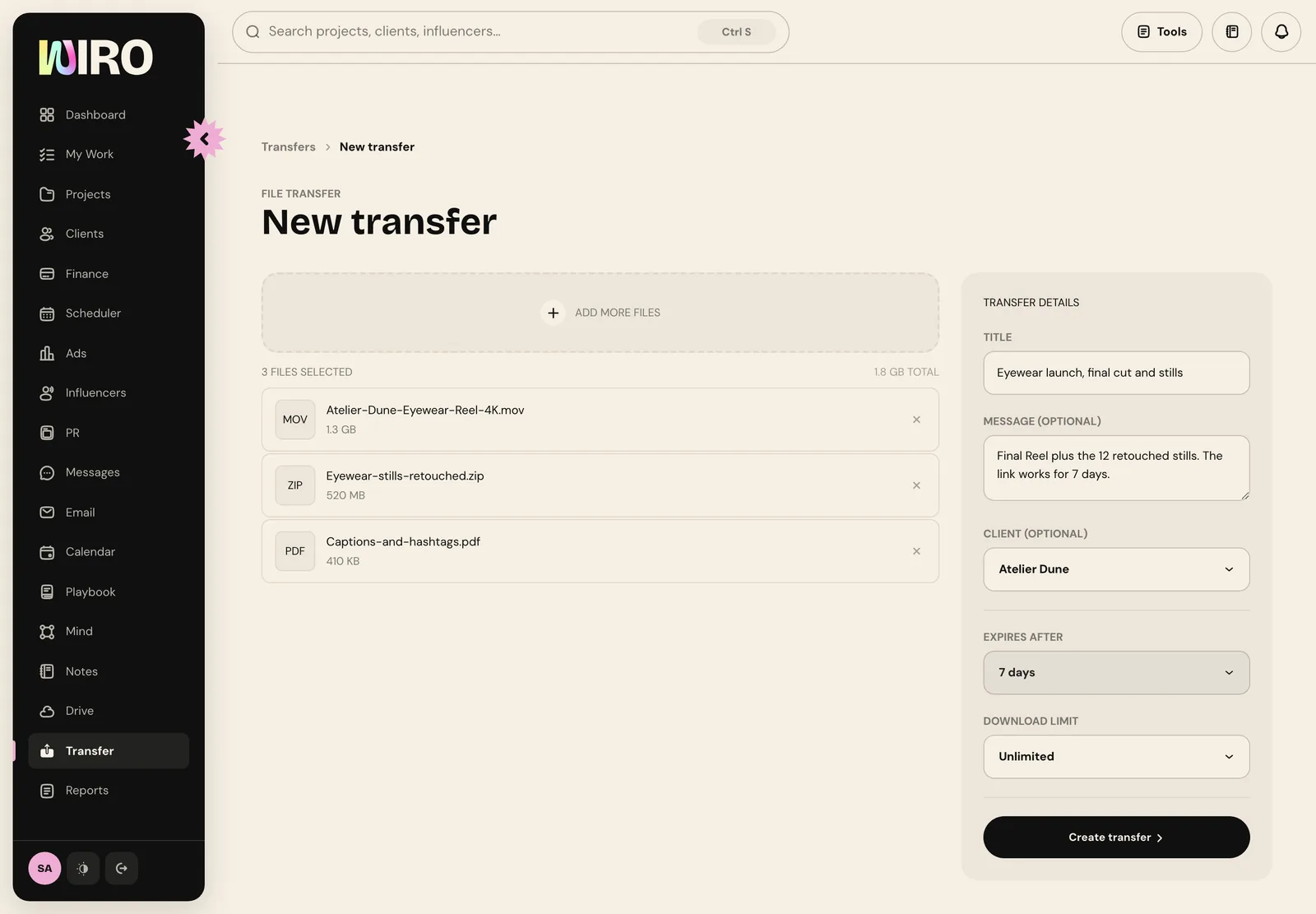
Choose Create transfer. The files upload, and the link is ready as soon as they finish.
Step 4: Send the link
The transfer's page has the link, with Copy link to paste it anywhere, and See what the client sees to check it first. To send it from Wiro, type one or more email addresses under Email the link and choose Send. The email goes out in your agency's name, and replies come to you.
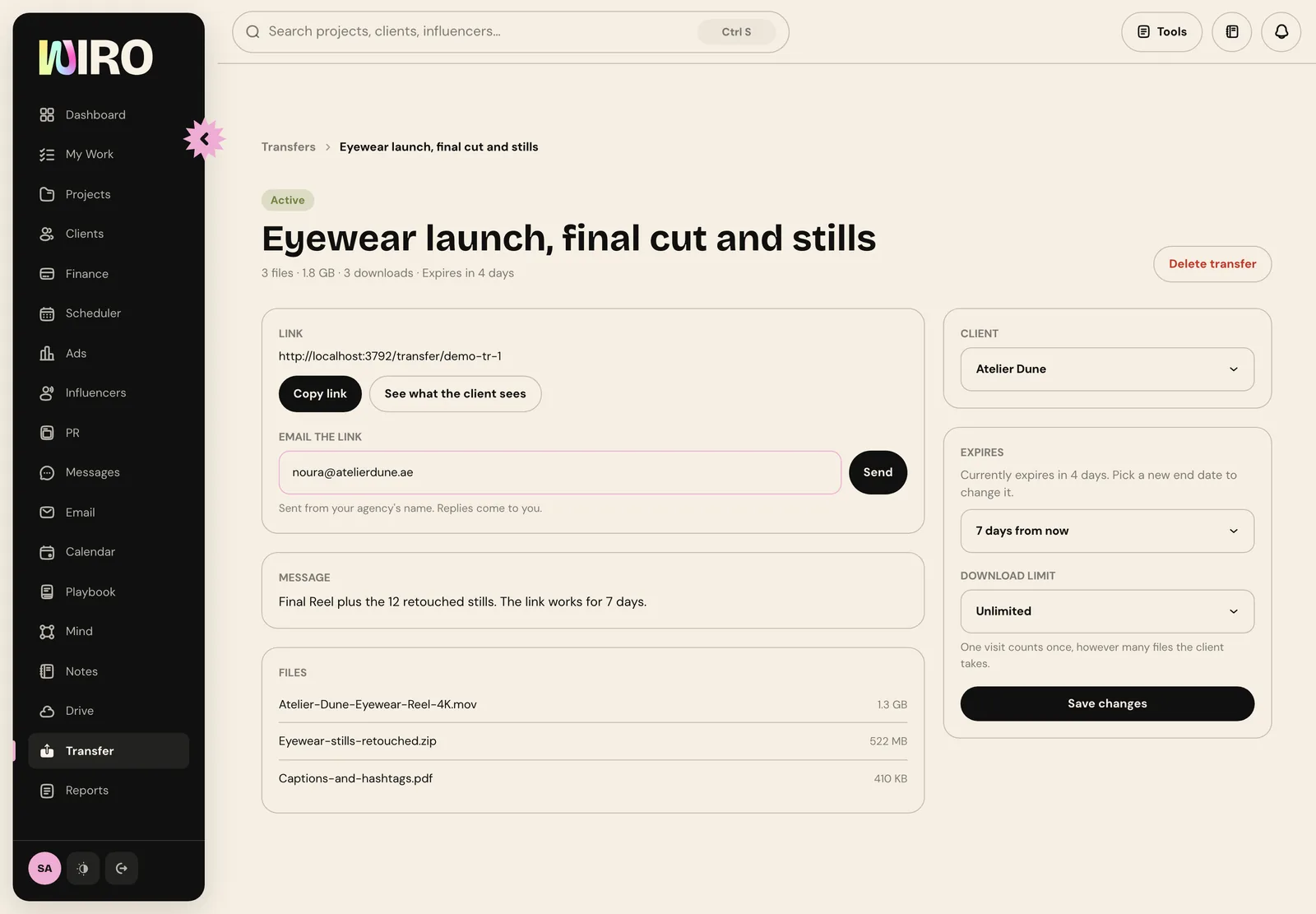
On the right you can change the client, push the expiry date back or change the download limit later, without sending a new link.
Step 5: What the client sees
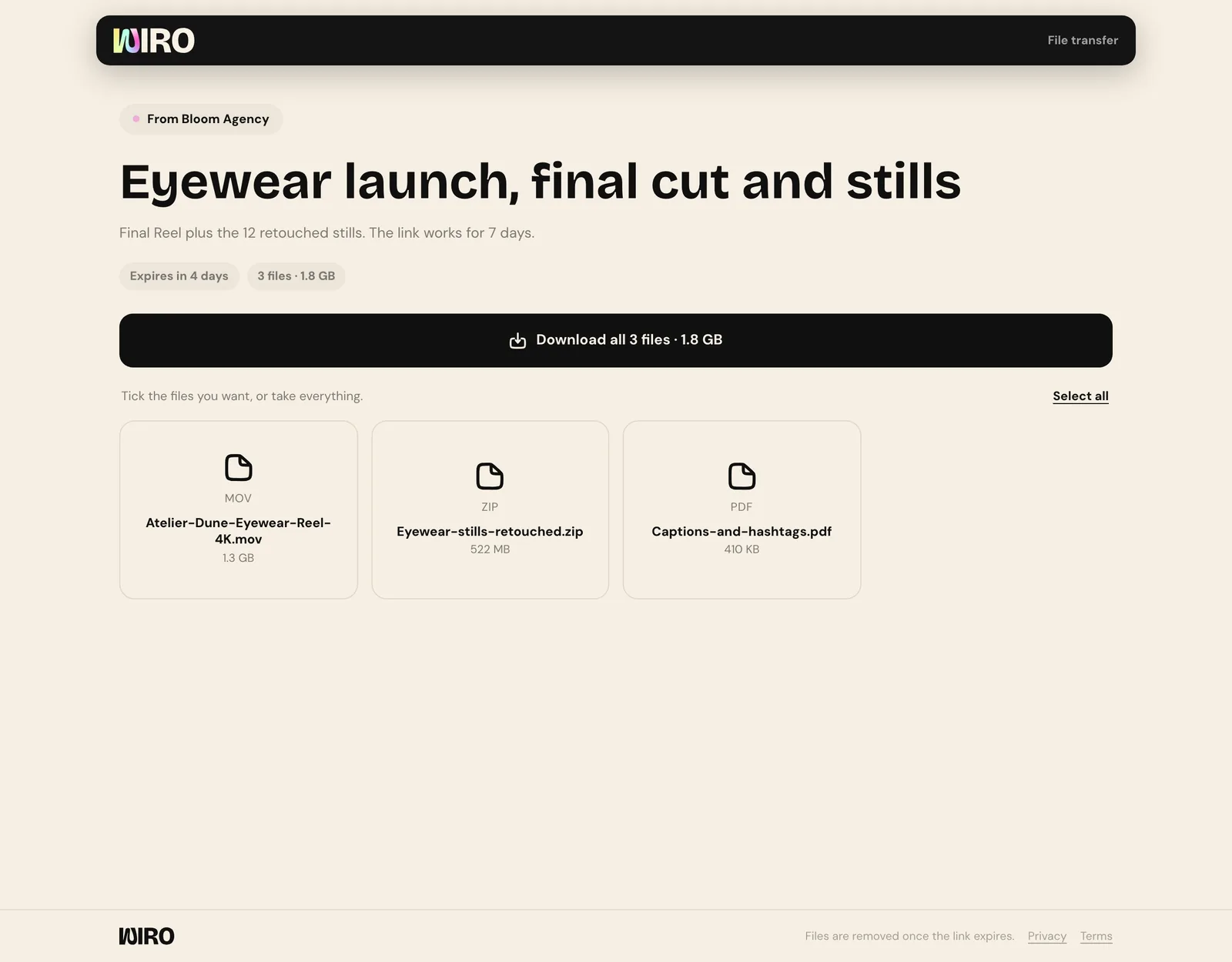
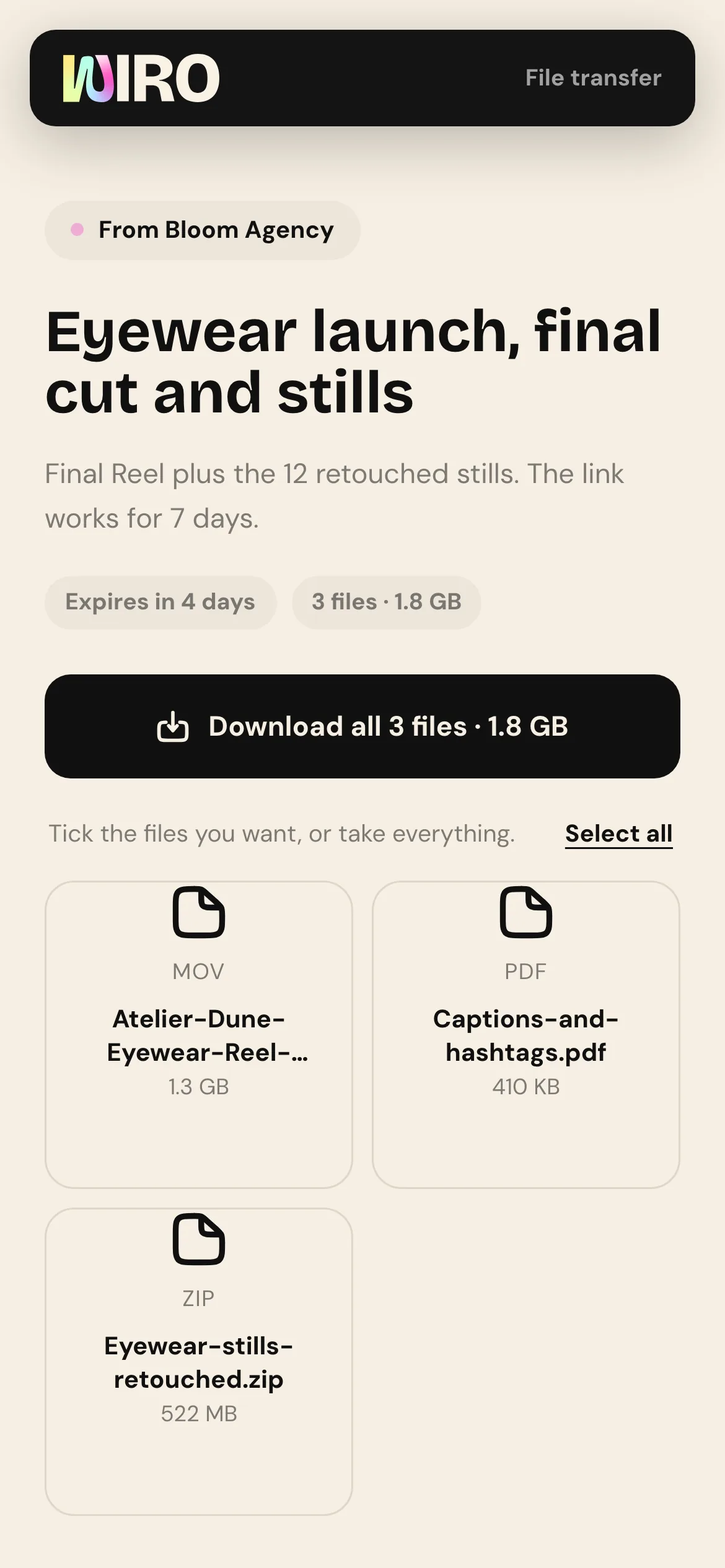
The client opens a page that says who it is from, with your title and message, when it expires, and the files. They can download everything at once or tick the files they want. There is nothing to sign up for. The page works the same on a phone.
Step 6: Know when it has been downloaded
Wiro notifies you the first time a transfer is downloaded, and the download count on the list keeps going up after that. When a transfer expires it shows as ended, the link closes and the files are cleared, so client work does not sit on a server forever.
- Name transfers after the deliverable, not the date: Eyewear launch, final cut and stills is easier to find next month than Files 21 October.
- Use a download limit for anything confidential before launch.
- If a video is over the limit, compress it or send the stills separately rather than splitting a single file.
The last file you send is the first thing the client opens. It should look like it came from you.
Every transfer stays on the list with its client, so when someone asks in March which version they were sent in October, the answer takes ten seconds.