
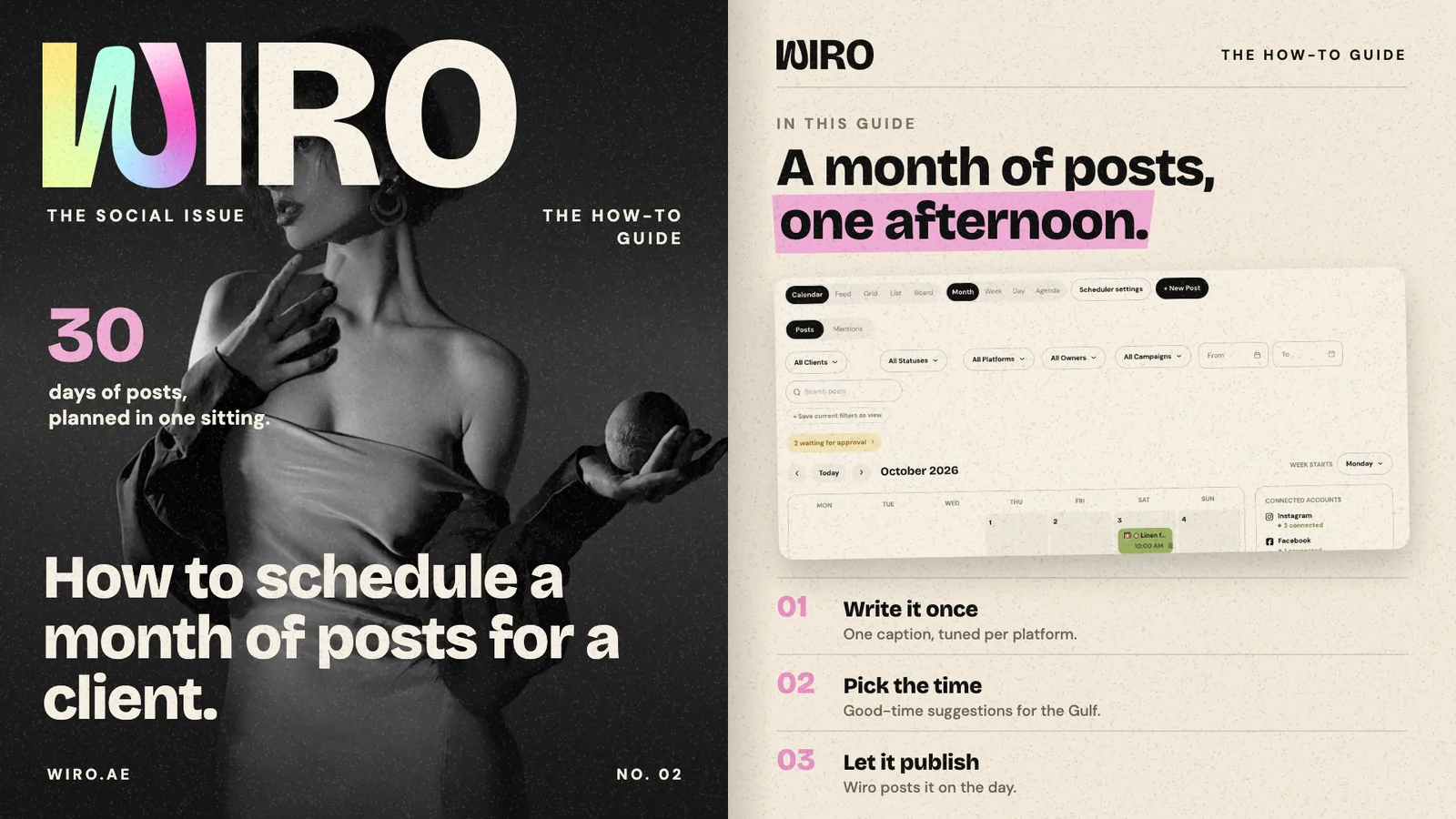
A month of posts is easier to plan in one sitting than in thirty small ones. This guide follows Bloom Agency planning October for its client Maison Rima, a fashion label in Dubai. The screens are Wiro's Scheduler with sample data. Have the month's photos and videos ready and the whole plan takes an afternoon, not a week of reminders.
Step 1: Start from the month
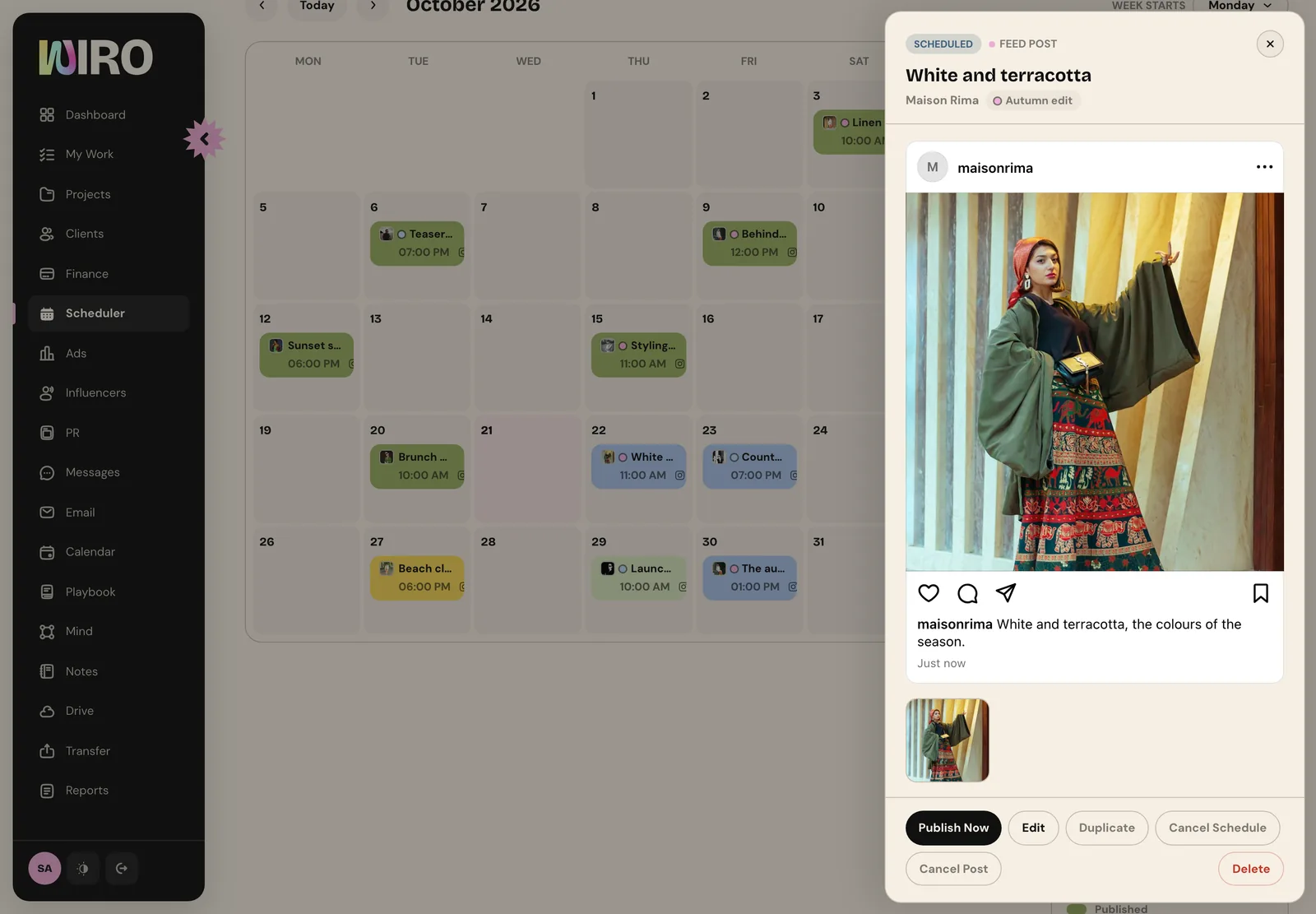
Open Scheduler and choose Calendar, then Month. Every post shows on its day with its time and platform, coloured by status. On the right, Connected accounts shows which platforms are connected for publishing. You can switch to Week, Day or Agenda, or to the Feed, Grid, List and Board views, at any point.
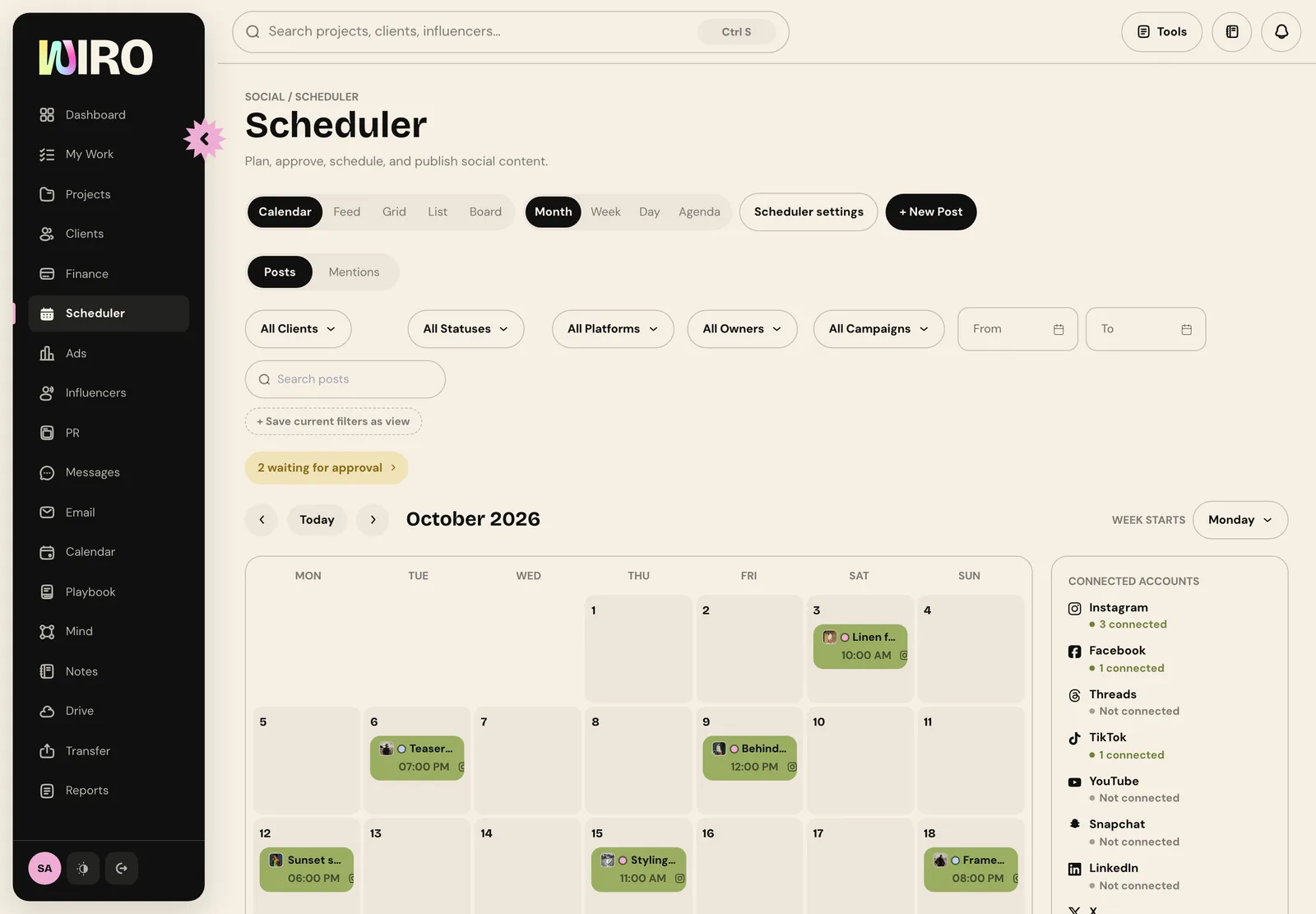
Filter by client before you start, so you only see the month you are planning. Save current filters as view keeps that filter one click away for next month.
Step 2: Create a post
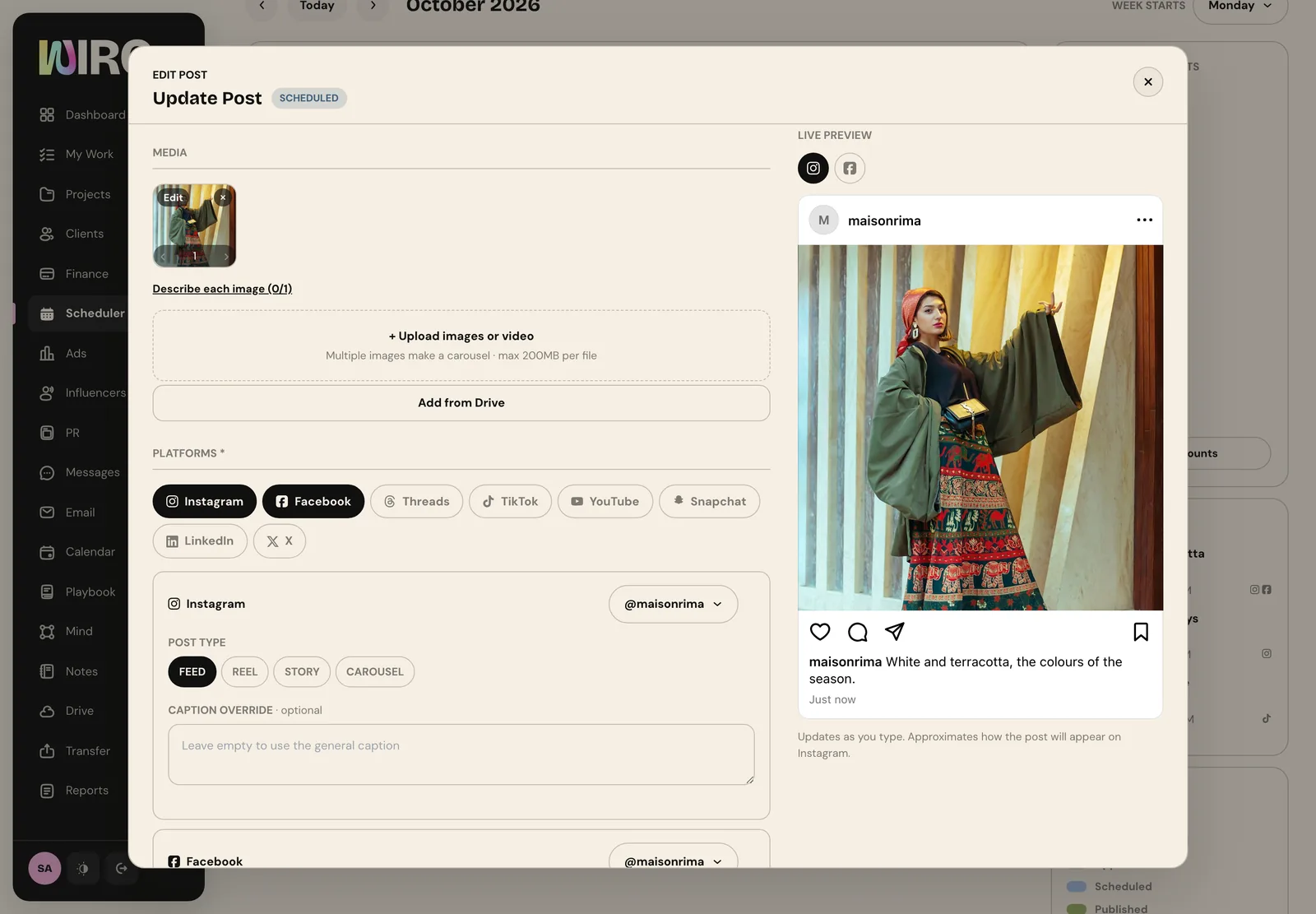
Choose New post. Pick the client, give the post an internal title the team will recognise, and, if you plan in campaigns, put it in one. Assign it to the person responsible. Then choose the post type: feed post, reel or short, story, carousel or video.
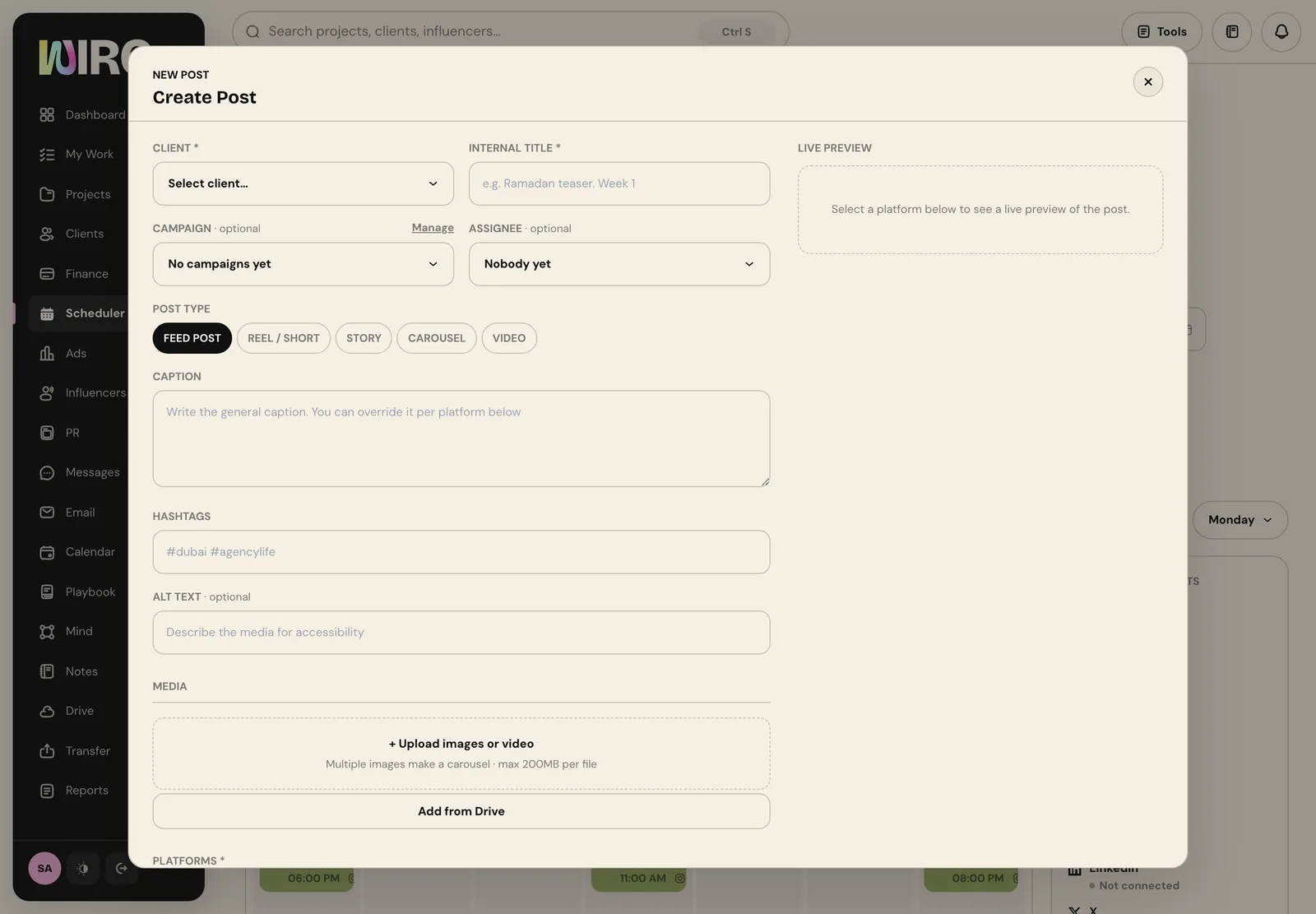
Write the caption once, add hashtags and alt text, and upload the media: images or a video up to 200 MB a file, where several images make a carousel. You can also add files straight from Drive. As you type, the live preview shows how the post will look on the platform.
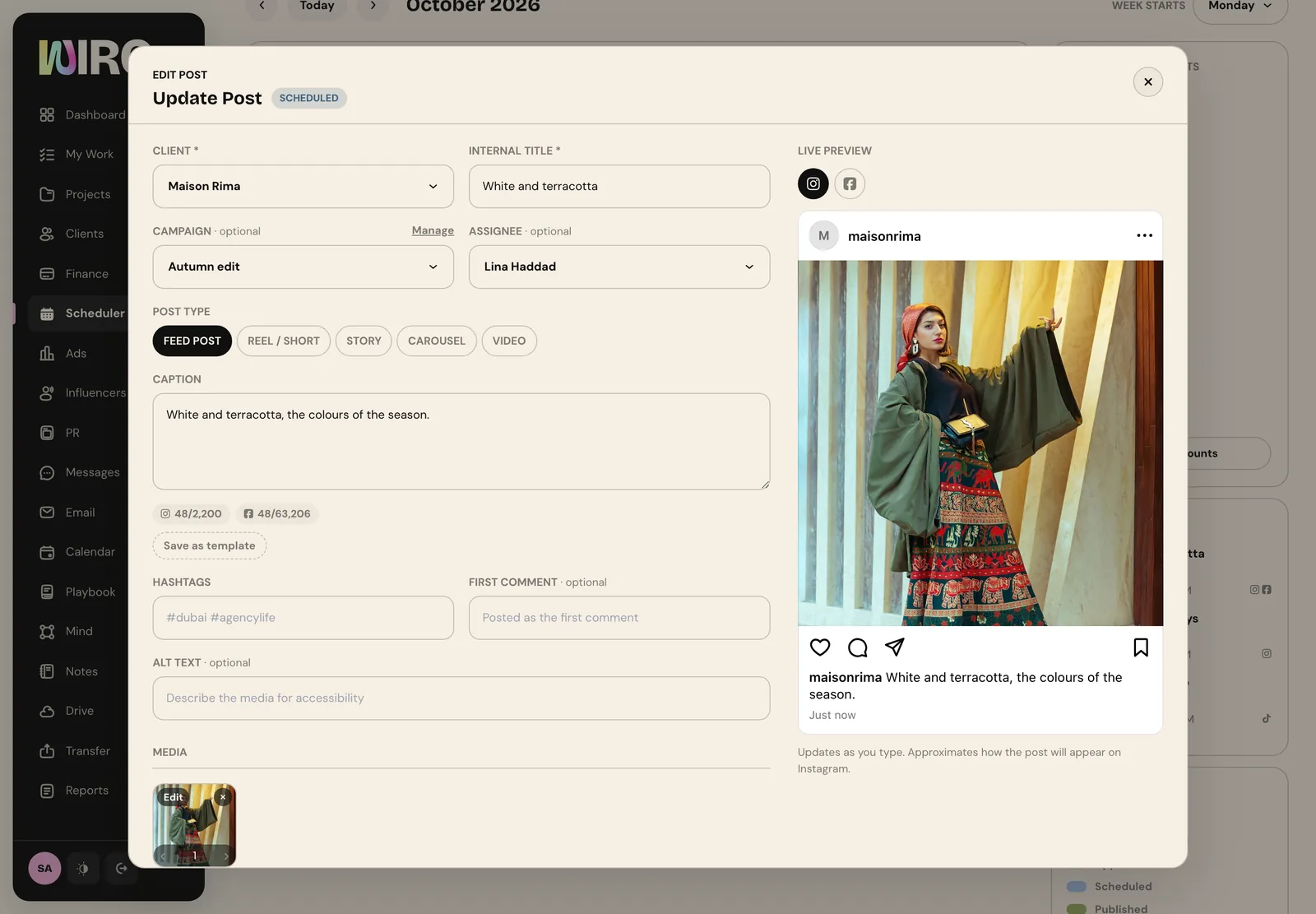
Step 3: Choose the platforms, and tune each one
Pick every platform the post goes to: Instagram, Facebook, Threads, TikTok, YouTube, Snapchat, LinkedIn or X. Each one gets its own card with the account to post from and the post type for that platform. Leave the caption override empty to use the general caption, or write a shorter one for X and a longer one for LinkedIn.
Step 4: Pick the time
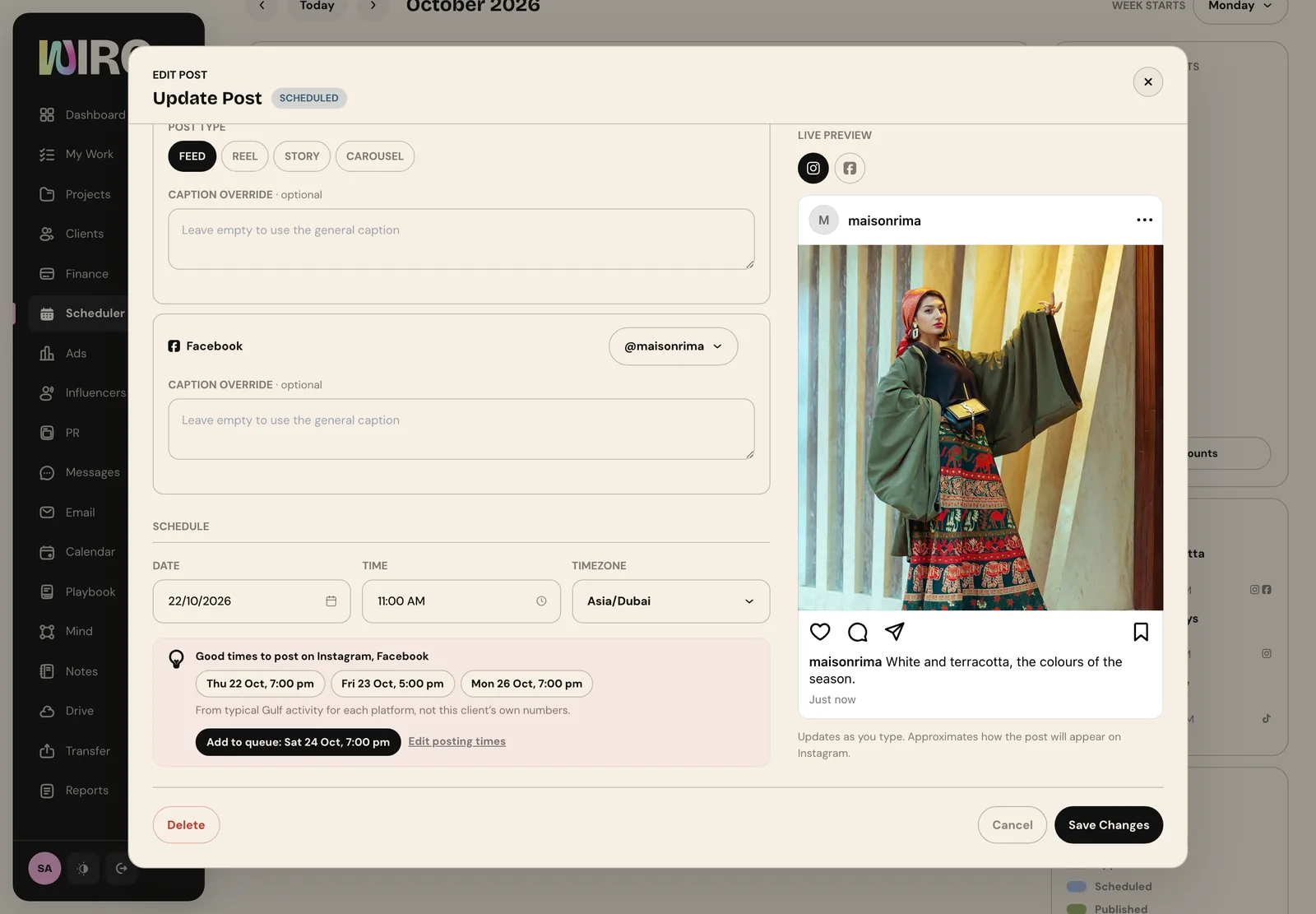
Under Schedule, set the date, the time and the time zone. Wiro suggests good times for the platforms you picked, based on typical Gulf activity for each platform rather than this client's own numbers, so treat them as a starting point. Add to queue puts the post in the client's next free posting time.
Step 5: Give the client fixed posting times
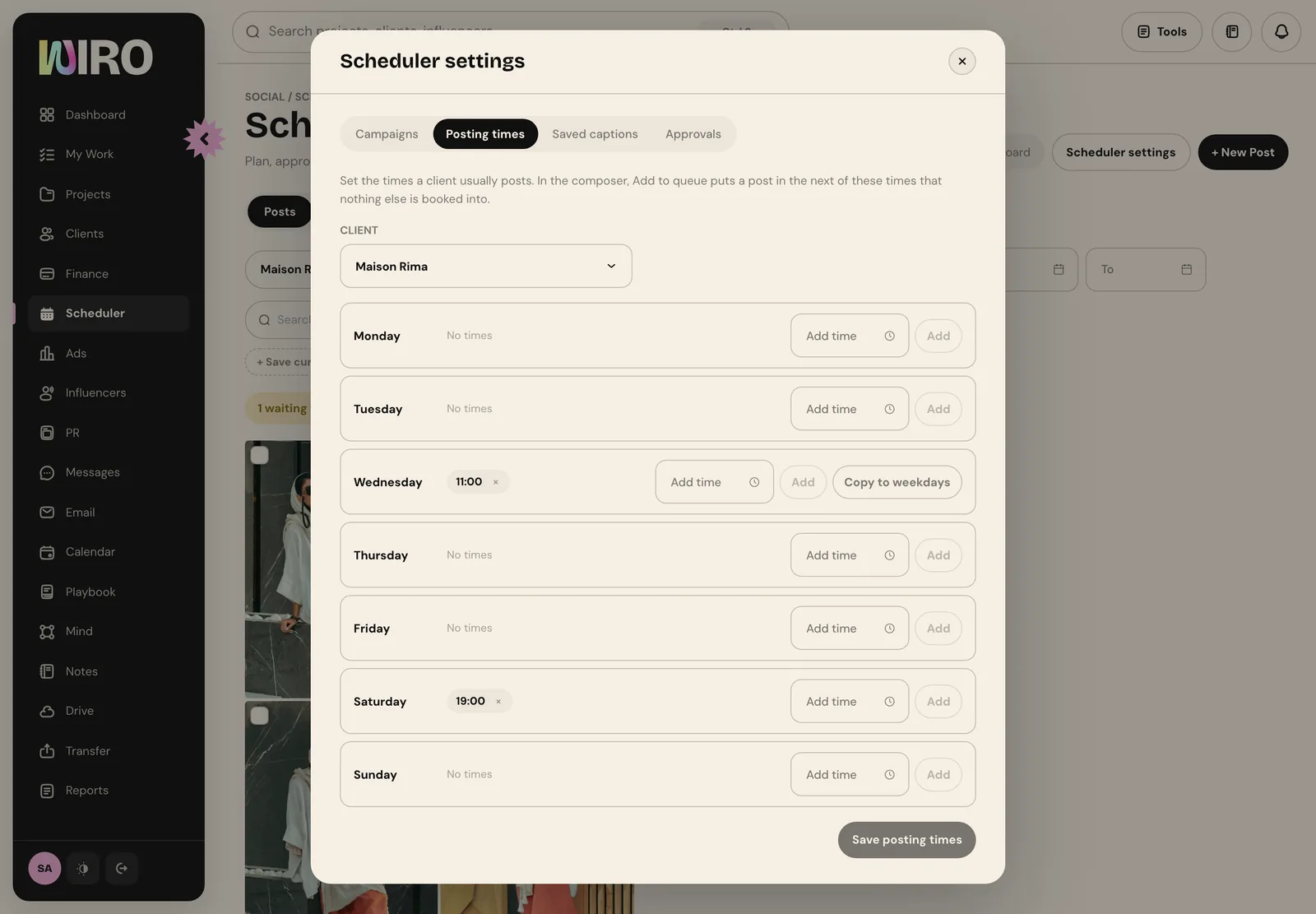
If a client posts on set days, open Scheduler settings, then Posting times. Add times for each weekday, for example Wednesday at 11:00 and Saturday at 19:00, and save. From then on, Add to queue fills the next of those times that nothing else is booked into, so a month of posts lands on the right days without you counting dates.
Step 6: Check the month as the audience will see it
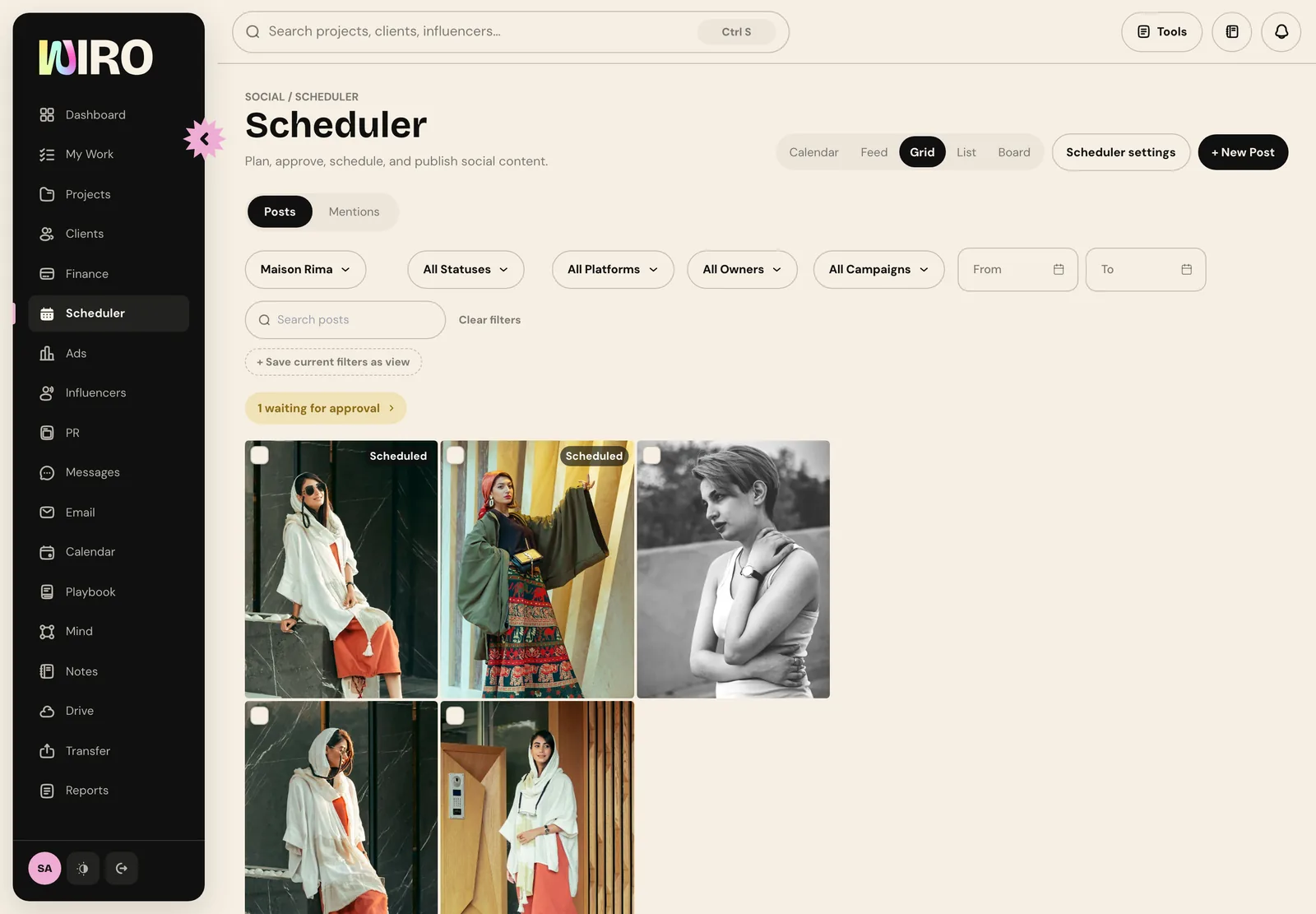
Switch to Grid with the client filter on. You see the month's posts as they will sit on the profile, in order, with what is scheduled and what is still waiting. It is the quickest way to spot two similar shots side by side or a week with nothing in it.
Step 7: Let it publish
Scheduled posts publish themselves at their time from the connected accounts. Open any post on the calendar to publish it now, edit it, duplicate it for the next week, or cancel the schedule. If the client approves posts before they go out, turn that on first: our guide to client approvals shows how.
- Plan the anchors first: launches, events and paid pushes. Fill the gaps after.
- Duplicate a post that works and change the image, rather than starting each one from blank.
- Write the internal title as the idea, not the date. Dates move; ideas do not.
Do this once a month and the client's feed stops depending on someone remembering to post on a Thursday evening.