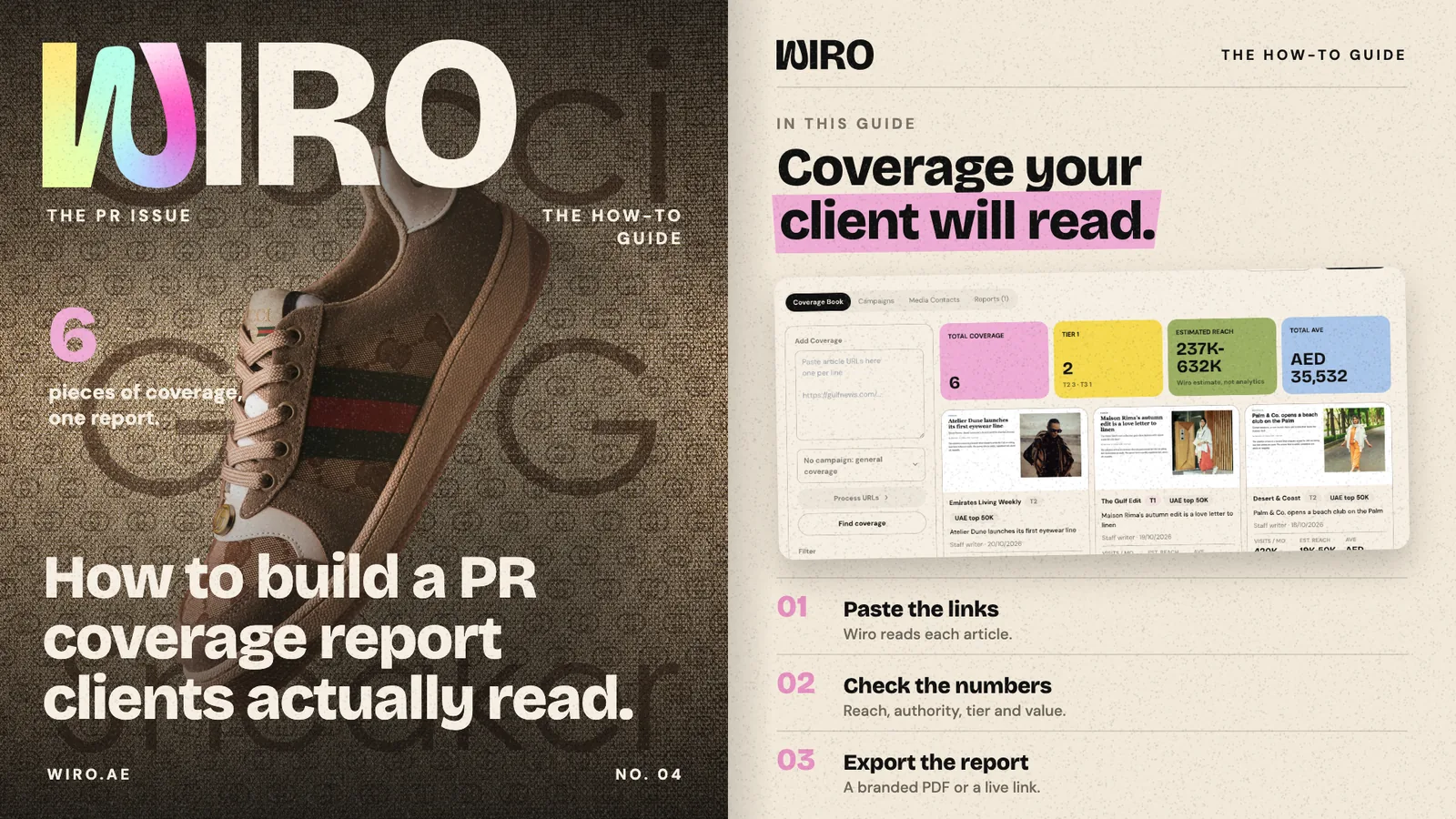
A coverage report is often the only thing a client sees of a month of PR work, so it has to be quick to read and honest about its numbers. This guide follows Bloom Agency reporting October coverage for two clients. The magazines in the screenshots are made up; the screens are Wiro's PR page.
Step 1: Paste the coverage links
Open PR. The Coverage book is where every piece of coverage lives. Under Add coverage, paste the article links, one per line. Wiro detects how many links you pasted. Pick the campaign they belong to, or leave them as general coverage, and choose Process URLs.
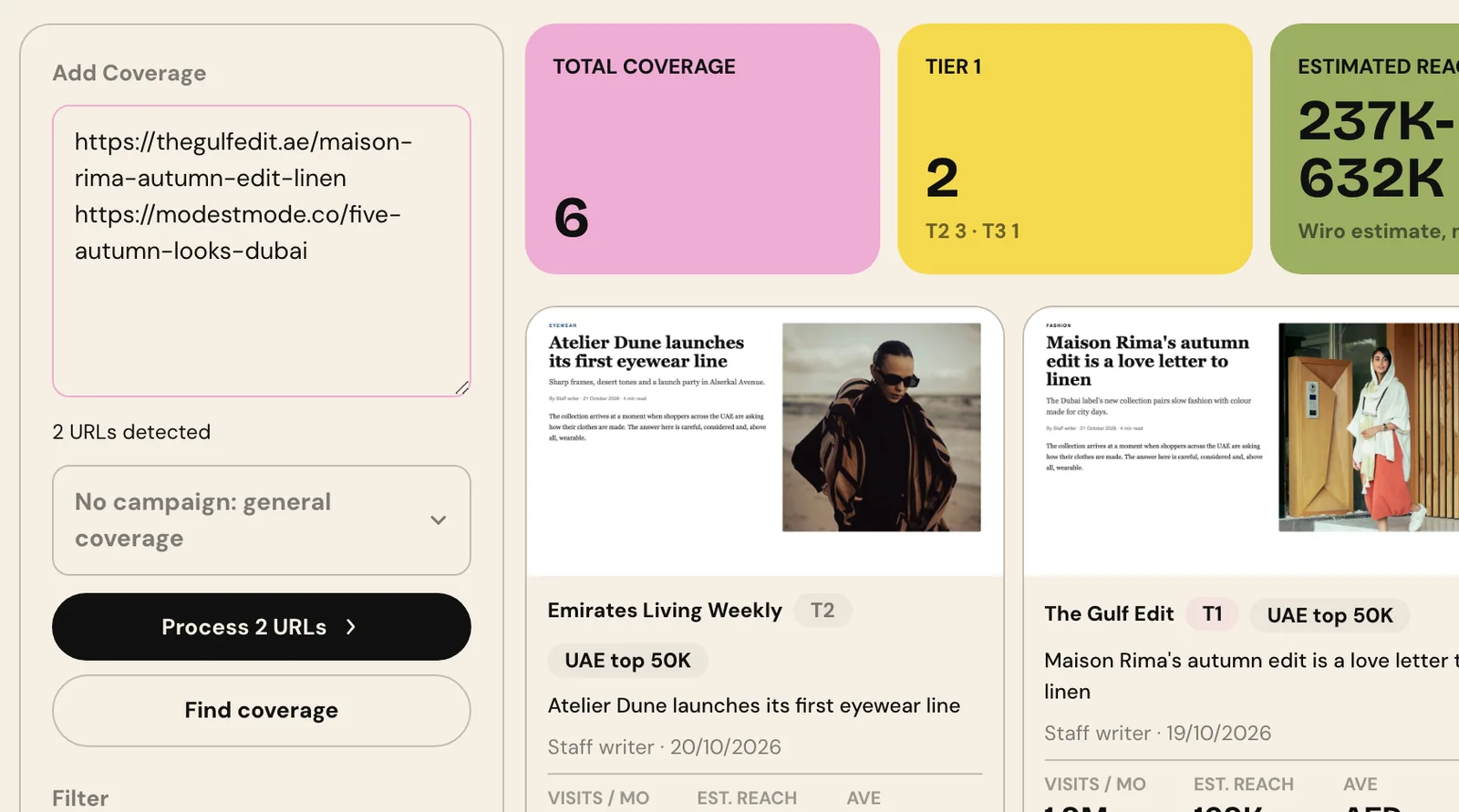
For each link Wiro opens the article, reads the headline, publication, author, date and language, and takes a screenshot of the page. Wiro's screenshot visitor identifies itself to the site, so publishers can see who is reading.
Step 2: Check the coverage book
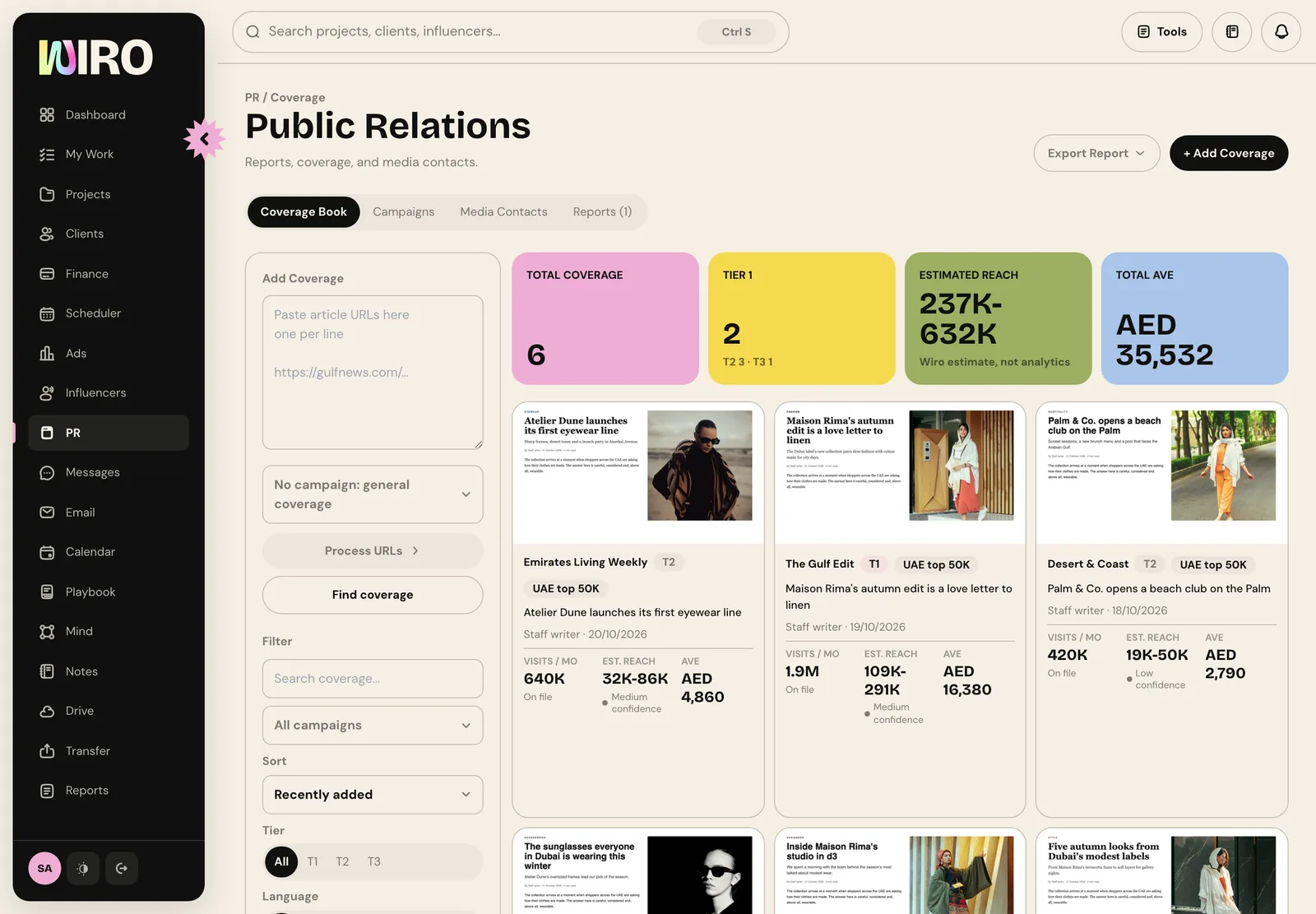
Each article becomes a card with the screenshot, the publication, its tier and the key numbers. Across the top, the totals add up: pieces of coverage, how many are tier 1, the estimated reach and the total advertising value equivalent. Filter by campaign, tier or language, or search, to see one client or one campaign.
Step 3: Open a piece and check its numbers
Open a card to see the full screenshot and everything Wiro worked out. Estimated reach is a range with a confidence level, worked out from the publication's audience, and it is labelled as a Wiro estimate, not the publisher's analytics. Monthly visits and domain authority show where each number came from.
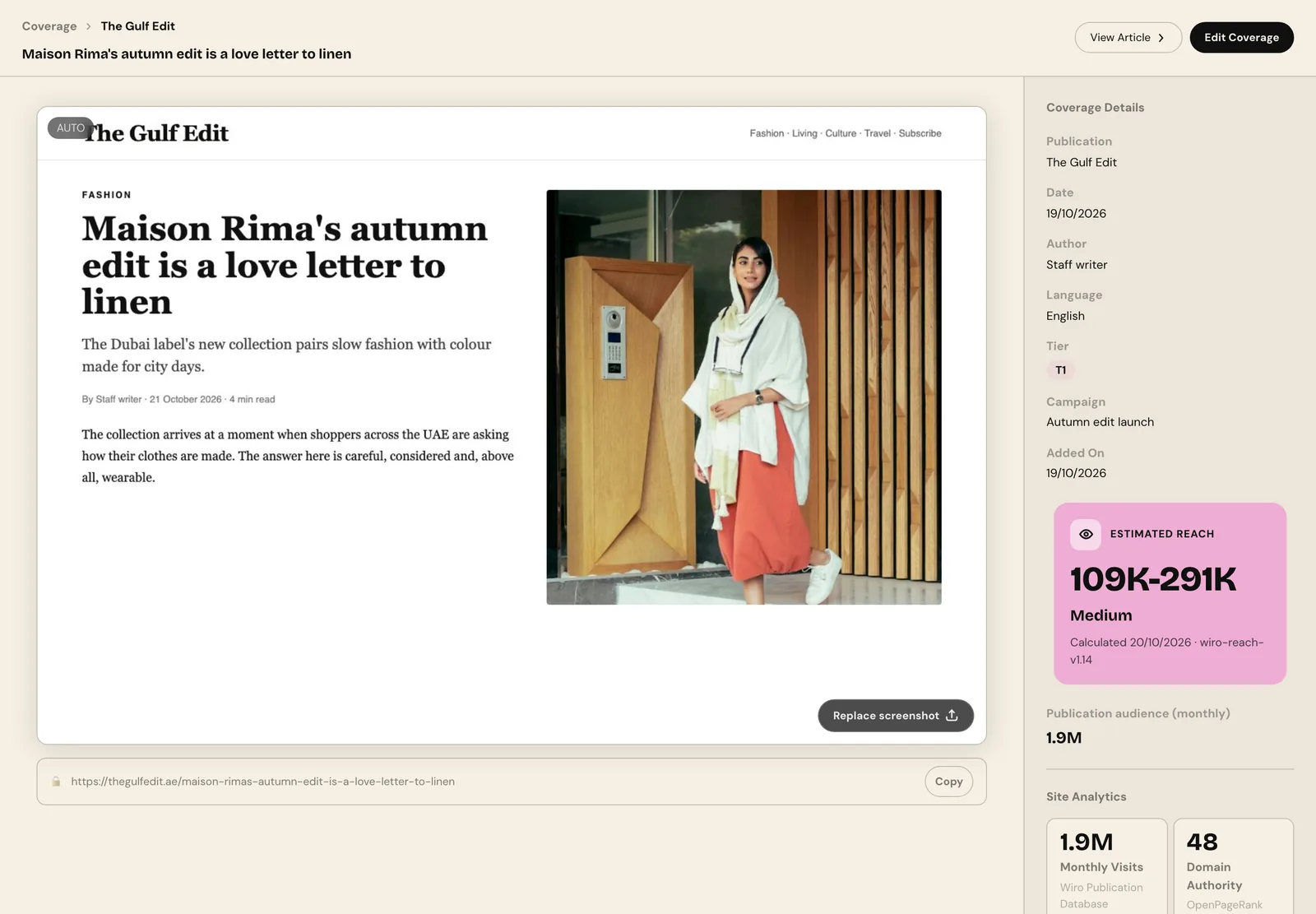
- Correct anything that is wrong before it reaches the report: the tier, the date, the campaign.
- If a page changed after it was published, Replace screenshot keeps the version you want on file.
- Report ranges as ranges. A client who is told 109K to 291K trusts the next number; one told 291K checks it.
Step 4: Group coverage into campaigns
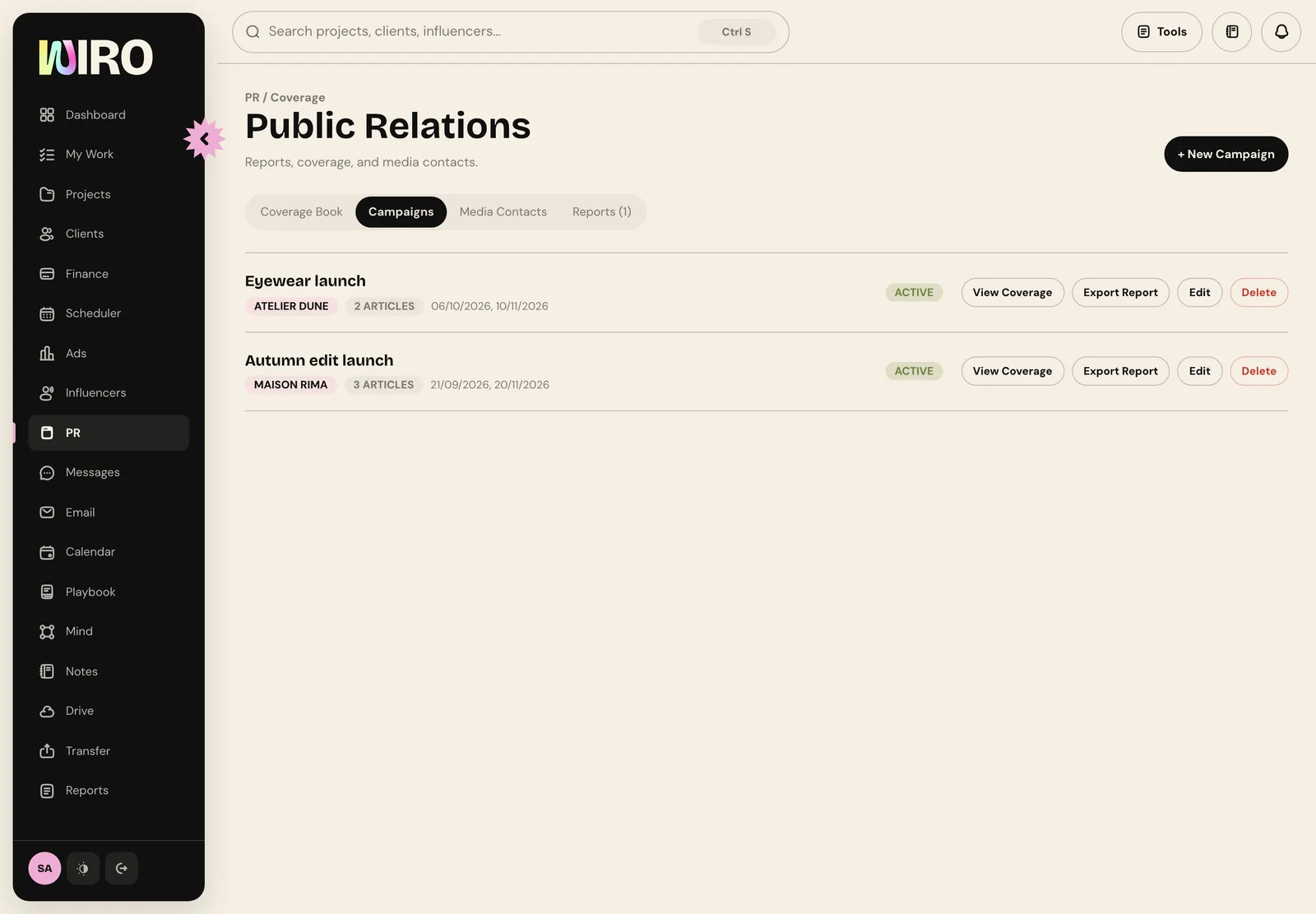
The Campaigns tab holds each PR campaign with its client, dates and the number of articles. Every campaign has View coverage and Export report, so a report is always one campaign, one client and one period.
Step 5: Choose what goes in the report
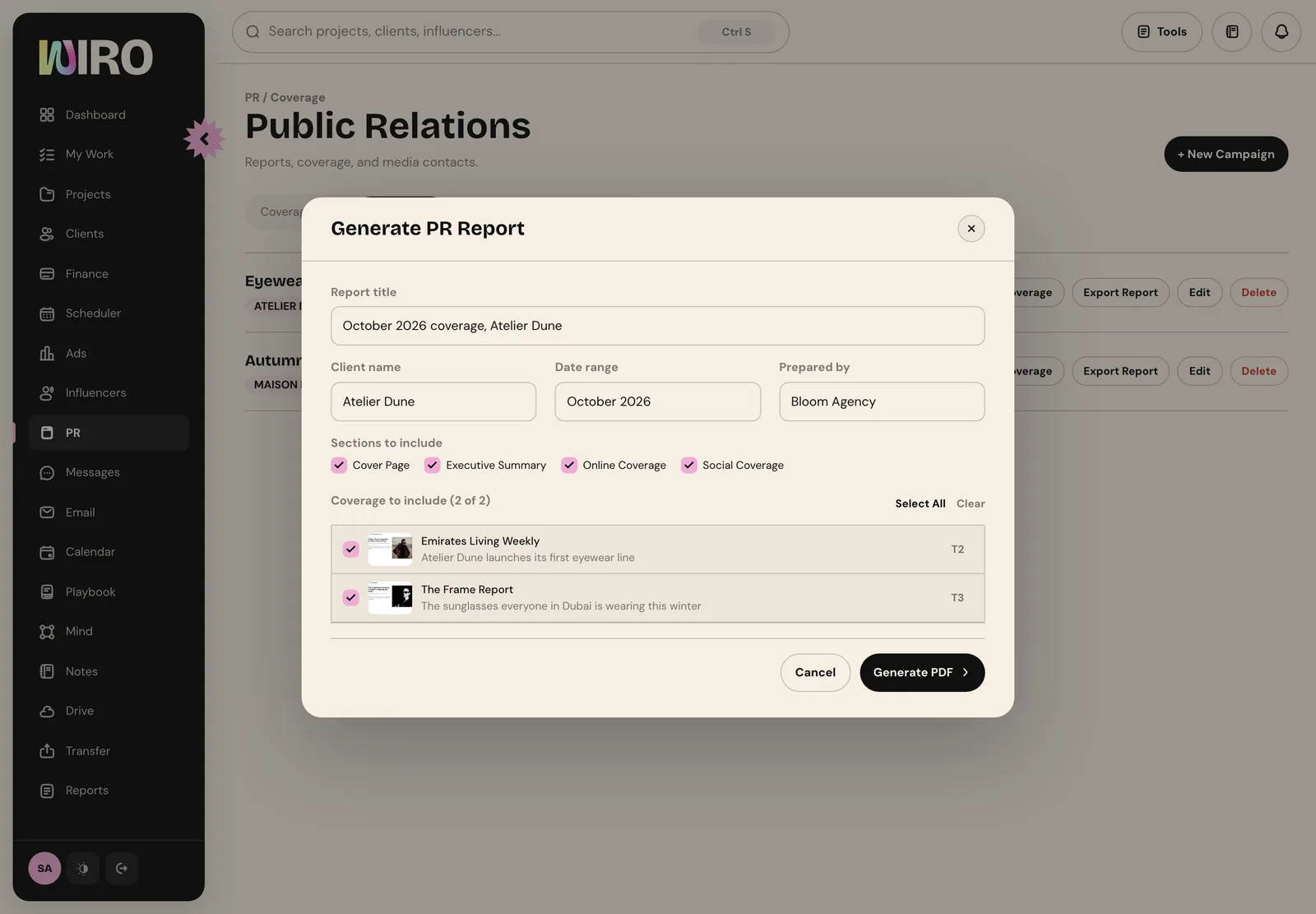
Choose Export report. Give it a title, the client name, the date range and who prepared it. Pick the sections to include: a cover page, an executive summary, online coverage and social coverage. Then tick the coverage to include, with its tier next to each piece, and choose Generate PDF.
Step 6: Read it the way the client will
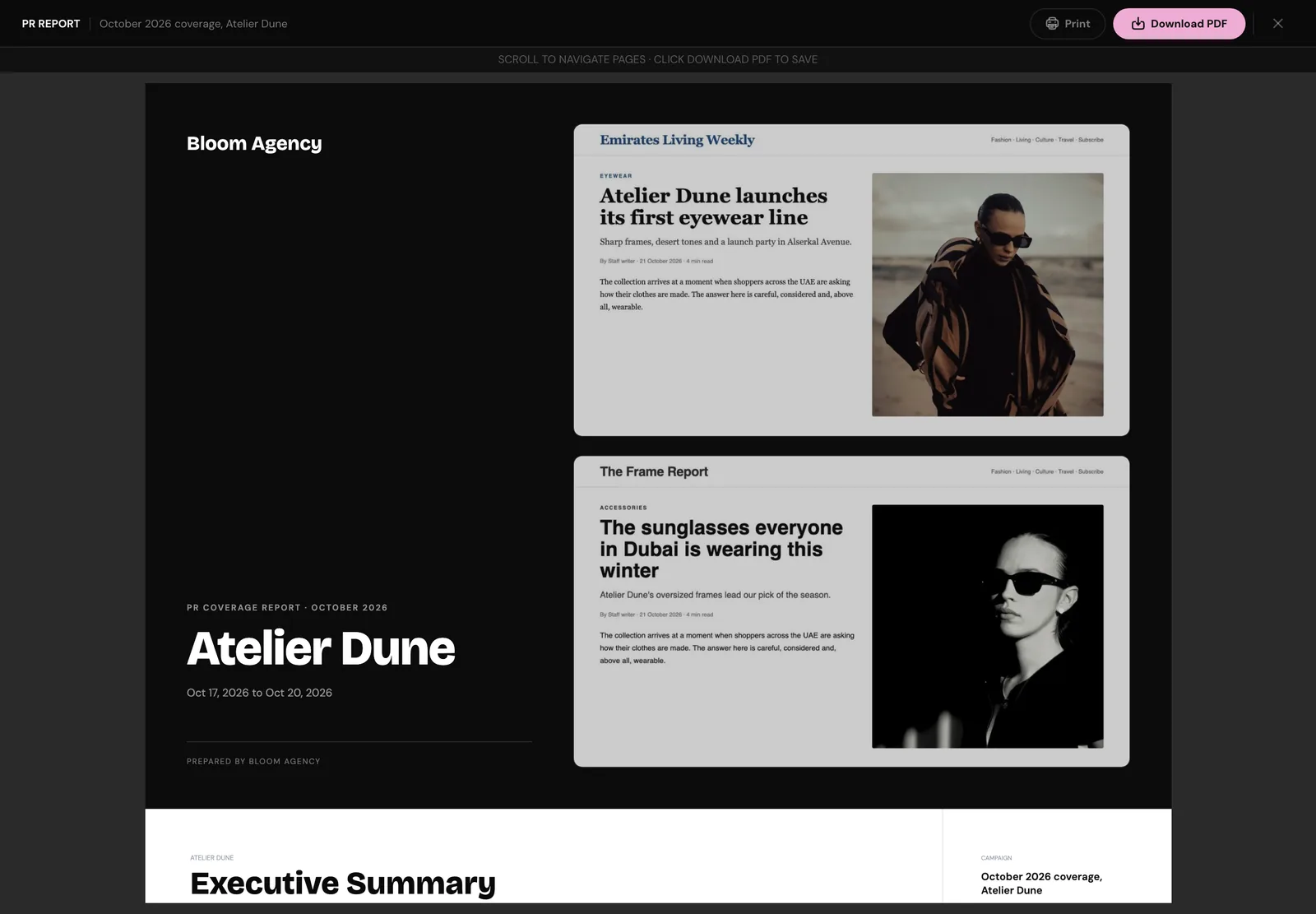
The report opens in a viewer. It starts with a cover in your agency's name with the client and the dates, followed by every article as it appeared.
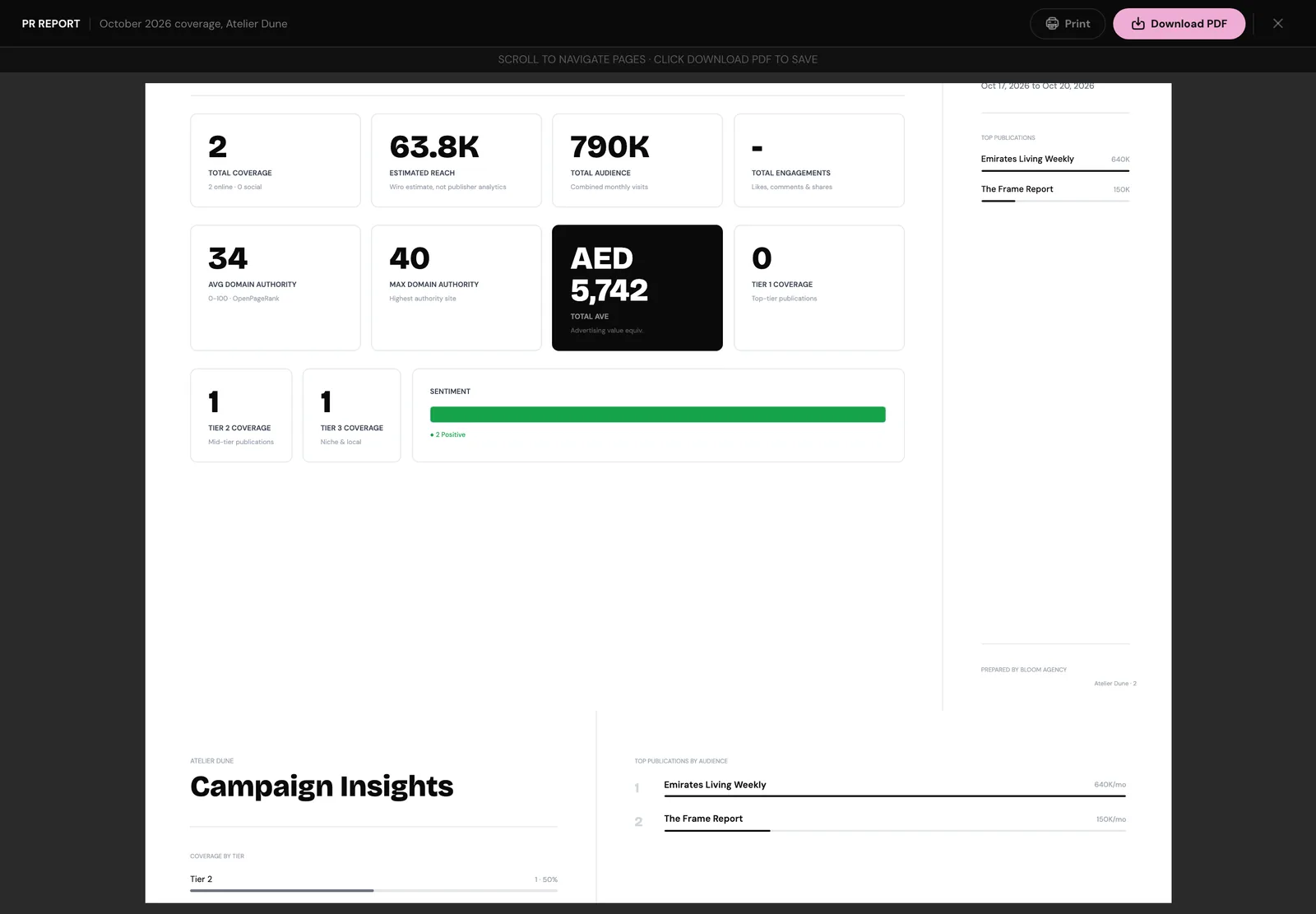
The executive summary puts the numbers in one place: total coverage, estimated reach, total audience, average and highest domain authority, total AVE, coverage by tier and sentiment. Choose Download PDF to save it, or Print. Every report you generate is kept on the Reports tab, where you can open it again or share it.
Clients do not read coverage reports. They read the first page, and then they look at the pictures.
So put the totals on the first page, keep every article's screenshot in, and leave the methodology where anyone who wants it can find it. Wiro's free PR report generator on this site does a simpler version in the browser if you want to try the format first.