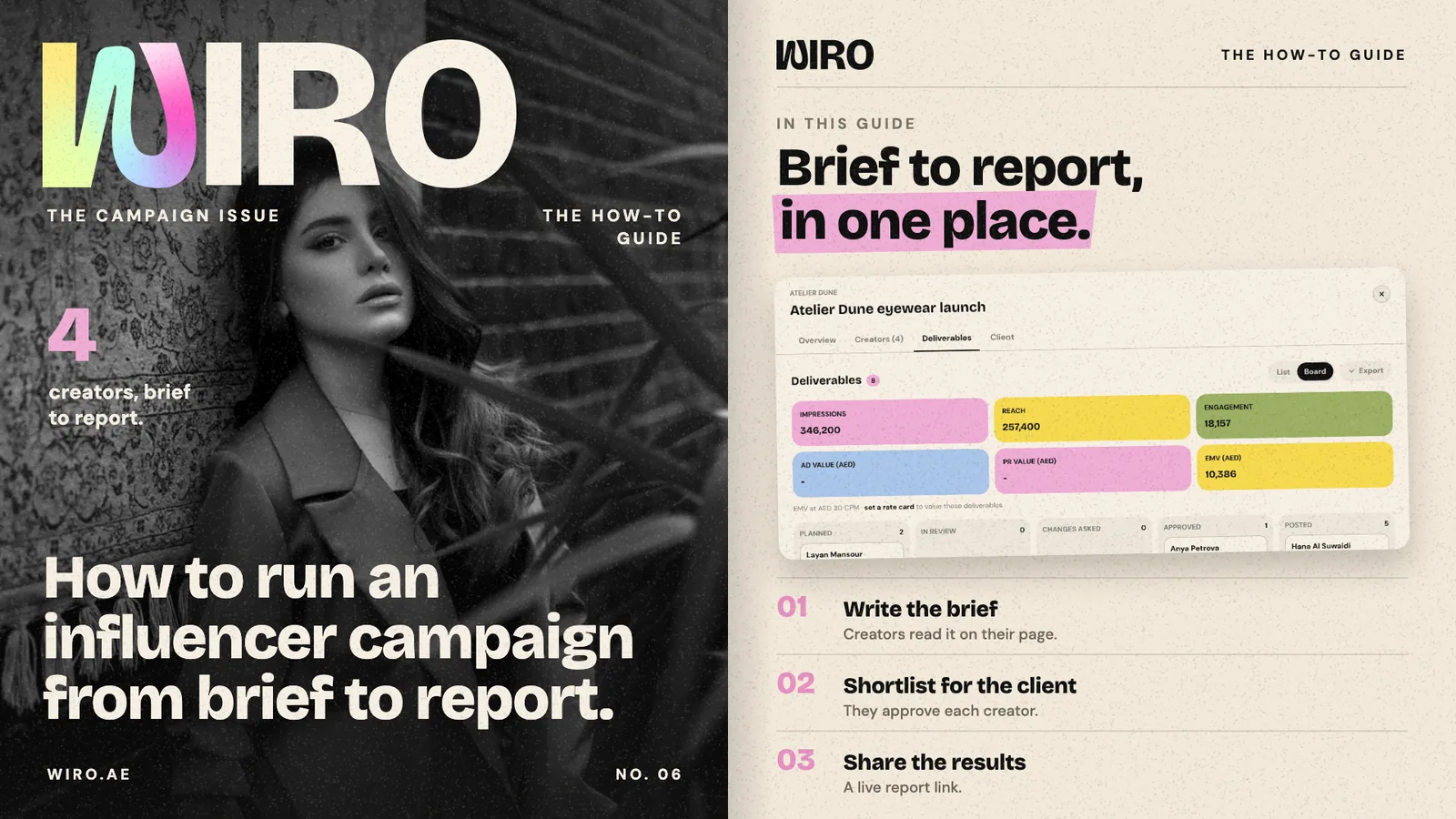
An influencer campaign usually lives in five places: a brief in a document, a shortlist in a spreadsheet, fees in an email, posts in screenshots and results in a deck. This guide runs one in a single place. Bloom Agency is launching Atelier Dune's eyewear line with four creators; the screens are Wiro with sample data.
Step 1: Create the campaign
Open Influencers and choose the Campaigns tab. Every campaign shows its client, budget, what is spent, the dates and the number of creators. Choose New campaign, or open one, to get the campaign workspace.
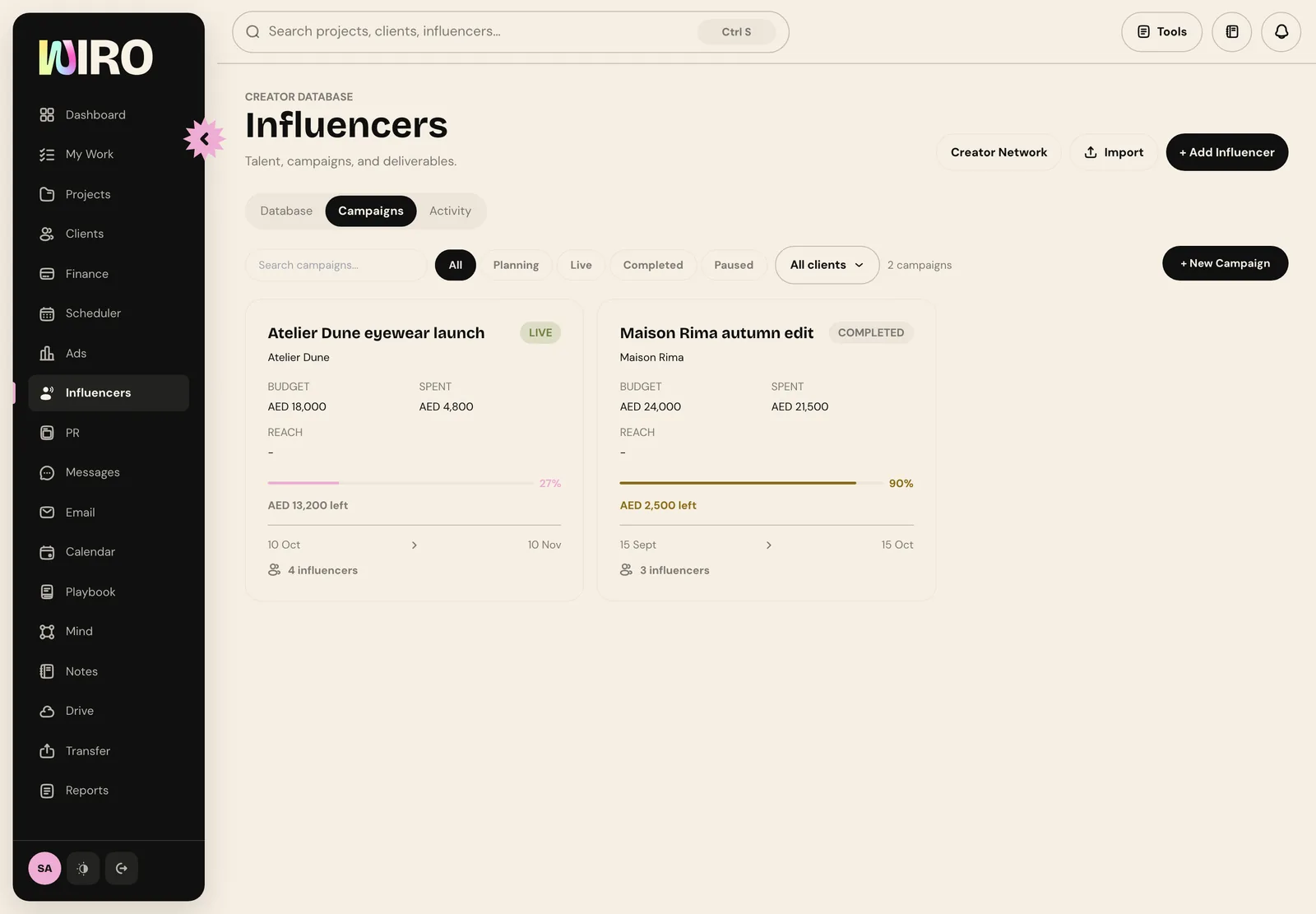
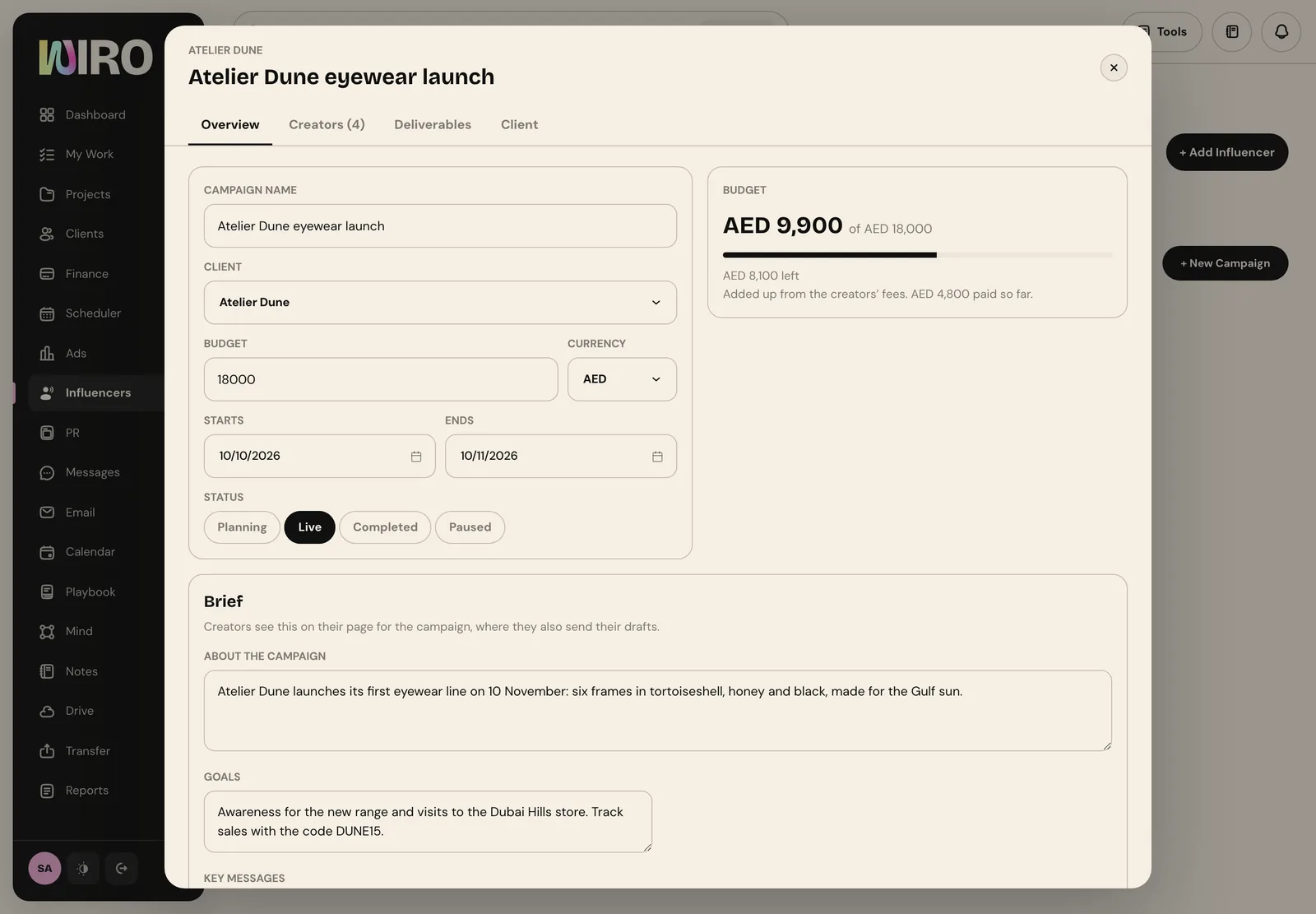
On Overview, set the name, client, budget and currency, the start and end dates and the status: planning, live, completed or paused. The budget card adds up the creators' fees as you book them, so you see what is left.
Step 2: Write the brief
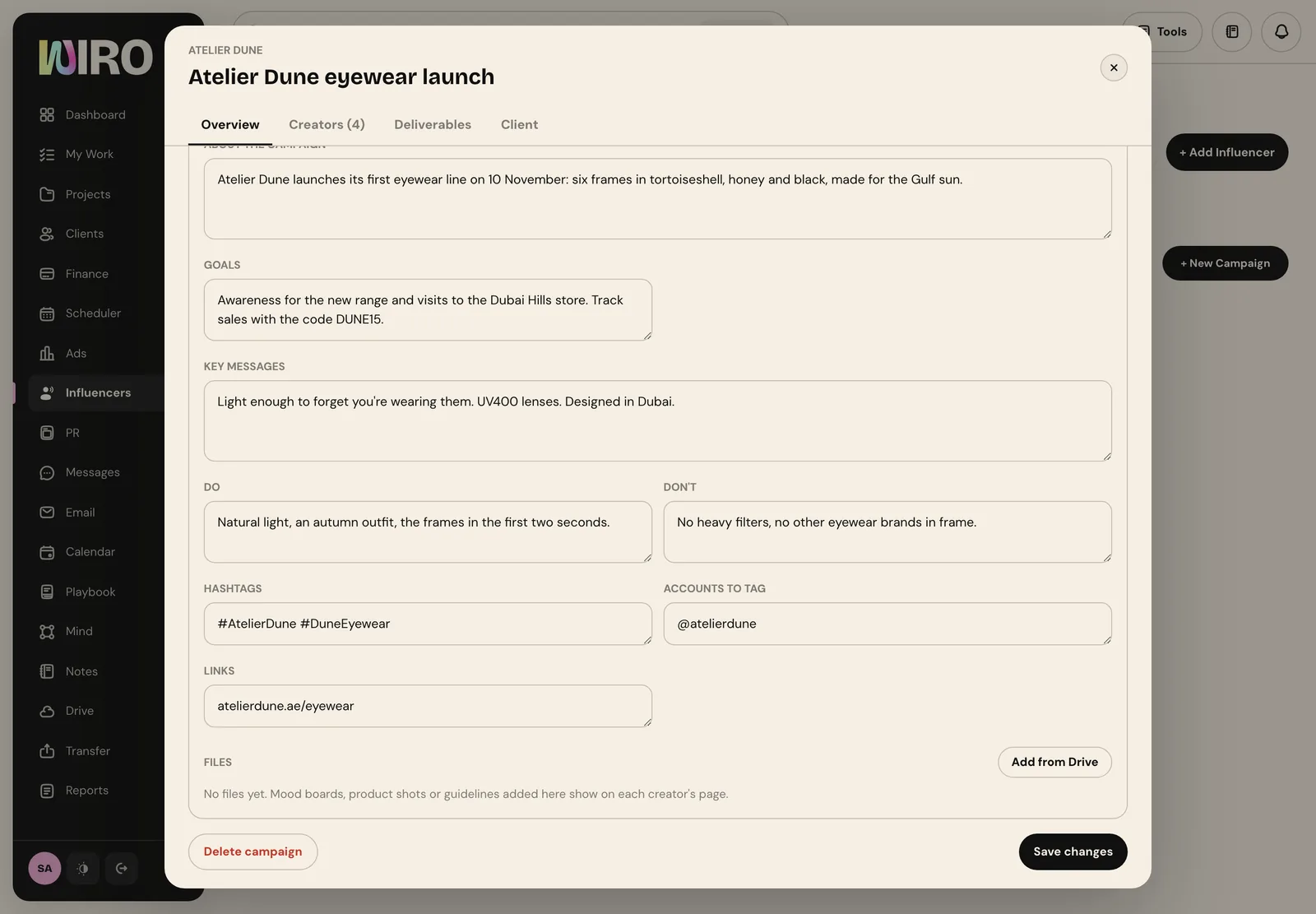
Below the basics is the Brief: about the campaign, goals, key messages, do and do not, hashtags, accounts to tag and links. Add mood boards or product shots from Drive. Creators see the brief on their own page for the campaign, which is also where they send their drafts, so it only has to be written once.
Step 3: Send the client a shortlist
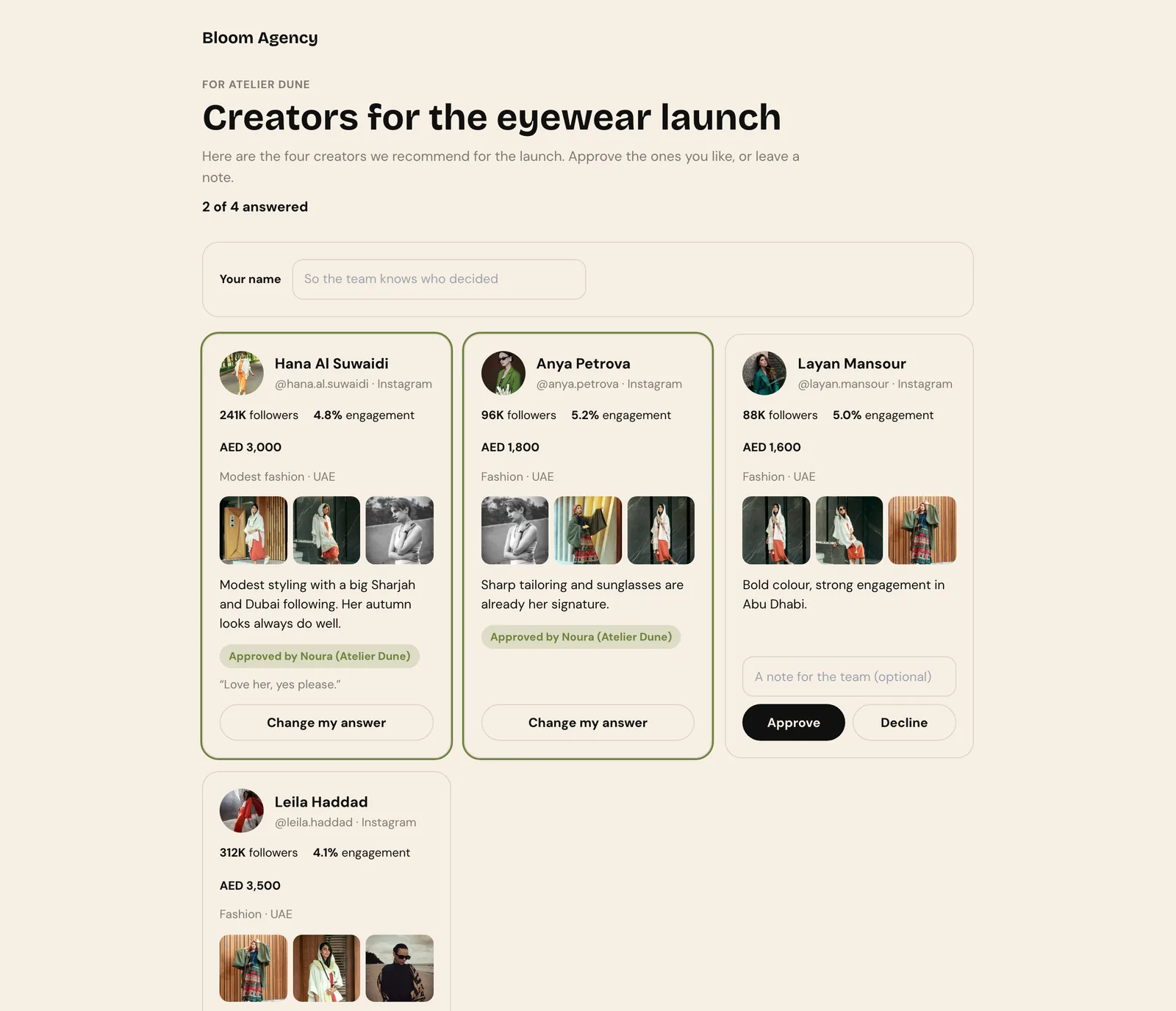
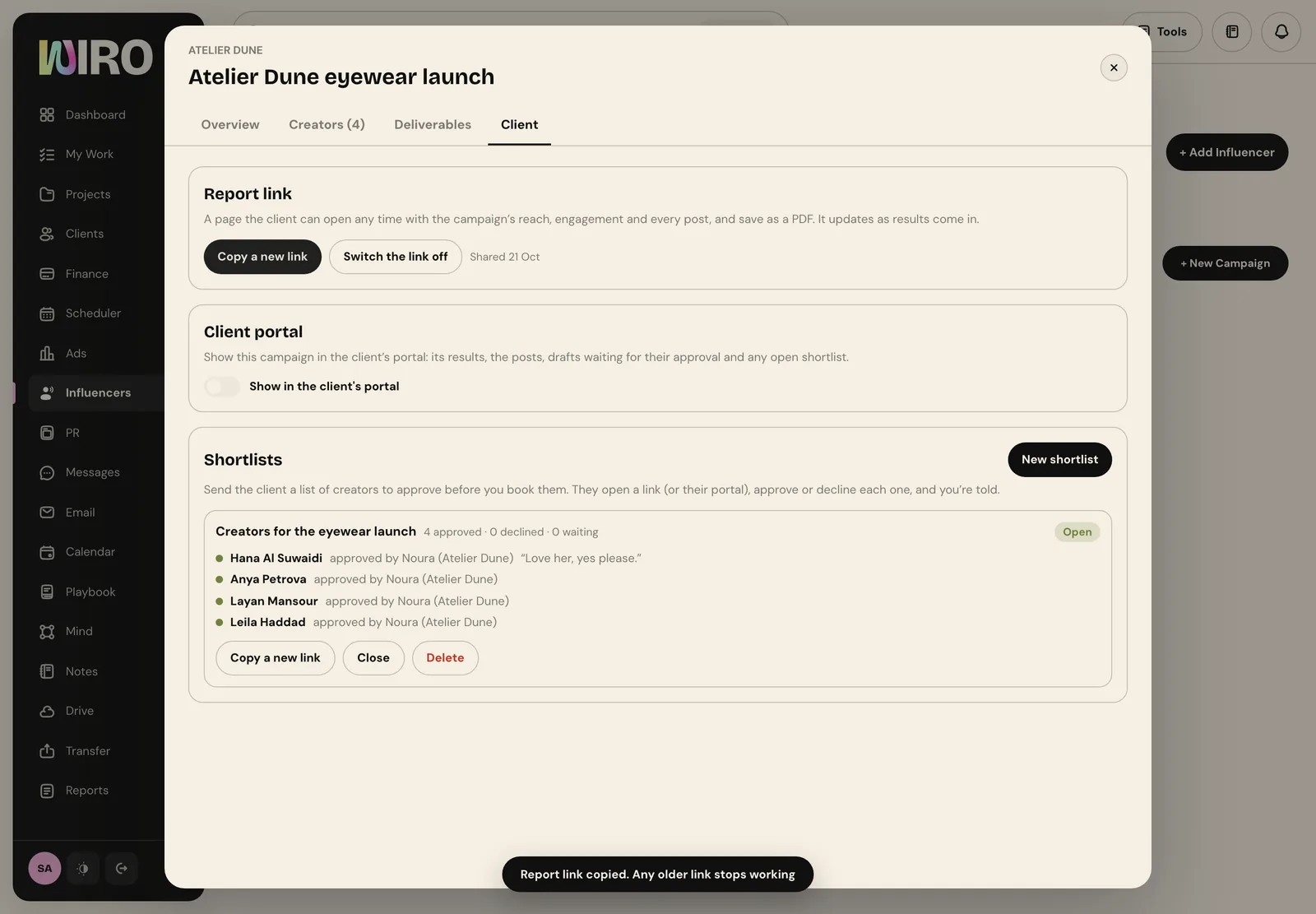
Before you book anyone, open the Client tab and choose New shortlist. Add a title and a short message, pick the creators from your list, and write one line on why each one fits. Fees are filled in from each creator's rate; switch on Show each creator's fee if the client should see them. Then choose Create and copy link.
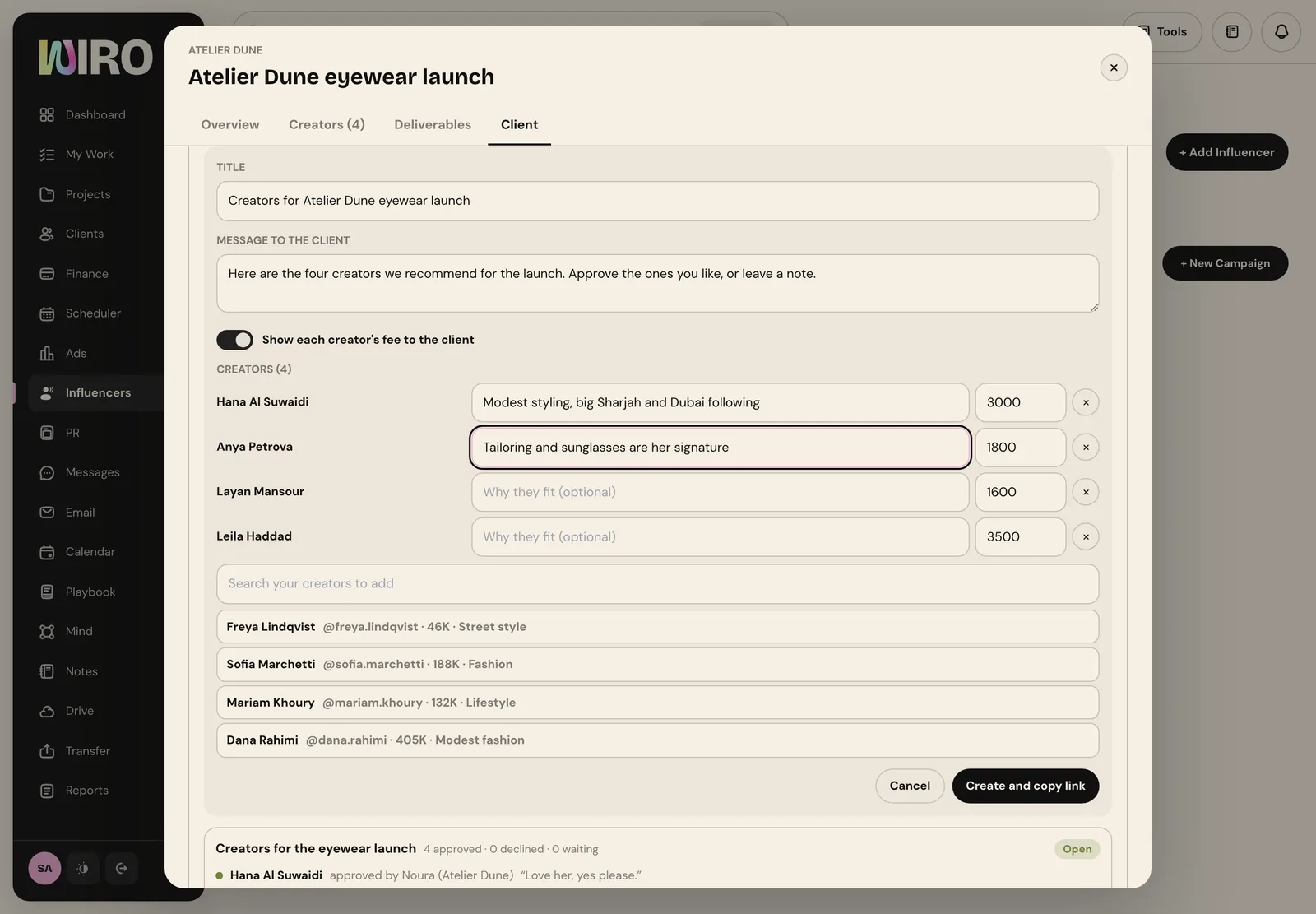
The client opens the link, types their name and approves or declines each creator, with a note if they want. They need no account. The page shows each creator's followers, engagement, niche, recent posts and your reason, and you are told as they answer.
Step 4: Book the creators and track the money
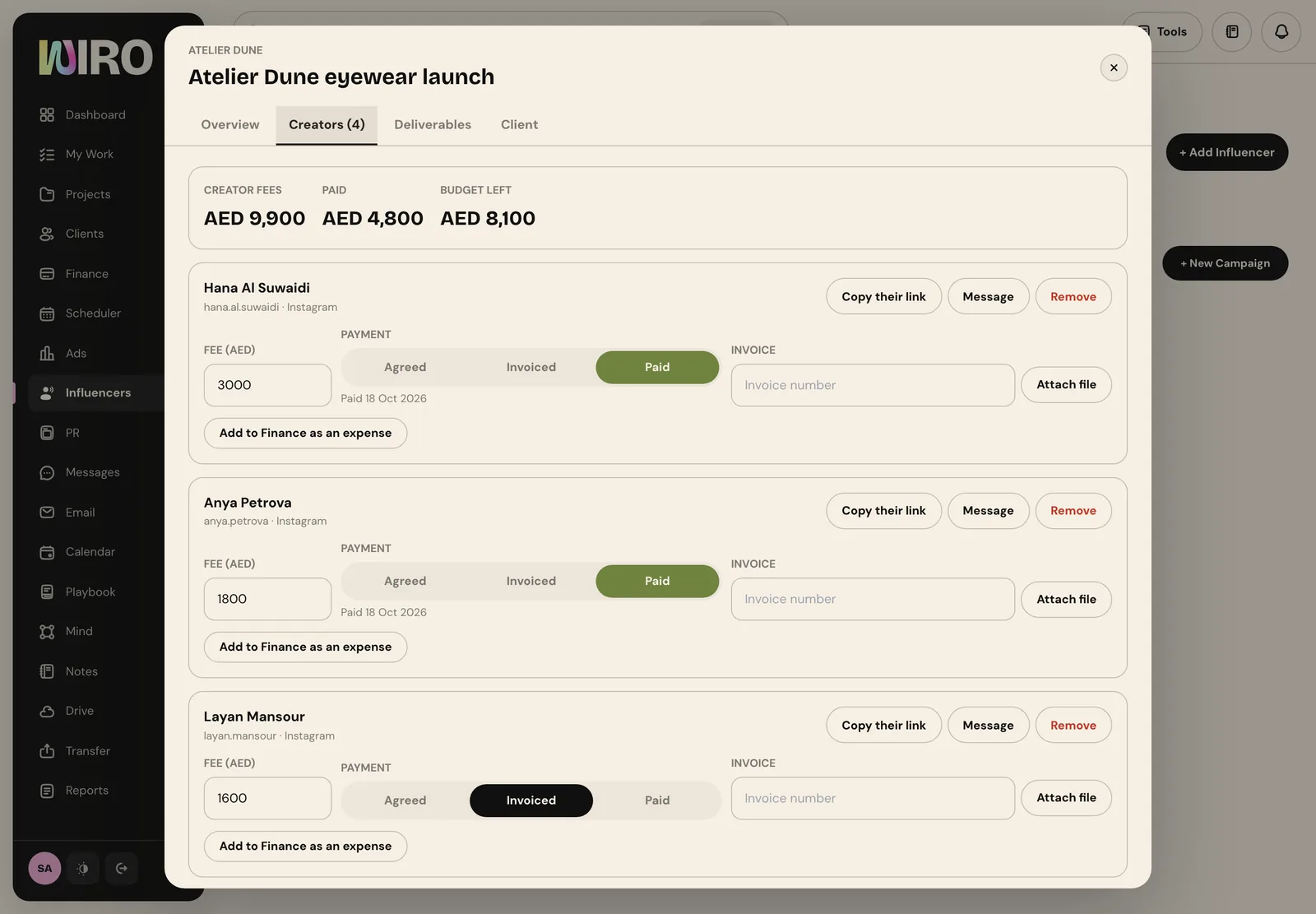
Approved creators go on the Creators tab. Each one has their fee, a payment status (agreed, invoiced or paid) with the date it was paid, their invoice number and file, and a button to add the fee to Finance as an expense. Copy their link sends a creator their own page for the campaign; Message opens the conversation with them. The totals at the top show fees, what is paid and the budget left.
Step 5: Follow every deliverable
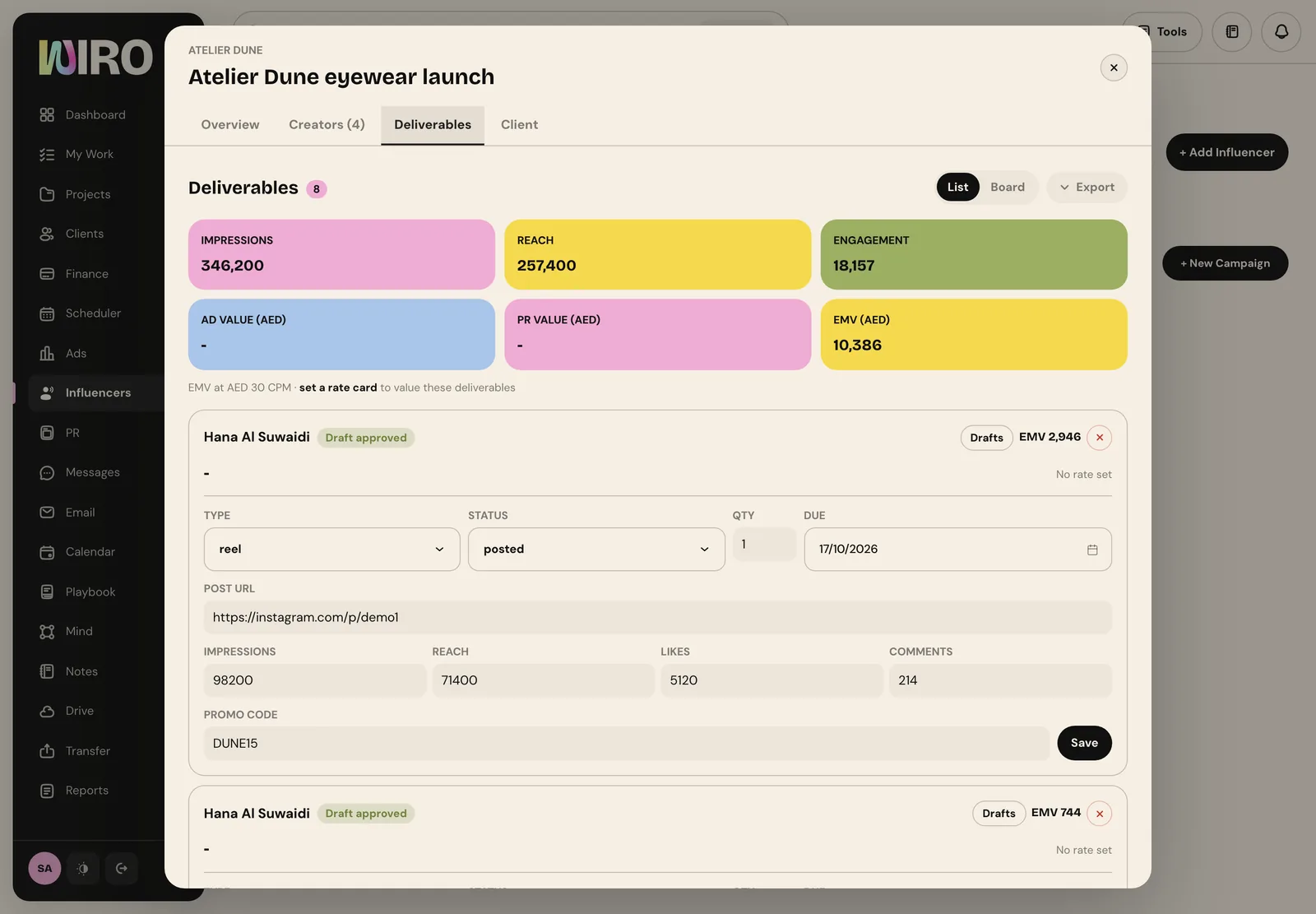
The Deliverables tab lists every post you are owed: who, what type, the due date and the status. When a post goes live, add its link and its numbers, and the totals add up: impressions, reach, engagement, ad value, PR value and EMV. Promo codes sit on each deliverable too.
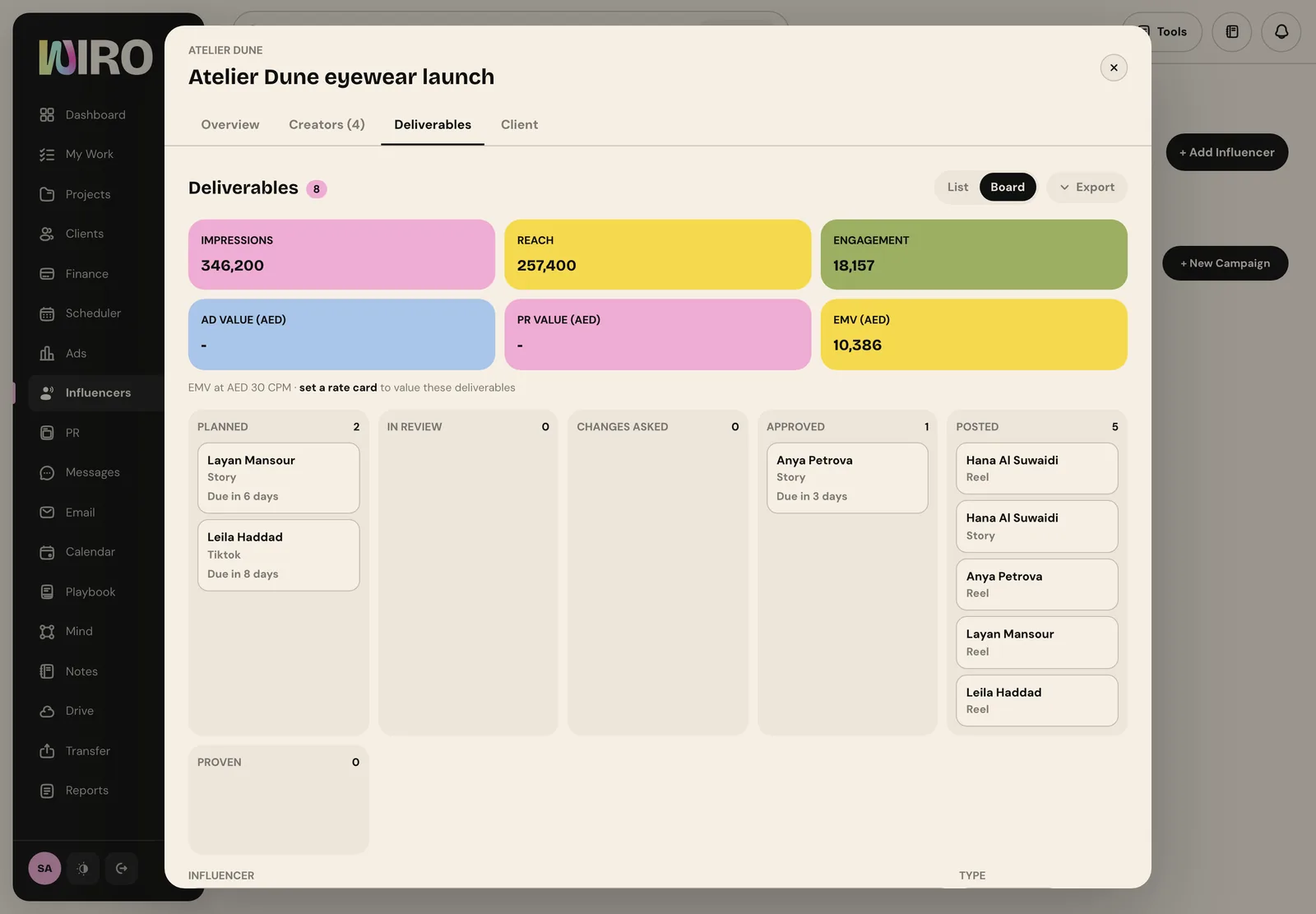
Switch to Board to see the campaign as stages: planned, in review, changes asked, approved, posted and proven. Drafts the creators send move through review here, so you always know what is waiting on you, on the creator or on the client.
Step 6: Share the results
On the Client tab, choose Make a report link. The client gets a page they can open at any time, which updates as results come in and can be saved as a PDF. Switch the link off whenever you like. Show in the client's portal puts the campaign in their portal too.
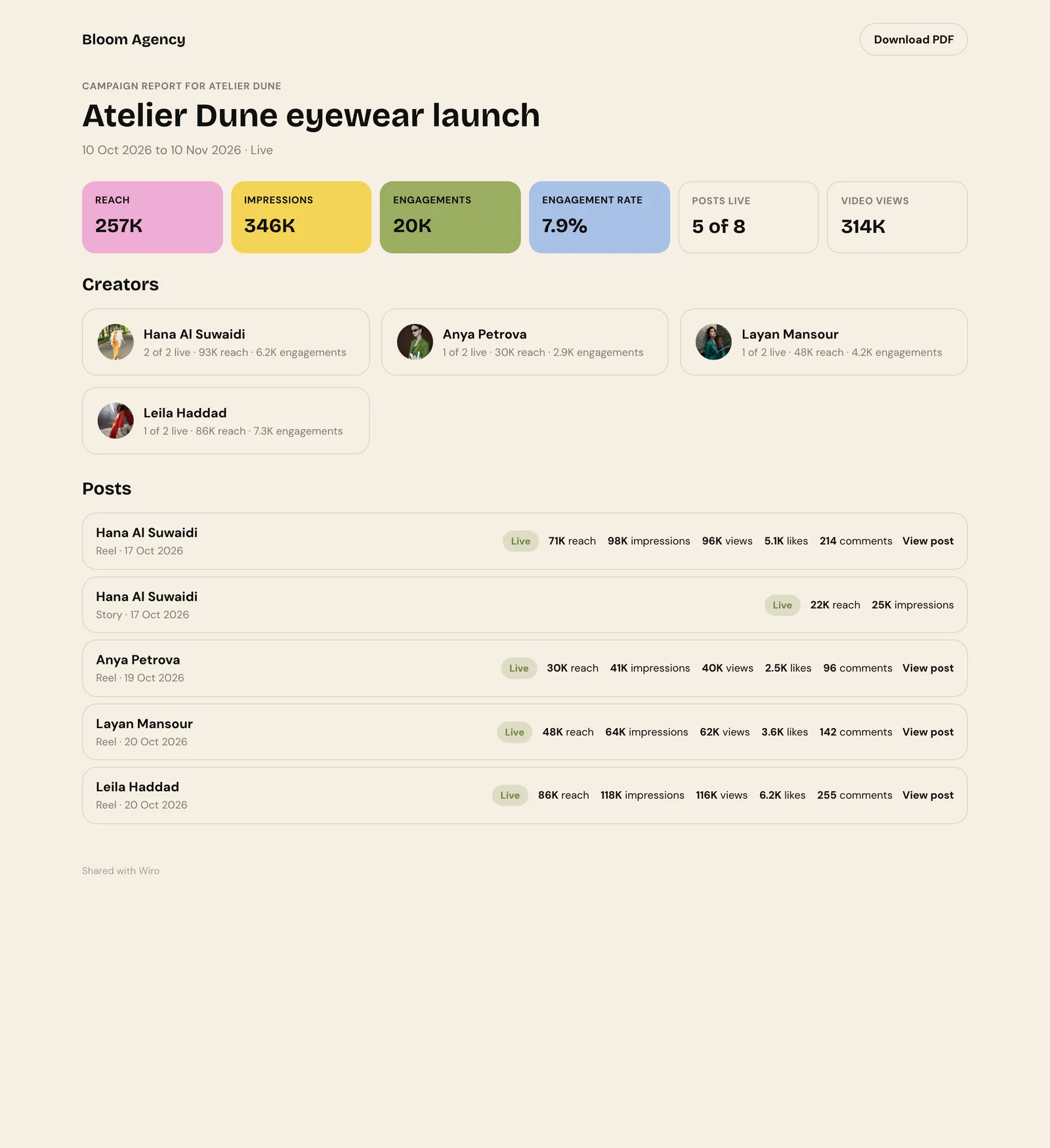
The report page shows reach, impressions, engagements, engagement rate, posts live and video views, then each creator and each post with its numbers and a link to it.
- Get the shortlist approved before you negotiate. It is easier to agree a fee with a creator the client already wants.
- Record fees when you agree them, not when you pay them. The budget card is only useful if it is current.
- Share the report link at the start, not the end. A client watching results come in asks fewer questions in the wrap-up.
When the last post is live, set the campaign to completed. Everything, from the brief to the final numbers, stays in one place for the next one.