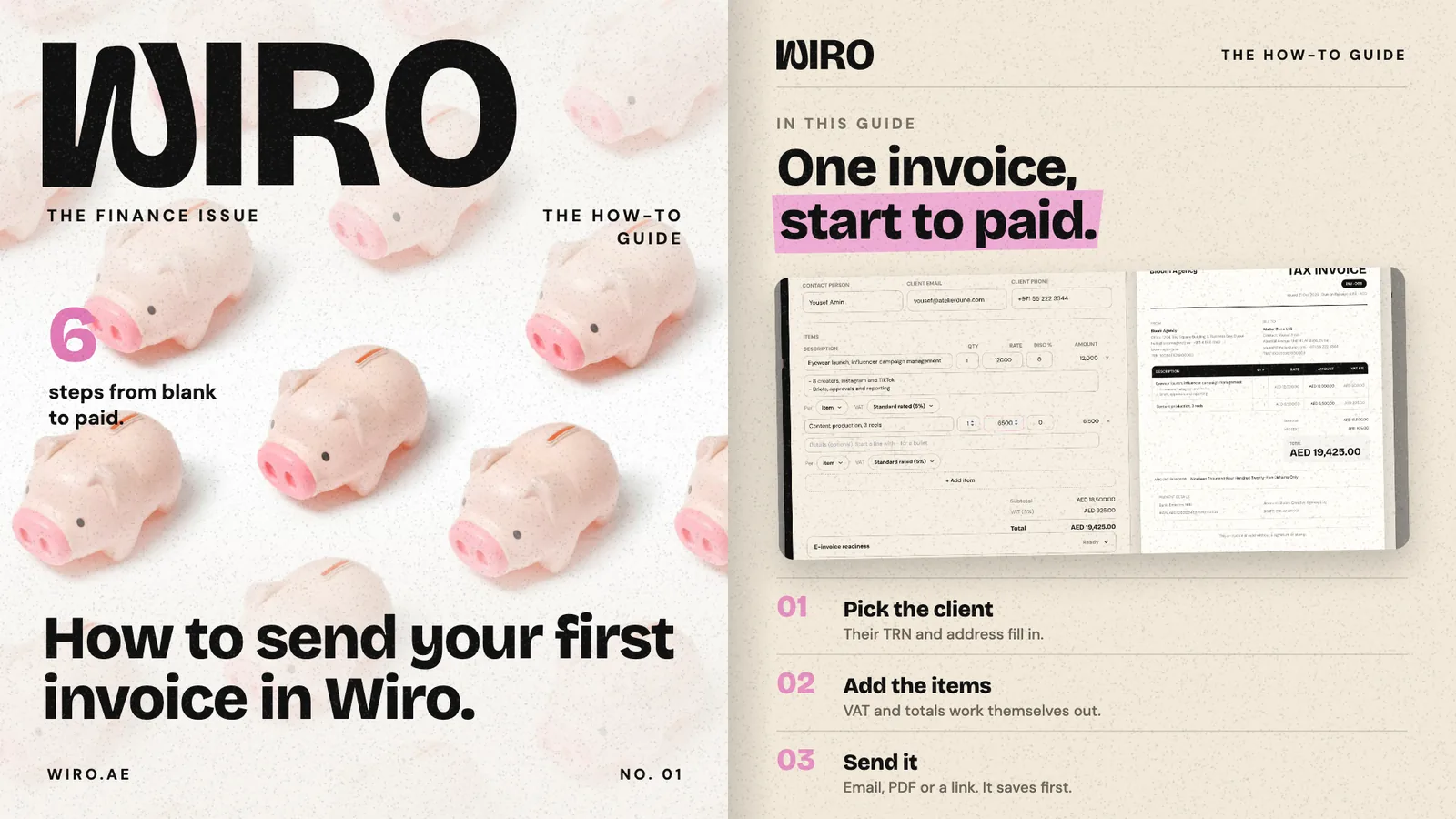
This walkthrough follows a sample agency, Bloom Agency in Dubai, as it bills a client called Atelier Dune for an eyewear launch. Every screen is the real Finance page in Wiro with made-up names and numbers. If your agency details are already in Settings, the whole thing takes about five minutes, and you can save at any point and come back.
Step 1: Open Finance and start a new invoice
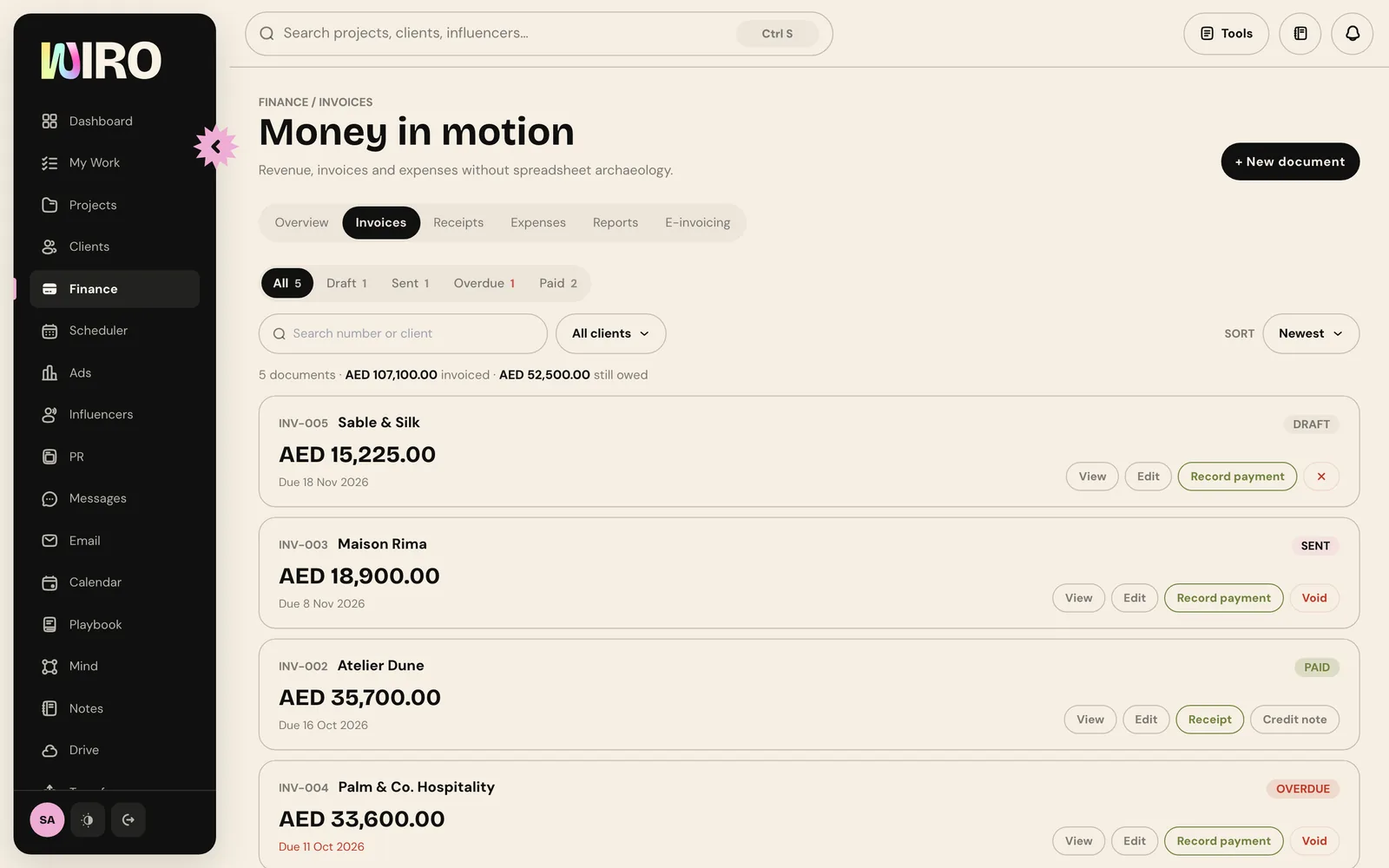
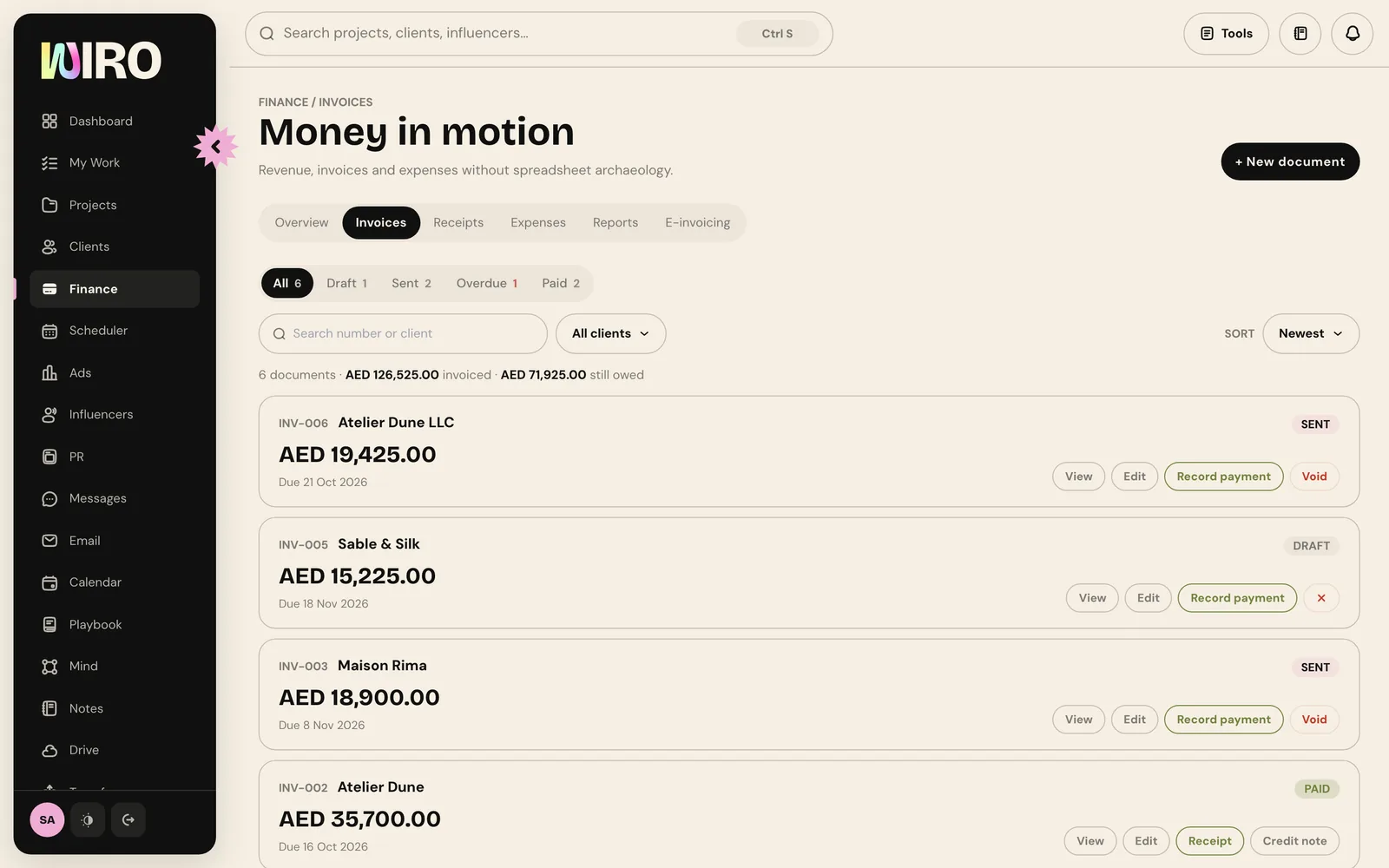
Open Finance in the sidebar and choose the Invoices tab. You see every invoice with its status (Draft, Sent, Overdue or Paid), how much you have invoiced and how much is still owed. Choose New document to start.
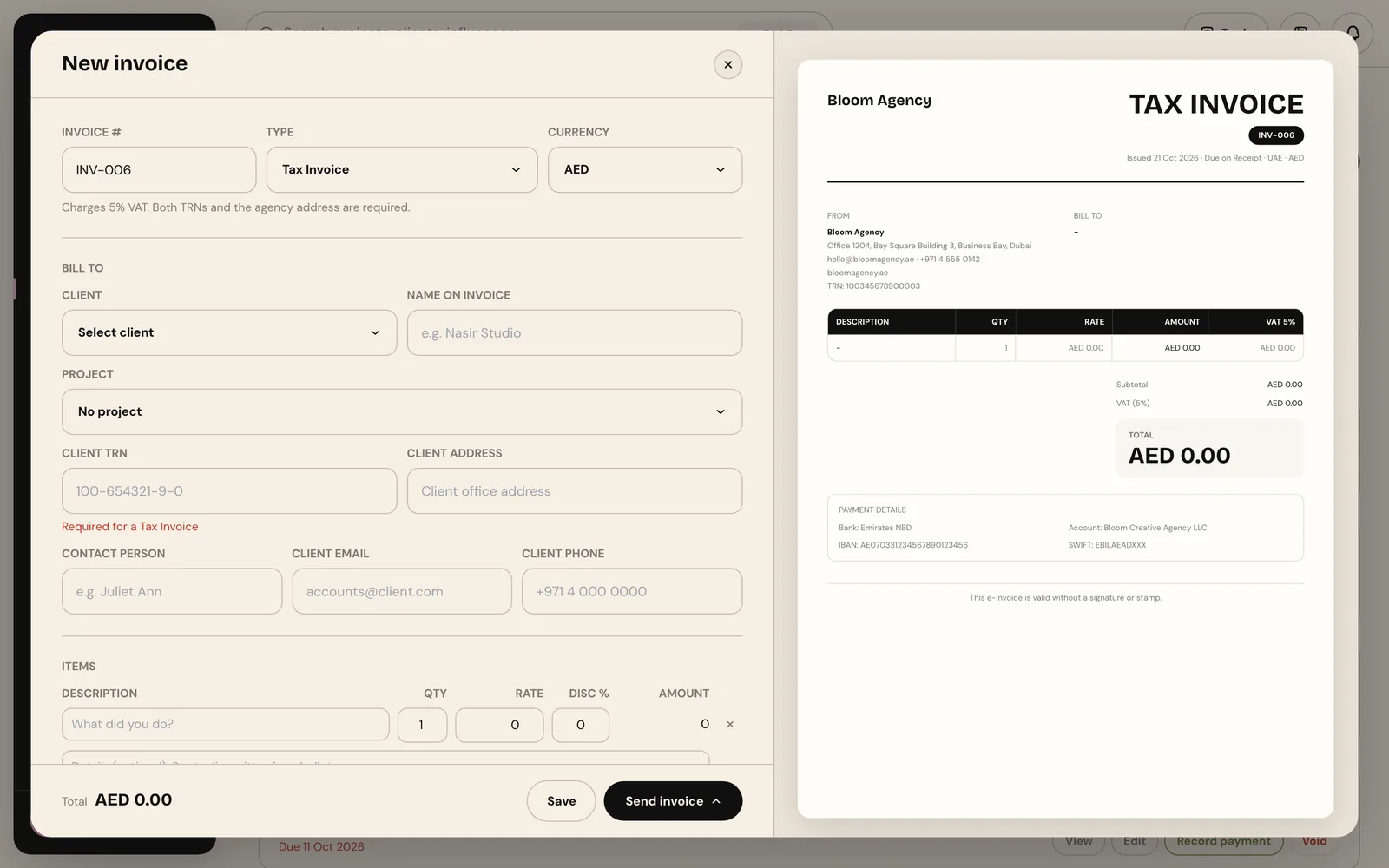
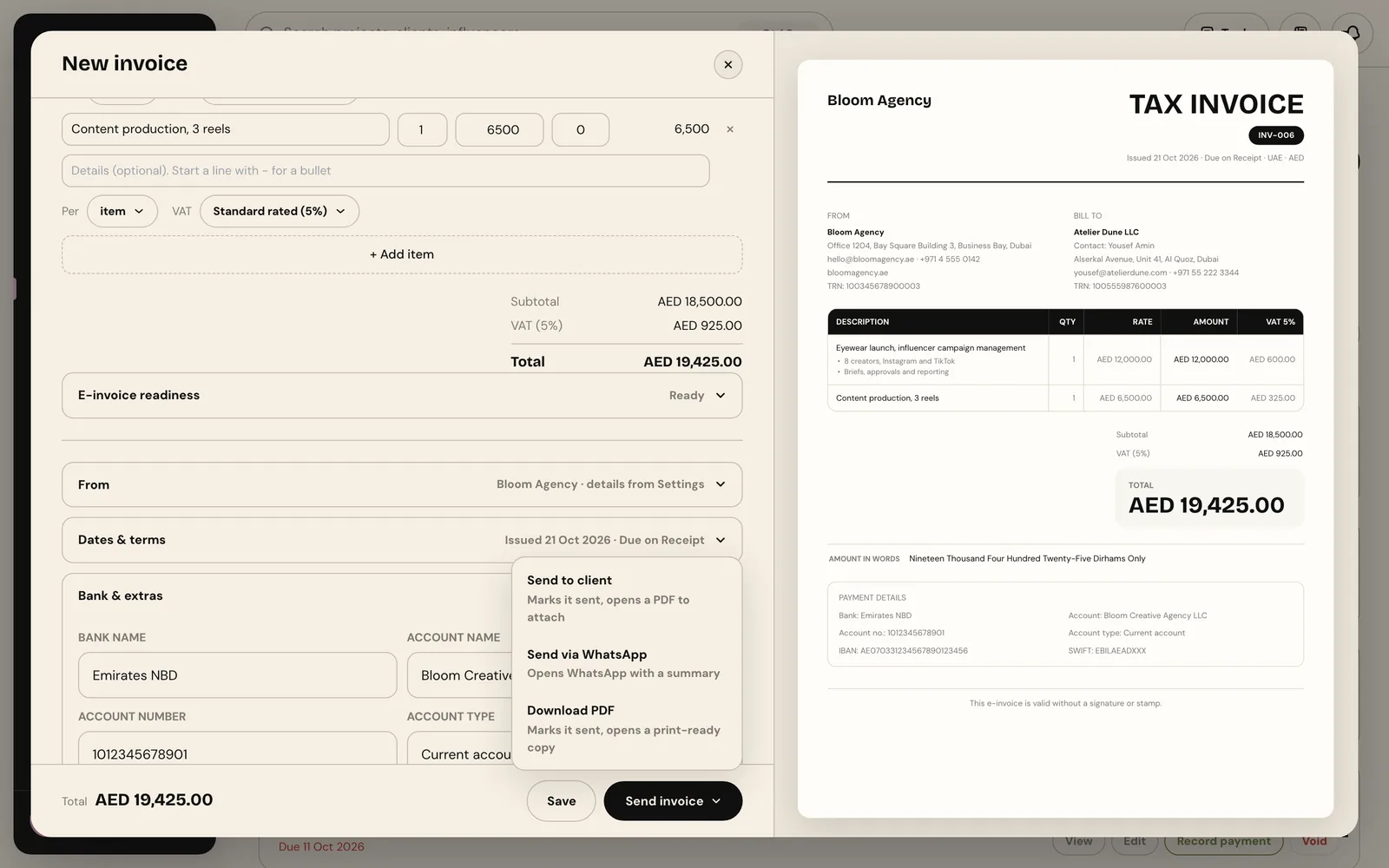
The editor opens with a live preview on the right. Wiro numbers the invoice for you (INV-006 here) and sets the type to Tax Invoice in your agency's currency. A tax invoice charges 5% VAT, and Wiro asks for both TRNs and your agency address on it, so the preview never shows a tax invoice that is missing them.
Step 2: Pick the client
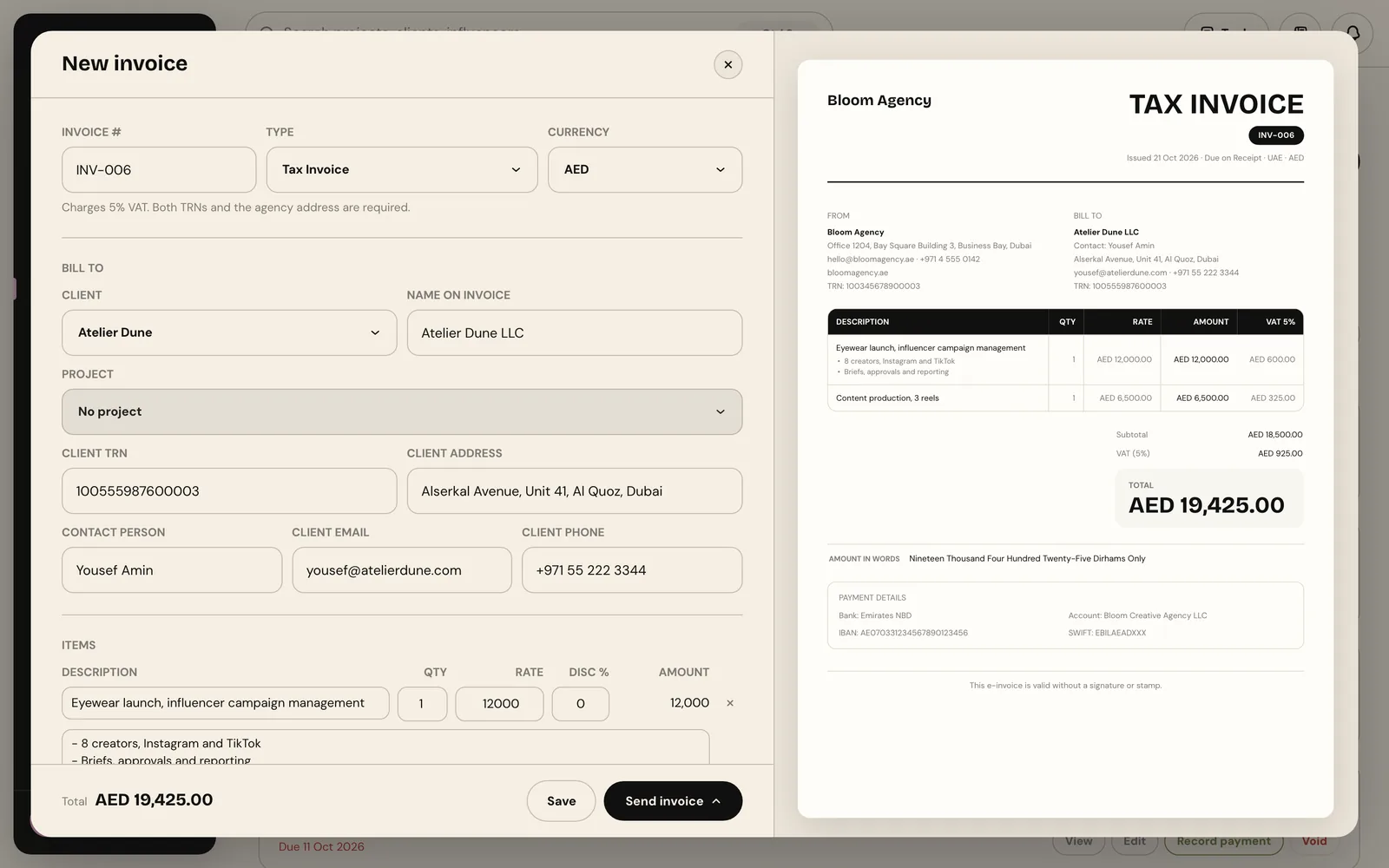
Under Bill to, choose the client from the list. If the client is saved in Clients, the name on the invoice, their TRN, address, contact person, email and phone fill in by themselves. Change any of them for this invoice only if you need to, and link a project if the work belongs to one.
Step 3: Add what you did
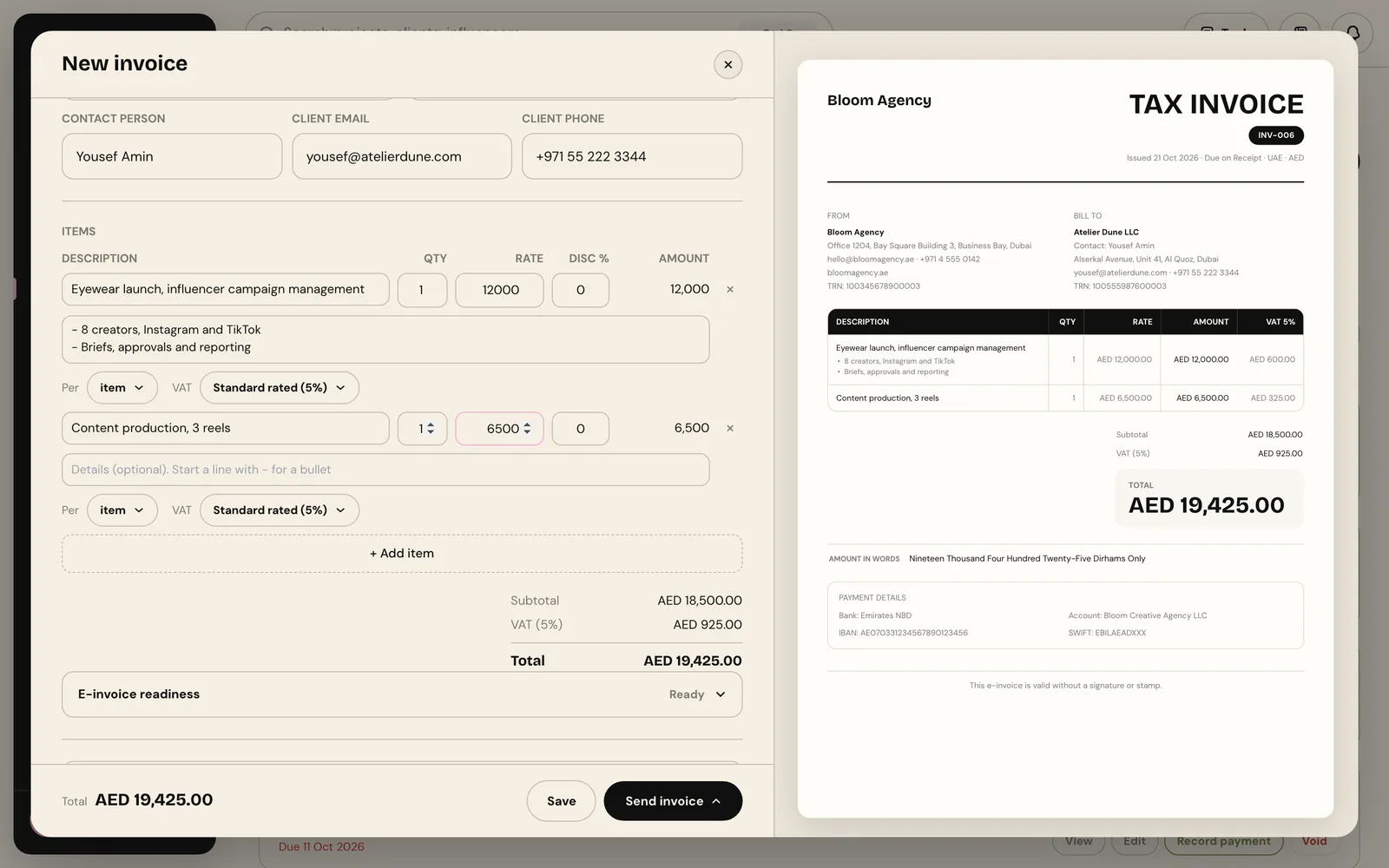
Each line has a description, a quantity, a rate and an optional discount. Under the description you can add details, one per line; start a line with a hyphen to make it a bullet. Each line also has its own VAT setting, standard rated at 5% by default, so a zero-rated or exempt item can sit on the same invoice. The subtotal, VAT and total add up as you type, and the amount in words is printed for you.
- Write descriptions the client's finance team will understand without you: what, for which campaign, for which month.
- Use the details lines for scope, not for terms. A client's approver reads the bullets; nobody reads a paragraph.
- Check E-invoice readiness under the totals. It tells you if anything an electronic invoice needs is still missing.
Step 4: Check your bank details
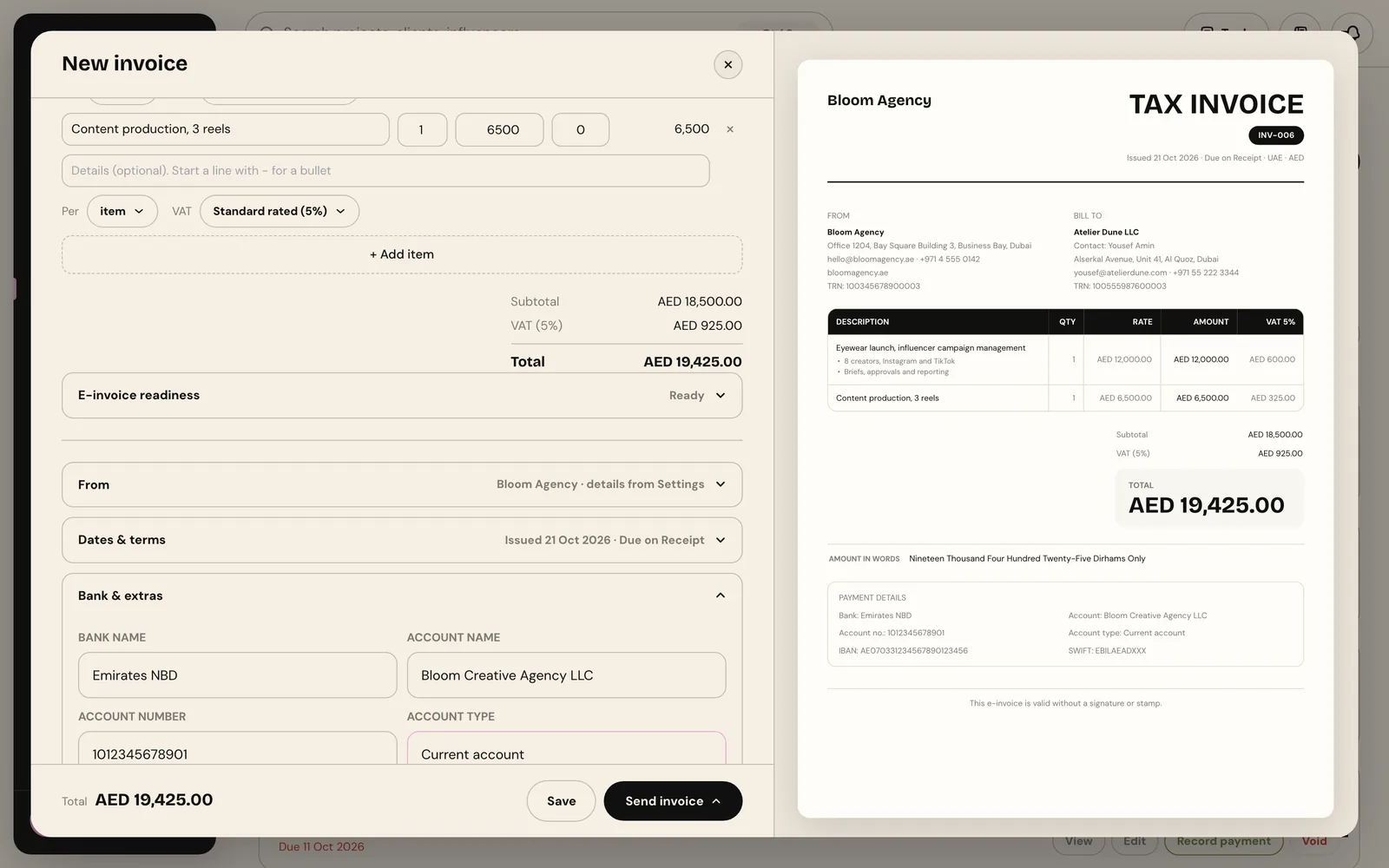
Open Bank and extras. The bank name, account name, account number, account type, IBAN and SWIFT code come from your agency settings and print in the payment box at the bottom of the invoice. Clients pay faster when the account number and type are right there, so their finance team does not have to email you to ask. The From and Dates and terms sections hold your own details and the due date, set to due on receipt here.
Step 5: Send it
When the preview looks right, open the Send invoice menu. There are three ways to send it, and every one of them saves the invoice first, so you never send something you have not saved.
- Send to client: marks the invoice as sent and opens the PDF so you can attach it.
- Send via WhatsApp: opens WhatsApp with a short summary of the invoice, ready to send.
- Download PDF: marks it as sent and opens a print-ready copy.
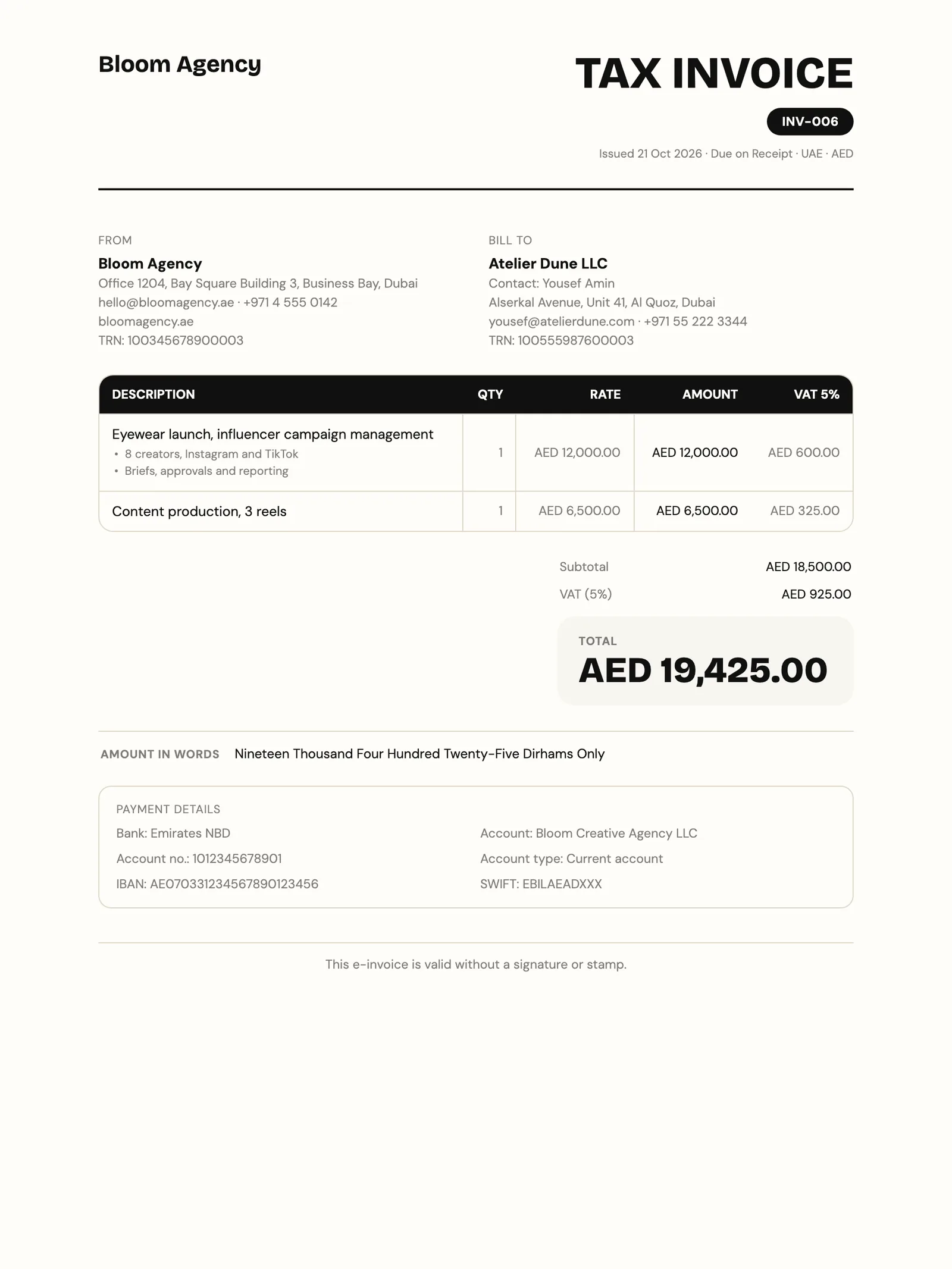
The PDF is the same document as the preview: your agency's details and TRN, the client's, the lines with VAT per line, the total, the amount in words and your bank details.
Step 6: Record the payment
Back on the list, the new invoice shows as Sent with its due date. When the money arrives, choose Record payment. Once an invoice is paid, the buttons change to Receipt and Credit note, so you can send a receipt or correct an invoice without editing the original.
An invoice the client's finance team can pay without writing back to you is an invoice that gets paid on time.
That is the whole loop. The Overview tab then shows what is coming in across every client, and the Overdue filter shows who to chase.