This is the hands-on companion to our guide on building a creator page that gets you booked. That piece covers what makes a page work. This one shows where everything goes, screen by screen, using a sample creator, Nour Salem, a modest fashion creator in Dubai. It takes about fifteen minutes if your photos and rates are ready, and you can save as you go and come back to any step.
Step 1: Create your creator account
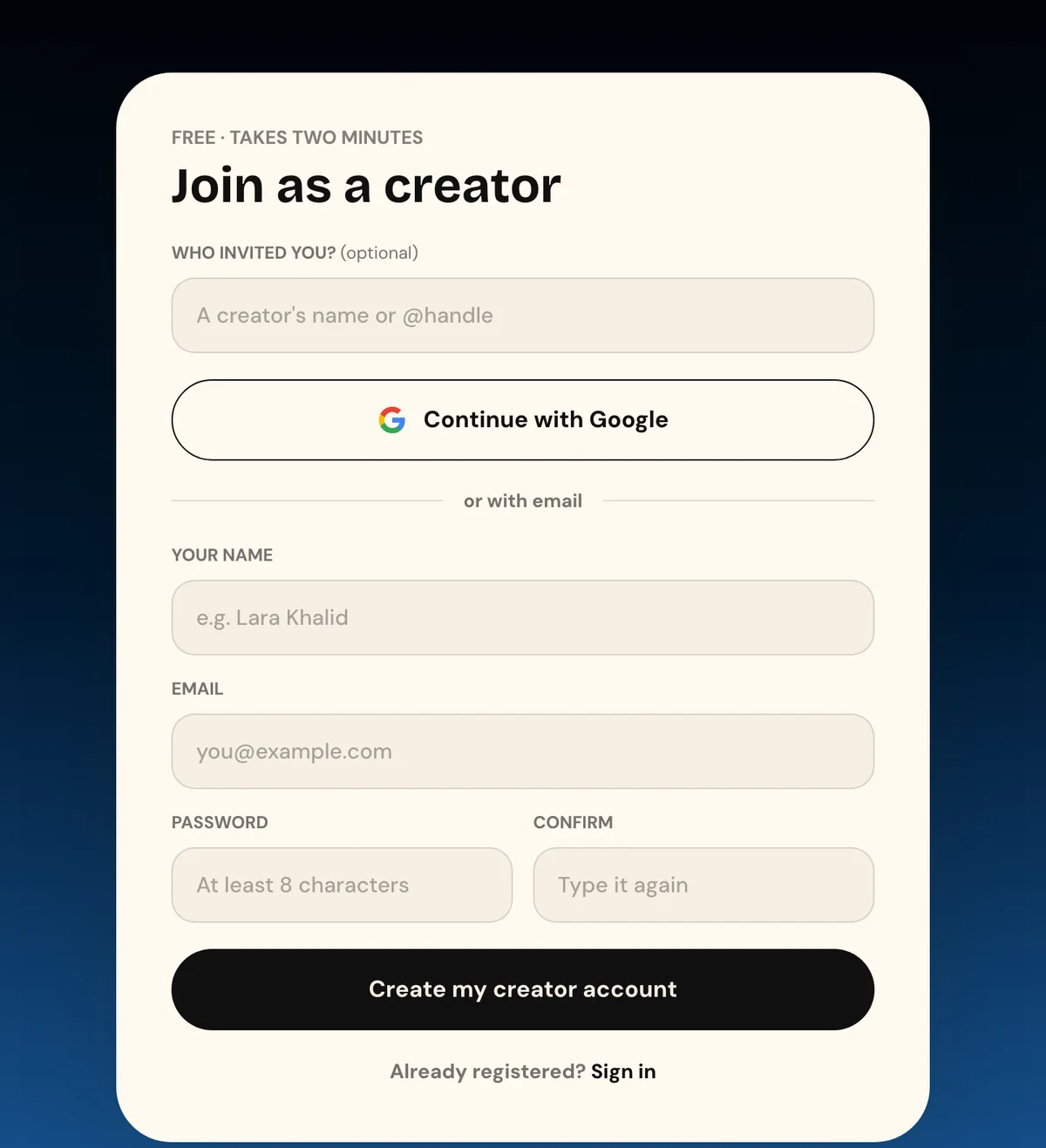
Go to creator.wiro.ae and choose Join free. You can continue with Google, or sign up with your name, email and a password. If another creator or an agency invited you, add their name or handle in the first box. Joining is free and Wiro takes no commission on what you agree with an agency.
Step 2: Fill in who you are
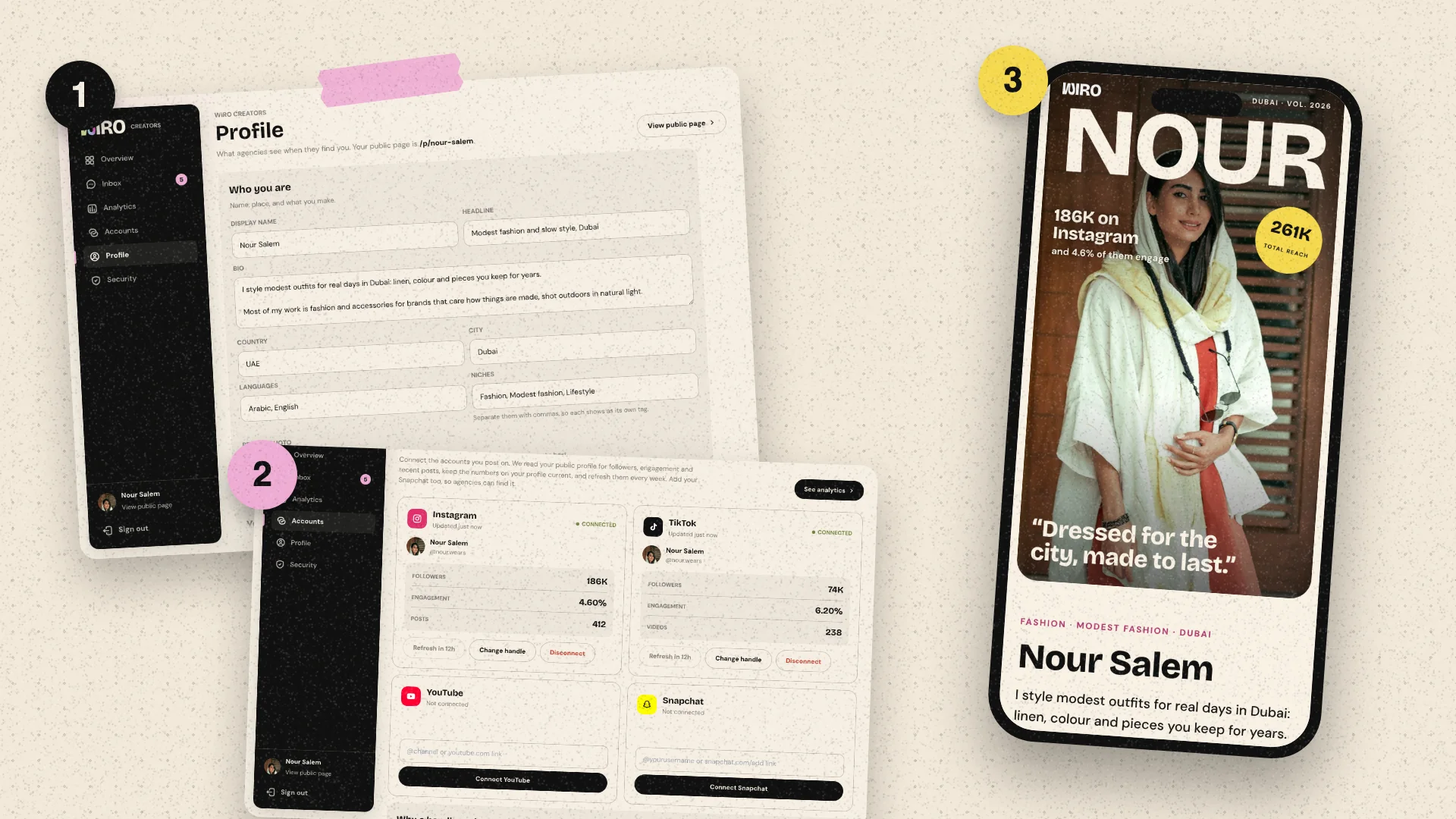
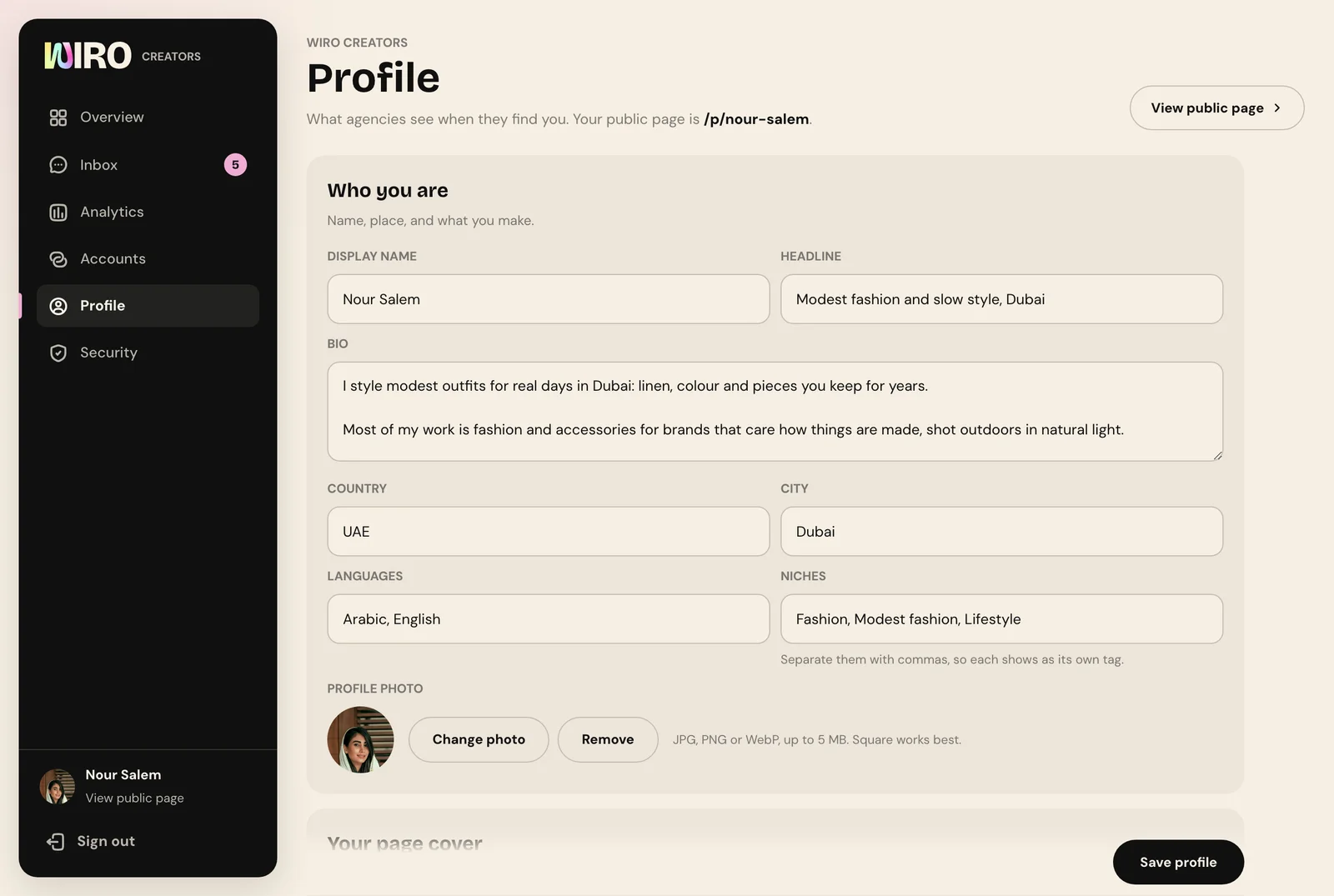
After signing in you land in Studio. Open Profile in the sidebar. The first card, Who you are, holds the basics agencies read first.
- Display name: the name agencies will search for.
- Headline: your niche and city in a few words, for example modest fashion and slow style, Dubai.
- Bio: two or three short paragraphs about what you make and who you make it for.
- Country, city and languages: agencies filter by them, so fill them in.
- Niches: separate them with commas. Each one becomes its own tag in the Creator Network.
- Profile photo: a square photo of your face, up to 5 MB.
Step 3: Set your page cover and your line
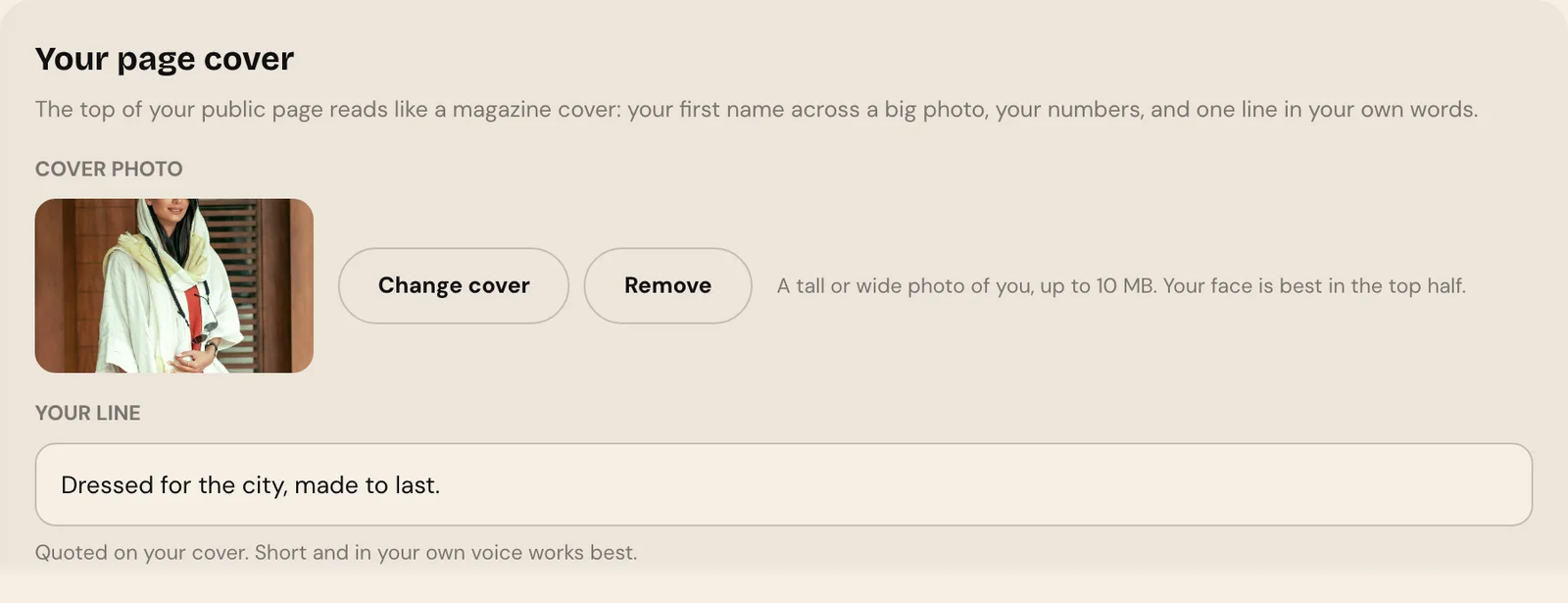
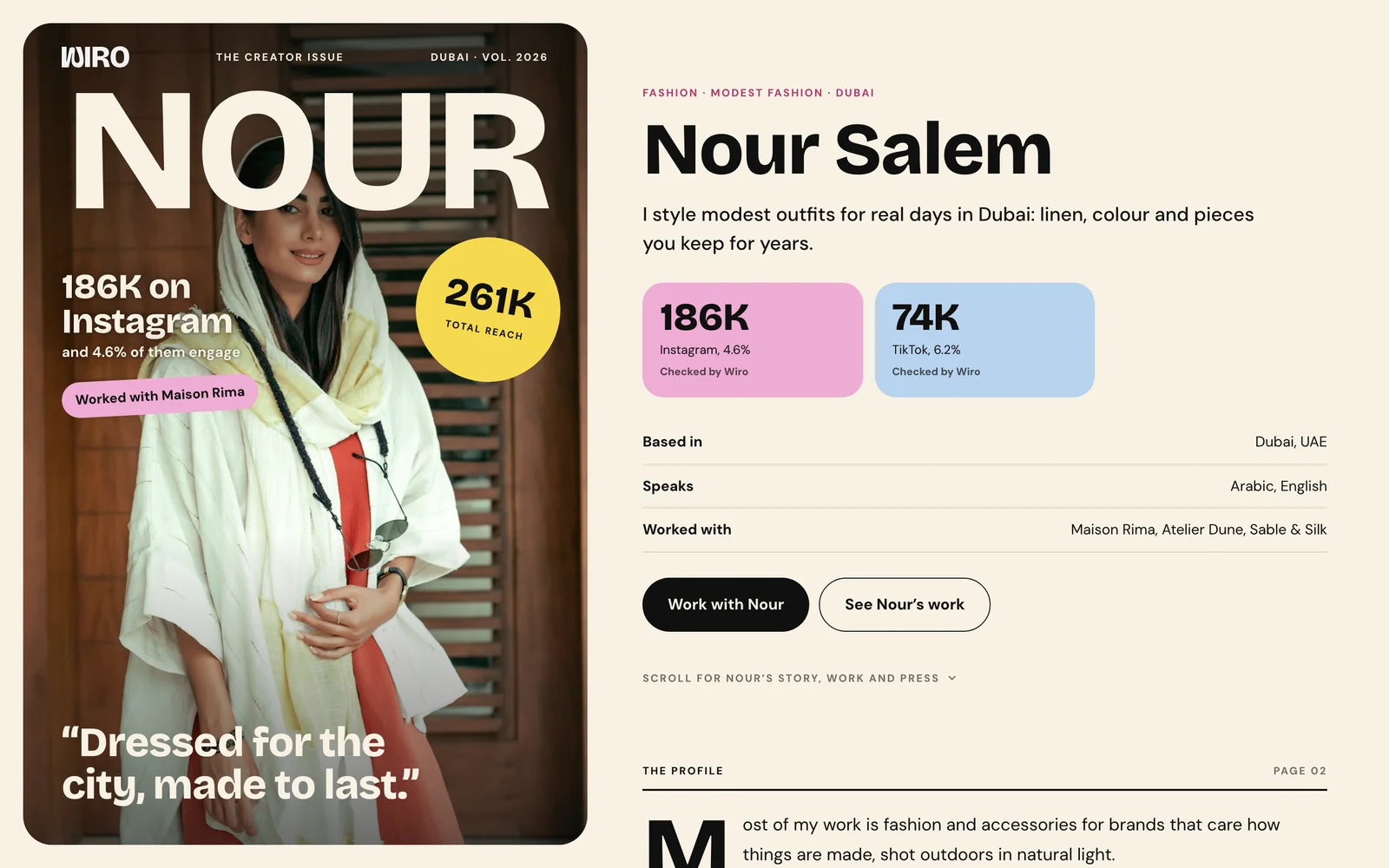
Scroll to Your page cover. The top of your public page reads like a magazine cover: your first name across a big photo, your numbers, and one line in your own words. Choose Change cover and upload a tall or wide photo of you, up to 10 MB, with your face in the top half. Then write Your line, the sentence quoted on the cover. Short and in your own voice works best.
Step 4: Add your platforms
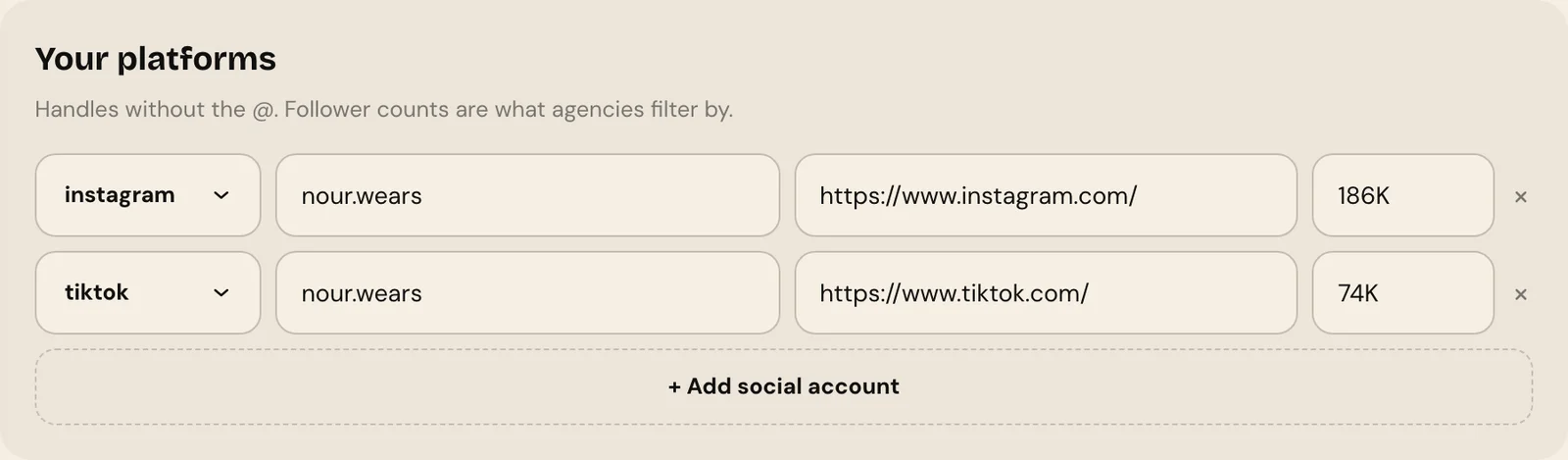
In Your platforms, add each account you post on: pick the platform, type the handle without the @, paste the profile link and add your follower count. Follower counts are what agencies filter by, so keep them current. Use Add social account for each extra platform.
Step 5: Connect your accounts so the numbers are checked
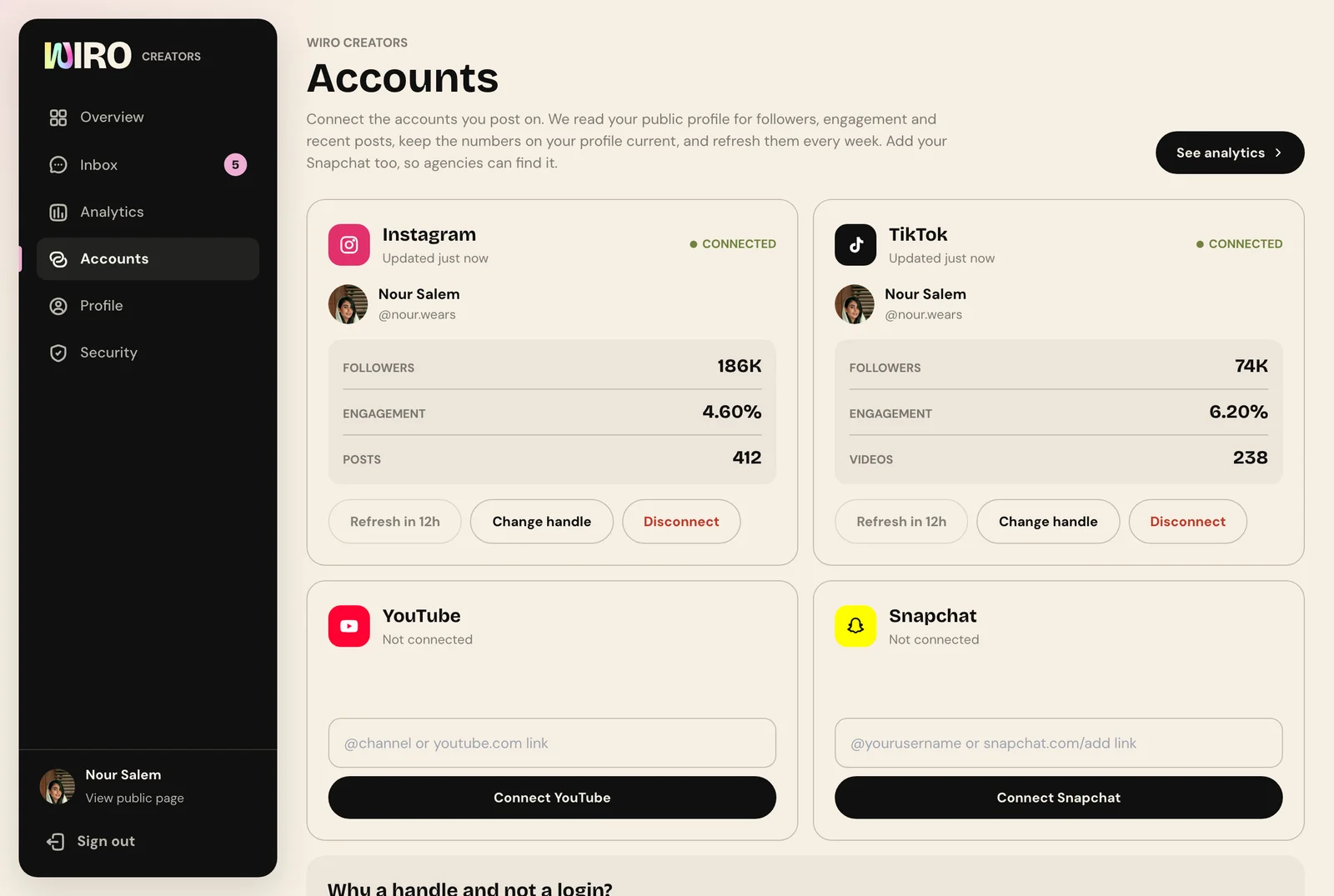
Now open Accounts in the sidebar. Type your handle for Instagram, TikTok, YouTube or Snapchat and choose Connect. There is no password and no login to Instagram or TikTok: Wiro reads your public profile for followers, engagement and recent posts, and refreshes the numbers regularly. Connected numbers show on your page as checked by Wiro, which is what agencies trust.
Step 6: List what you charge
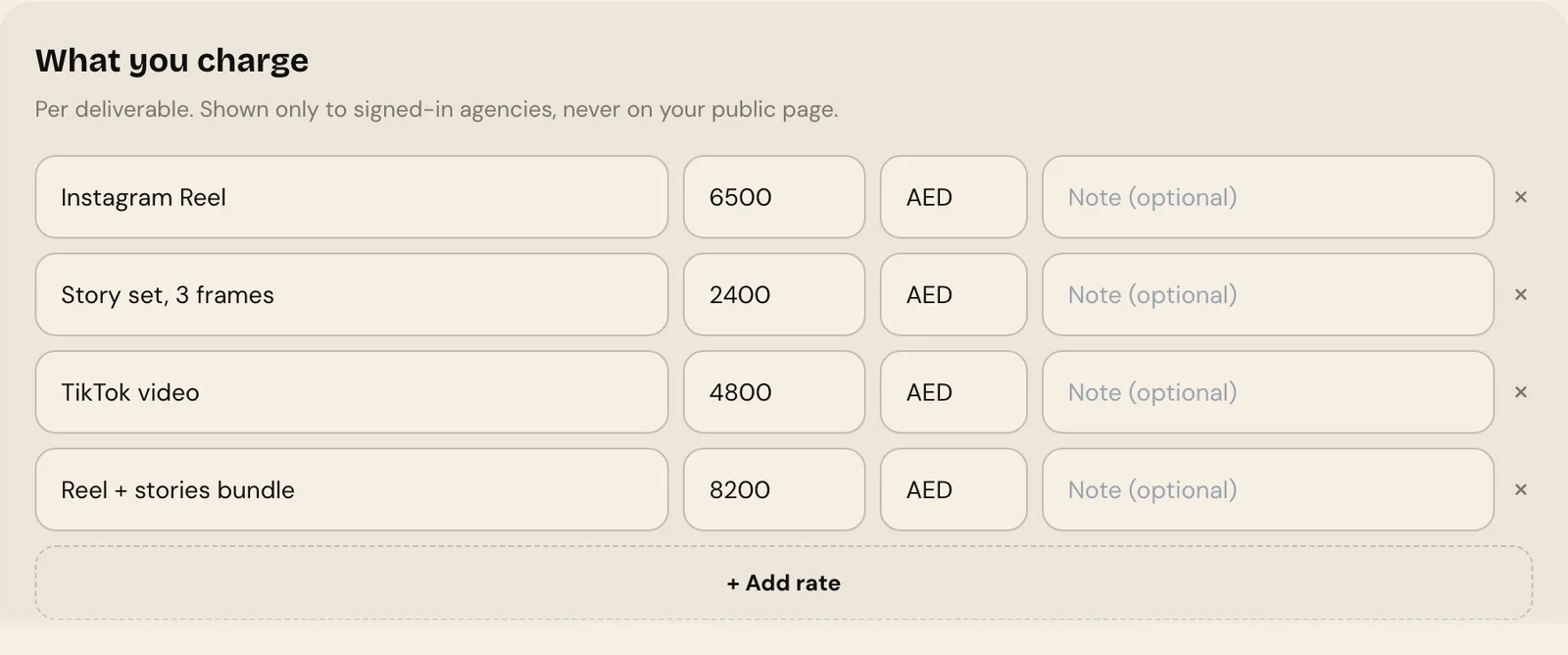
Back in Profile, What you charge holds your rate card. Add one line per deliverable, such as an Instagram Reel, a story set or a TikTok video, with the amount, the currency and an optional note on what is included. These rates are shown only to agencies signed in to Wiro, never on your public page.
Step 7: Name the brands you have worked with
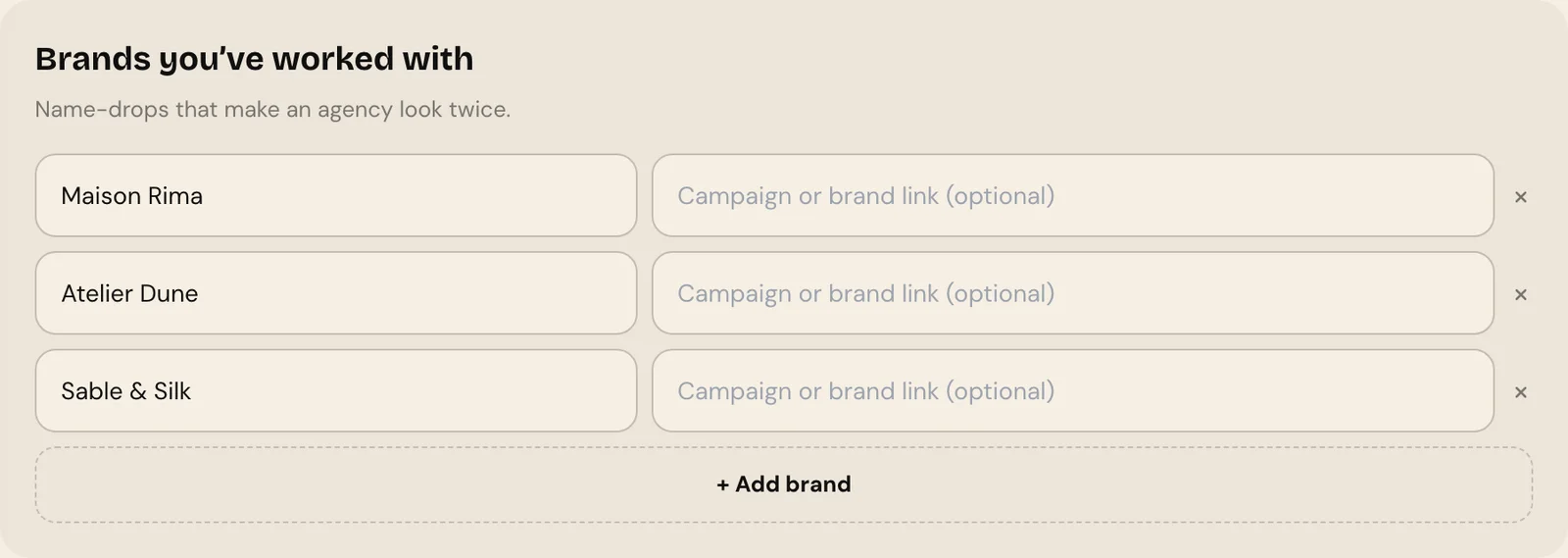
Add each brand under Brands you've worked with, with a link to the campaign if you have one. Familiar names are the quickest proof that you have done paid work before.
Step 8: Build your work wall
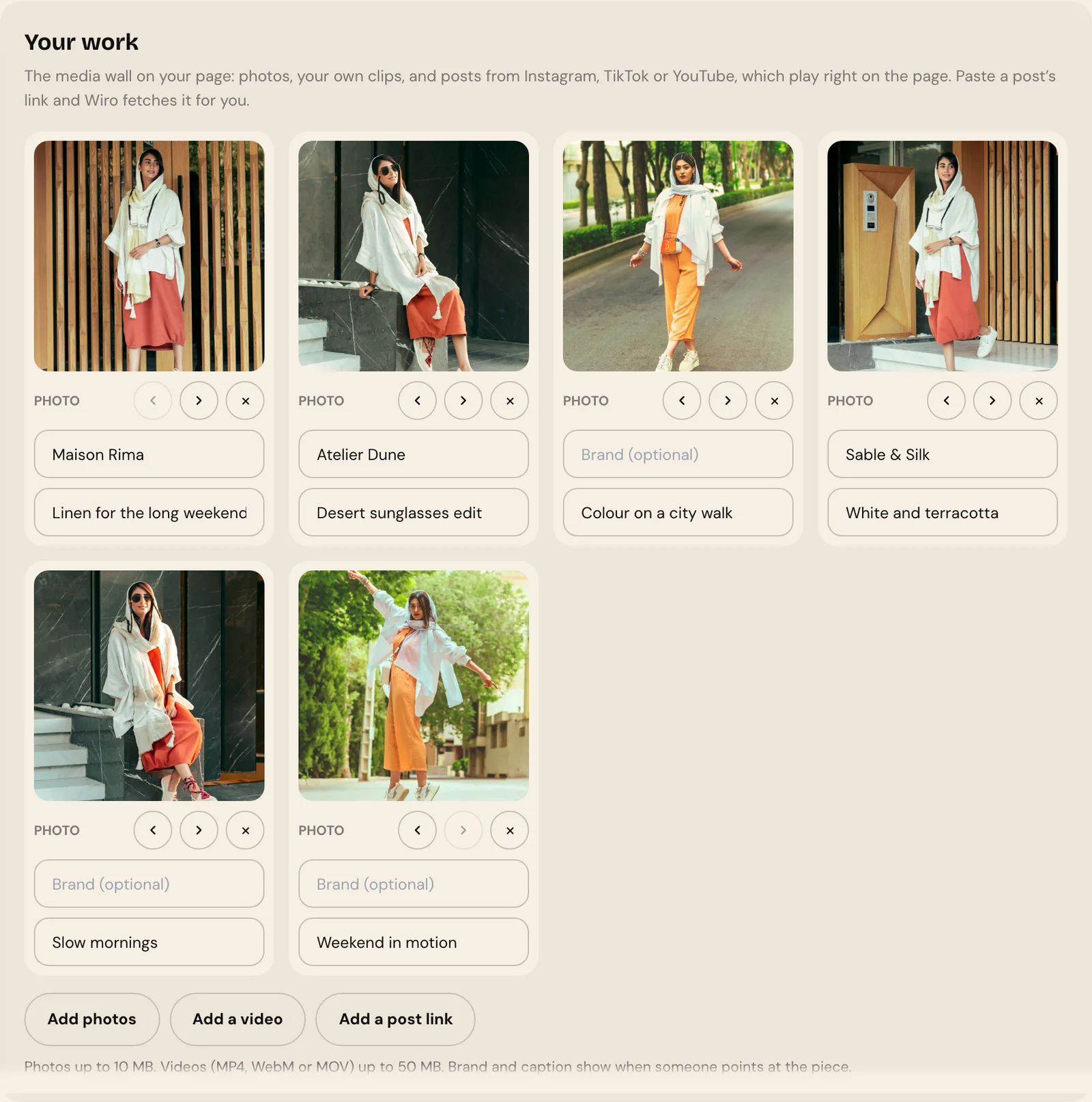
Your work is the media wall on your page. Use Add photos for images up to 10 MB, Add a video for your own clips up to 50 MB in MP4, WebM or MOV, or Add a post link to paste an Instagram, TikTok or YouTube post, and Wiro fetches it for you. Give each piece a brand and a caption, and use the arrows to put your best work first.
On your page, TikTok and YouTube posts play in place. Instagram posts show their cover and open on Instagram, where visitors also see the likes and comments.
Step 9: Upload your media kit
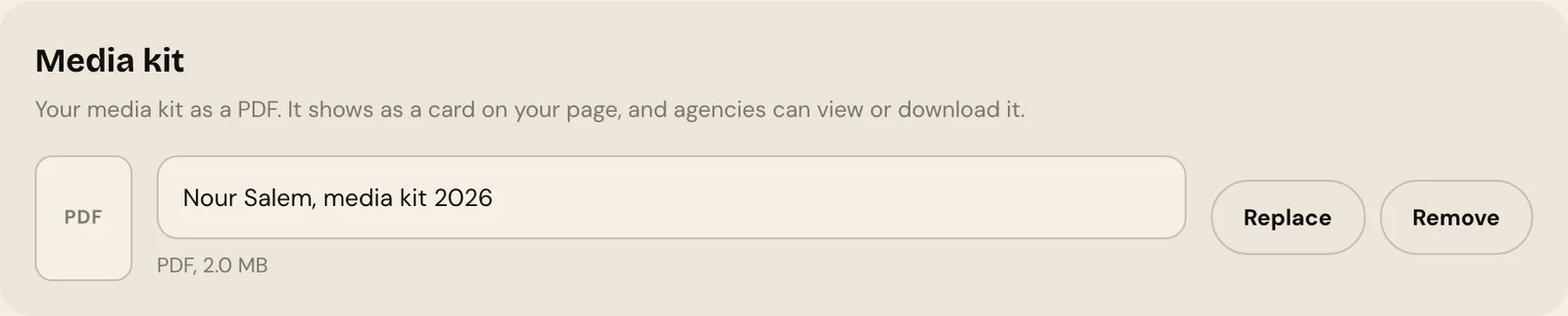
Under Media kit, upload your kit as a PDF and give it a name. It appears as a card on your page that agencies can view or download, so you no longer need to email it to each one. If you have press, add it under Media coverage.
Step 10: Set how agencies reach you
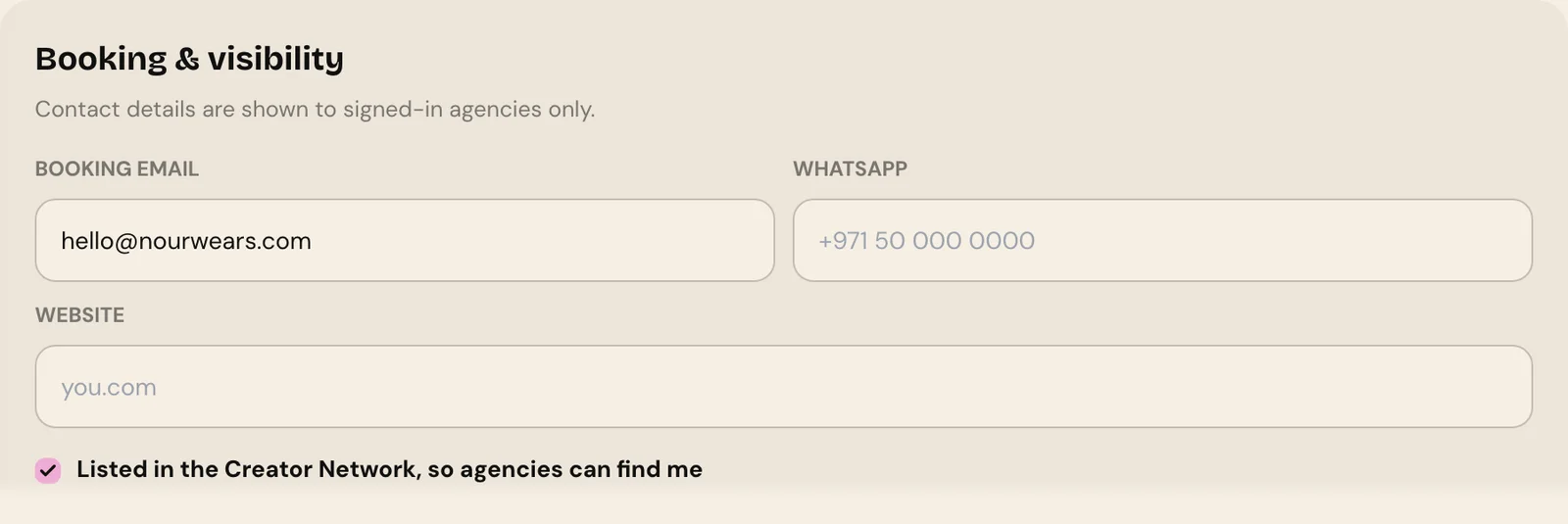
Last, Booking and visibility. Add your booking email and WhatsApp, which only signed-in agencies see, and tick Listed in the Creator Network so agencies on Wiro can find you, filter you and invite you to campaigns. Then choose Save profile.
Your finished page
Choose View public page at the top of Profile to see what agencies see. Your page lives at its own address you can put in your bio, your email signature and your replies to brands. It works on a laptop and a phone.

Campaign invites arrive in your Studio inbox with the brief and the fee, and you accept or decline there. Come back to Profile whenever you have new work or new rates: your page updates the moment you save.