
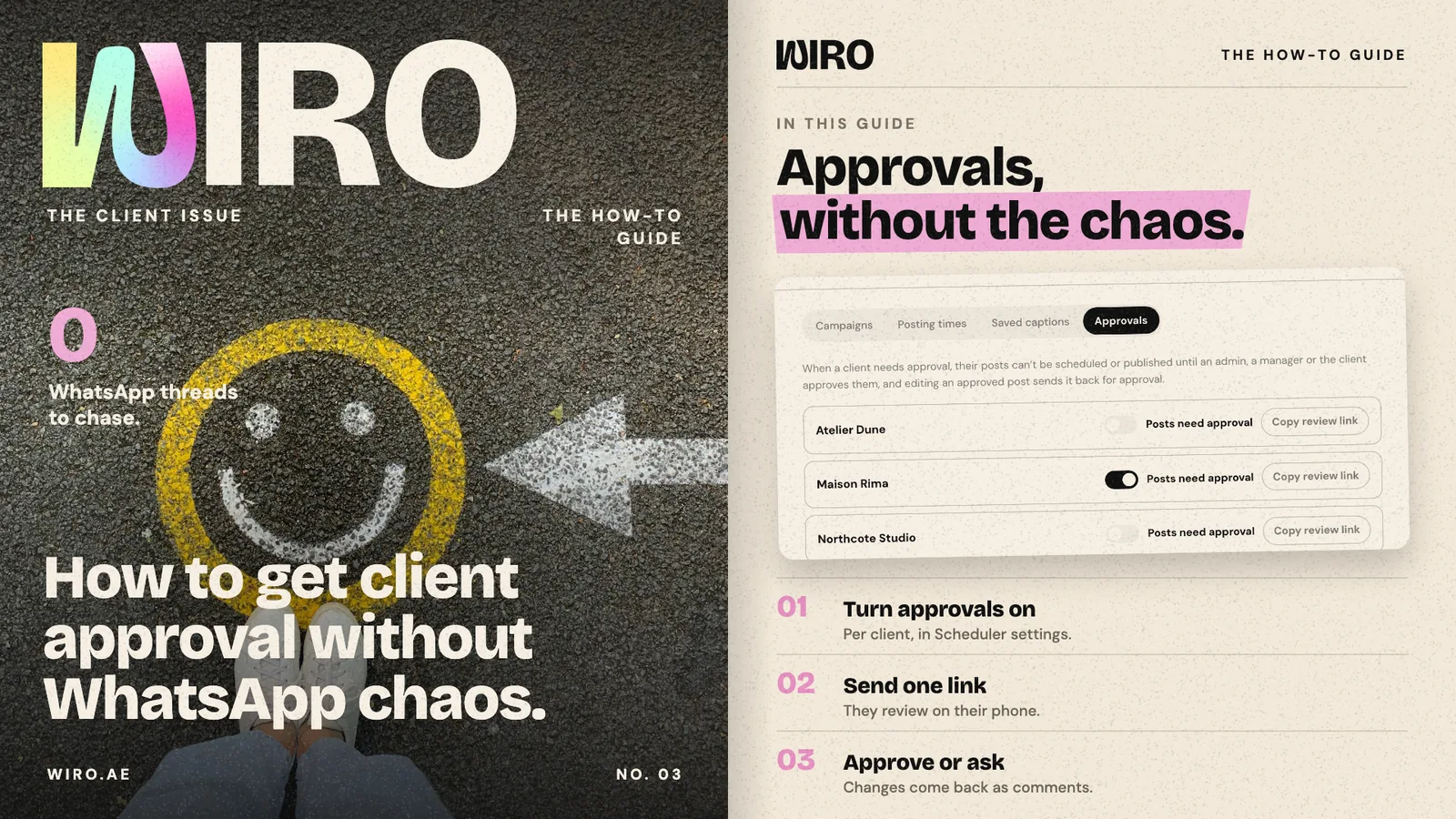
Most agencies get approvals in a WhatsApp group: a screenshot, a thumbs up, a voice note asking for a different photo, and two days later nobody is sure which version was approved. This guide shows the other way, with Bloom Agency and its client Maison Rima. The screens are Wiro with sample data.
Step 1: Turn on approvals for the client
Open Scheduler, then Scheduler settings, then the Approvals tab. Every client is listed with a Posts need approval switch. Turn it on for the clients who sign off on content. From then on, their posts cannot be scheduled or published until an admin, a manager or the client approves them, and editing an approved post sends it back for approval.
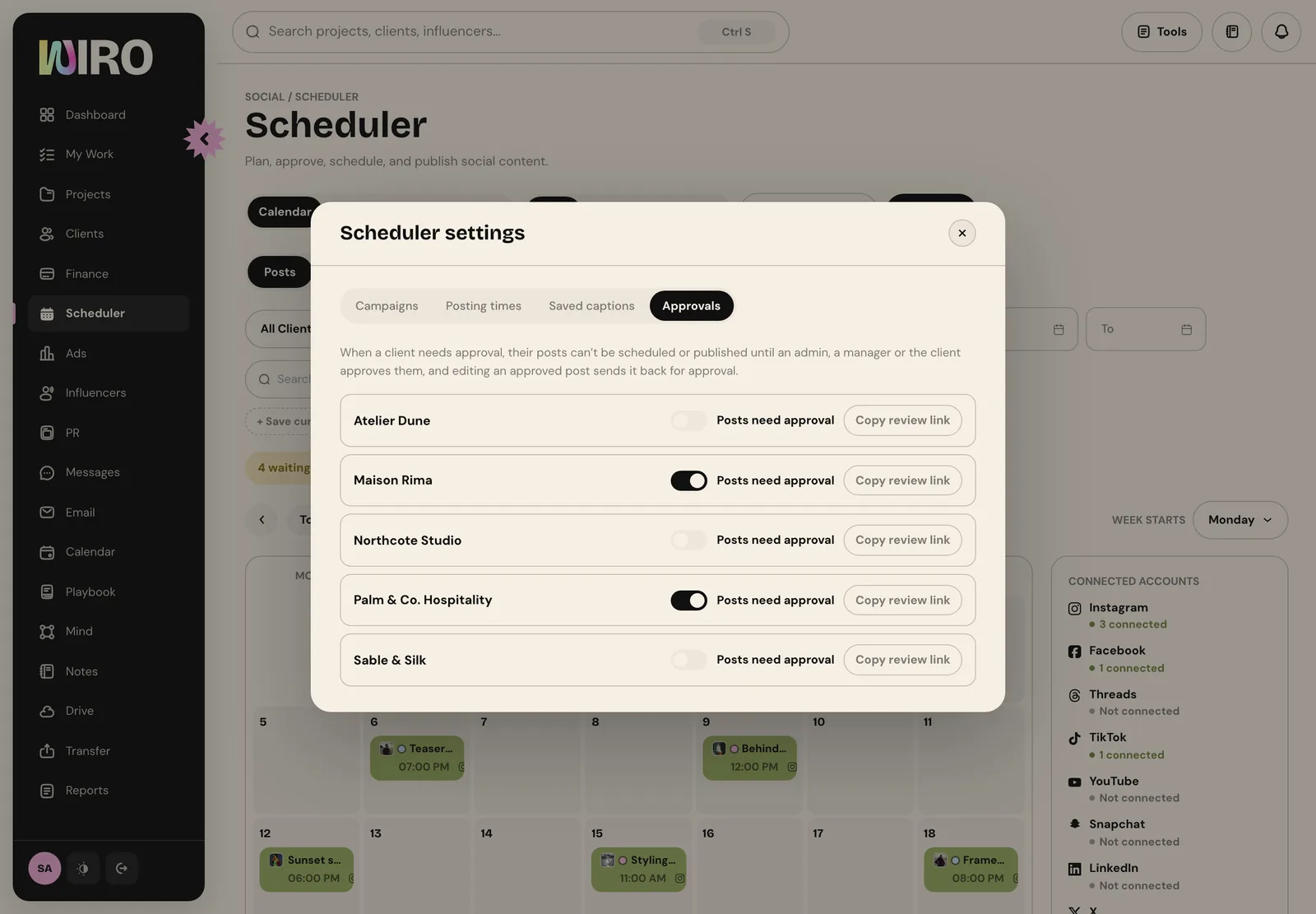
That last rule matters. A caption changed after the client said yes is a different post, and it goes back to them rather than out to the audience.
Step 2: Plan the posts as usual
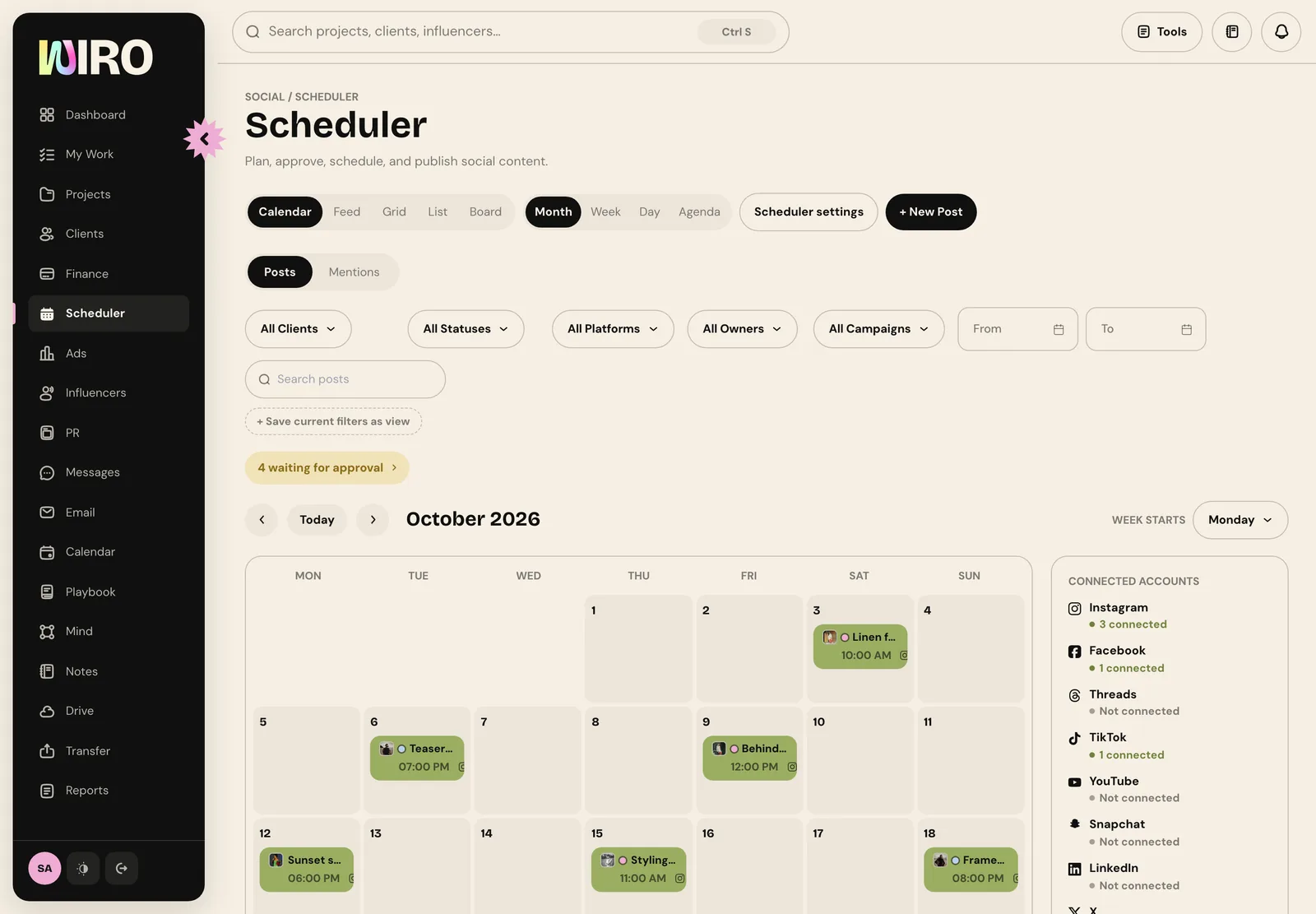
Create the posts in Scheduler the way you always do. For a client with approvals on, they wait as pending approval, and the Scheduler shows how many are waiting at the top, so the team can see at a glance what the client still owes.
Step 3: Send the client one link
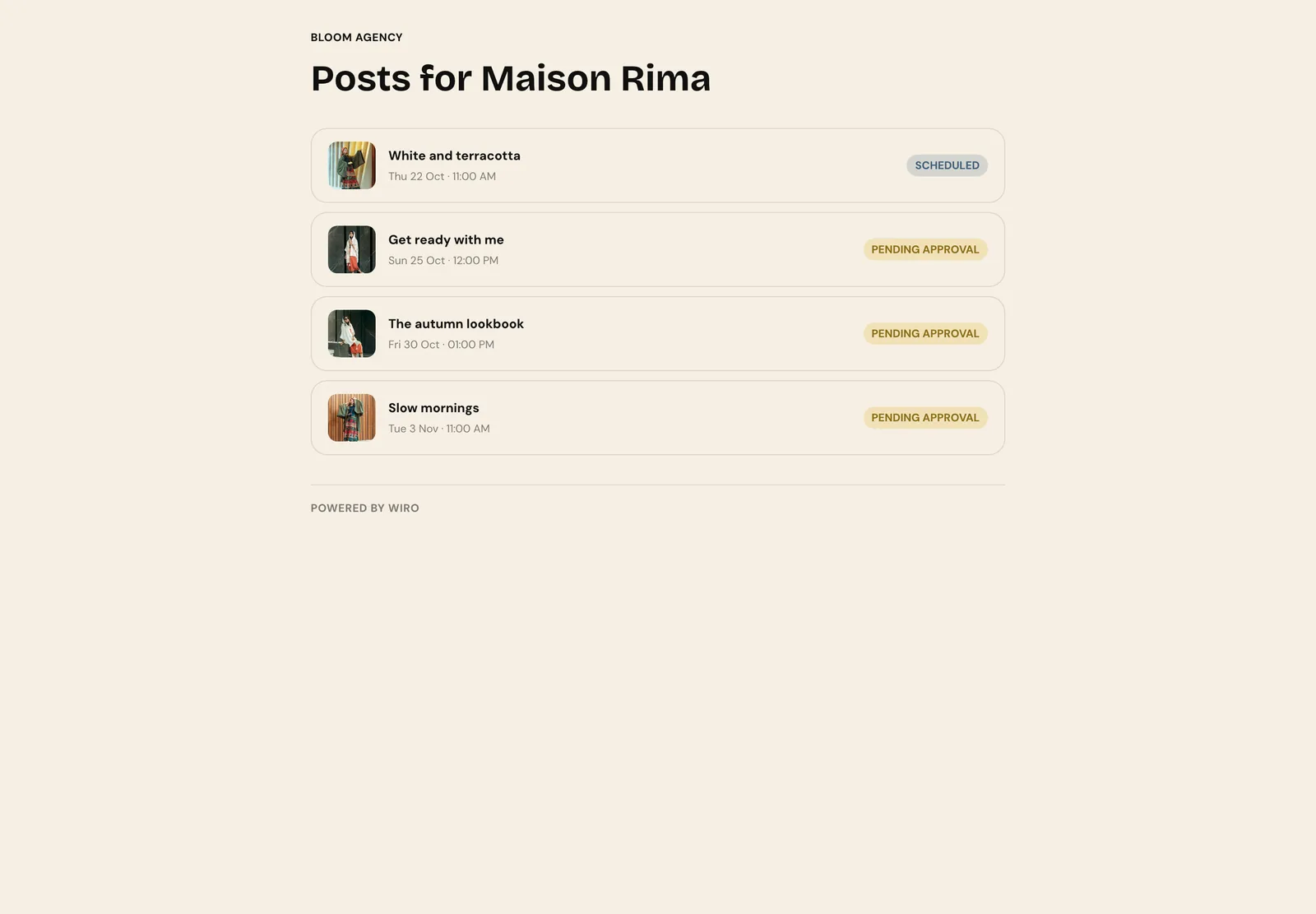
Back in Approvals, choose Copy review link next to the client and send it however they like to hear from you, once. The link opens a page with every post waiting for them. There is no account to create and no password: the link is the key, so send it only to the people who approve.
Step 4: The client approves, or asks for changes
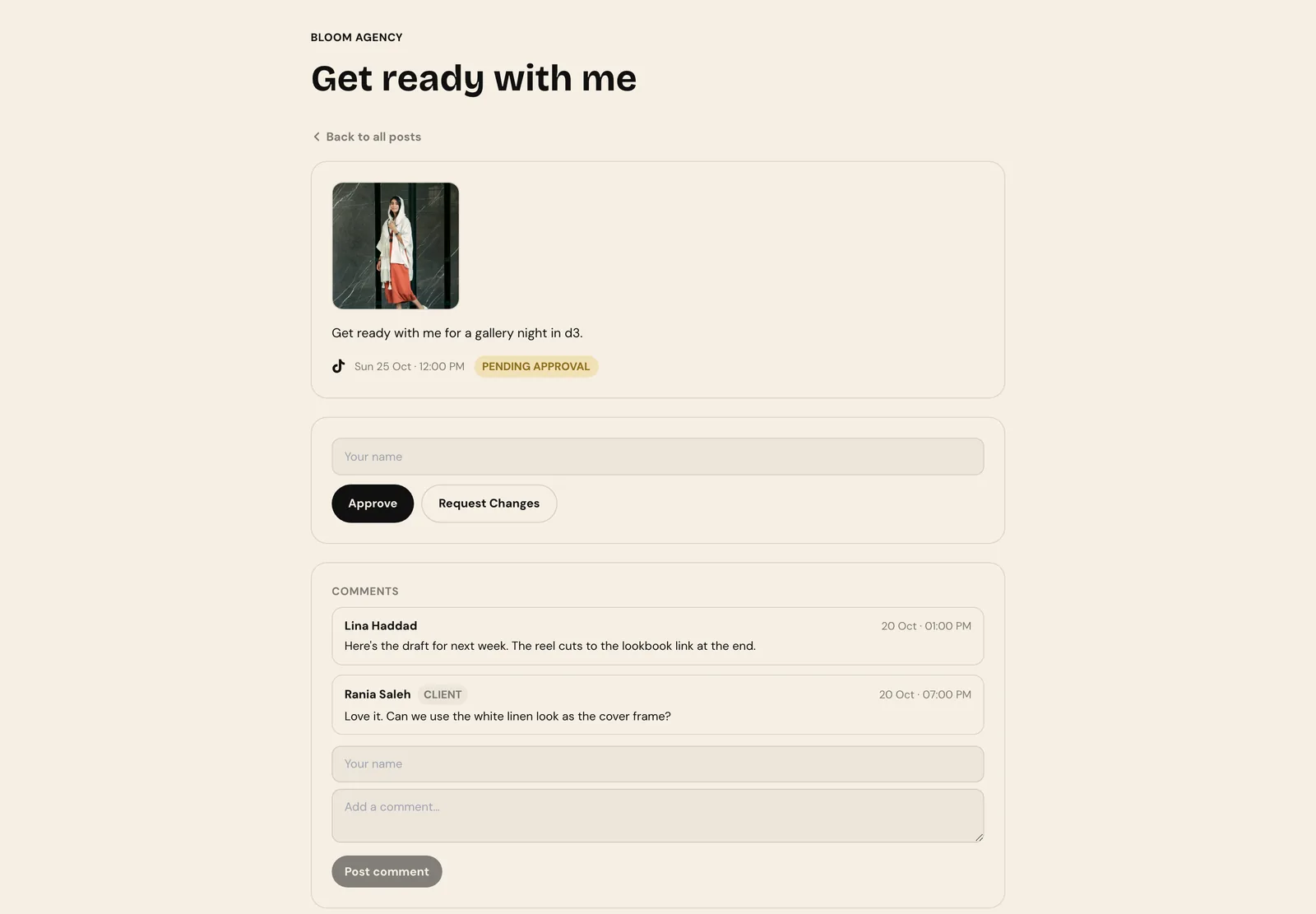
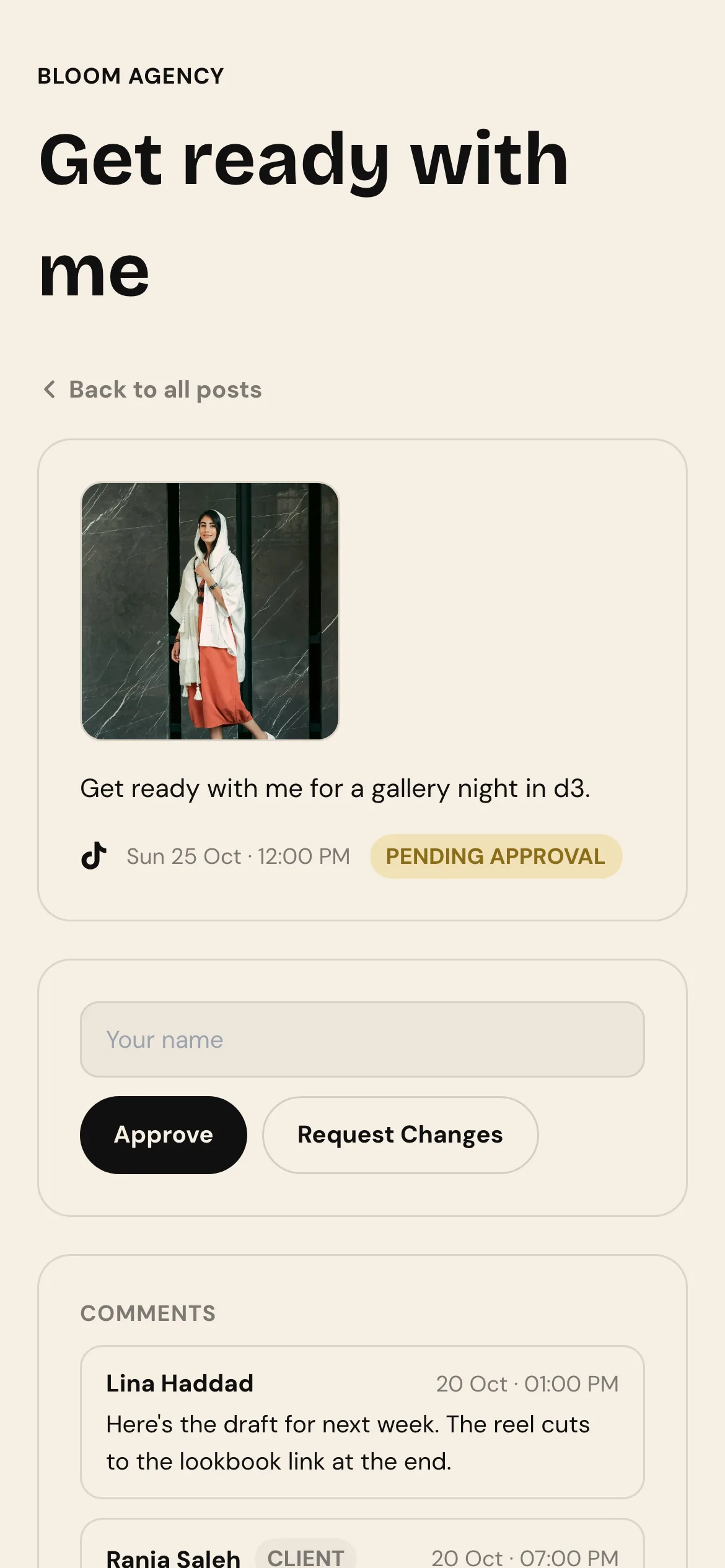
The client opens a post, sees the media, the caption, the platform and the planned time, types their name and chooses Approve or Request Changes. Comments sit under the post, from both sides, with names and times, so the reason for every change is written down next to the thing it changed.
It works on a phone, which is where most clients will open it.
Step 5: Approved posts go out on time
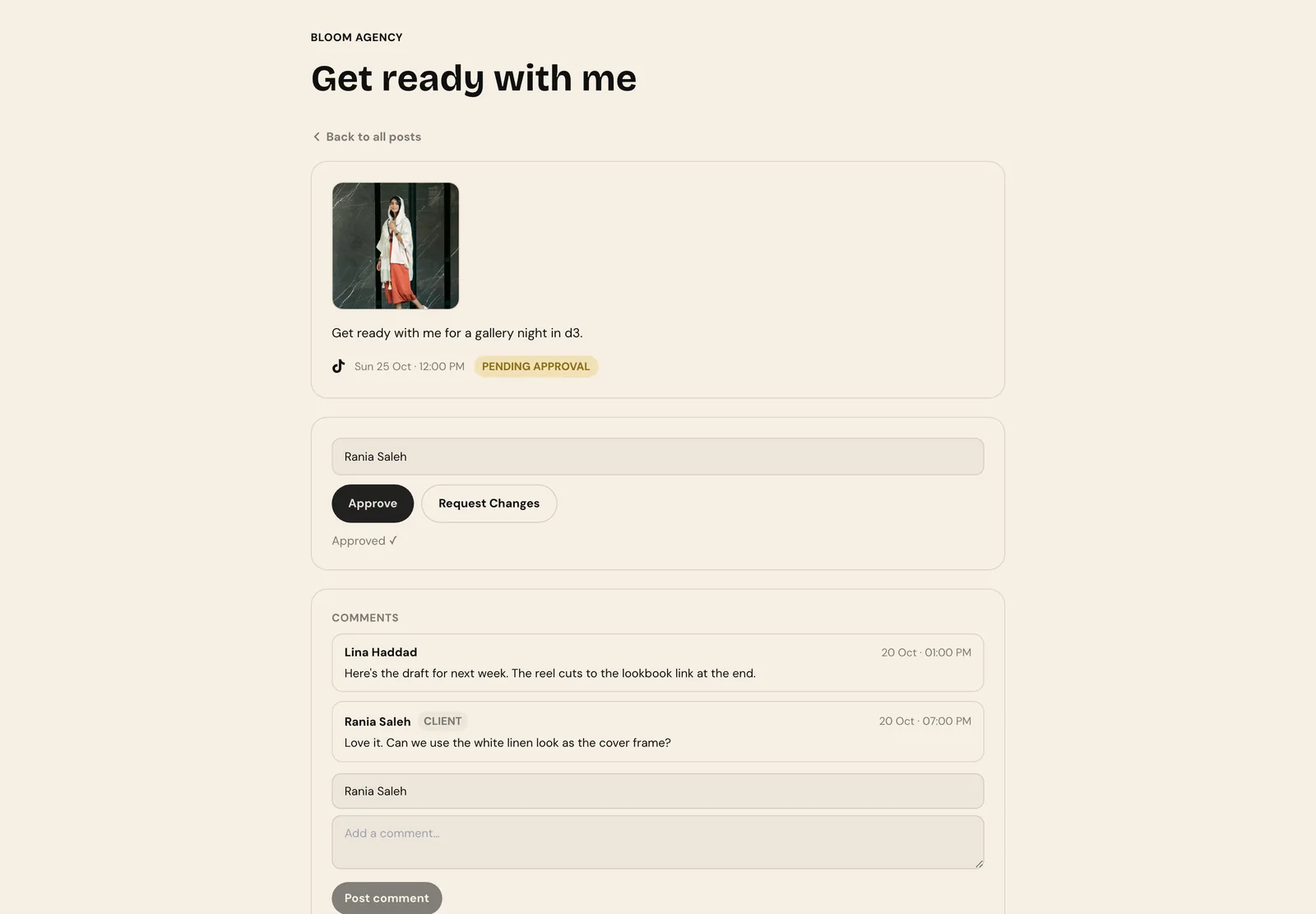
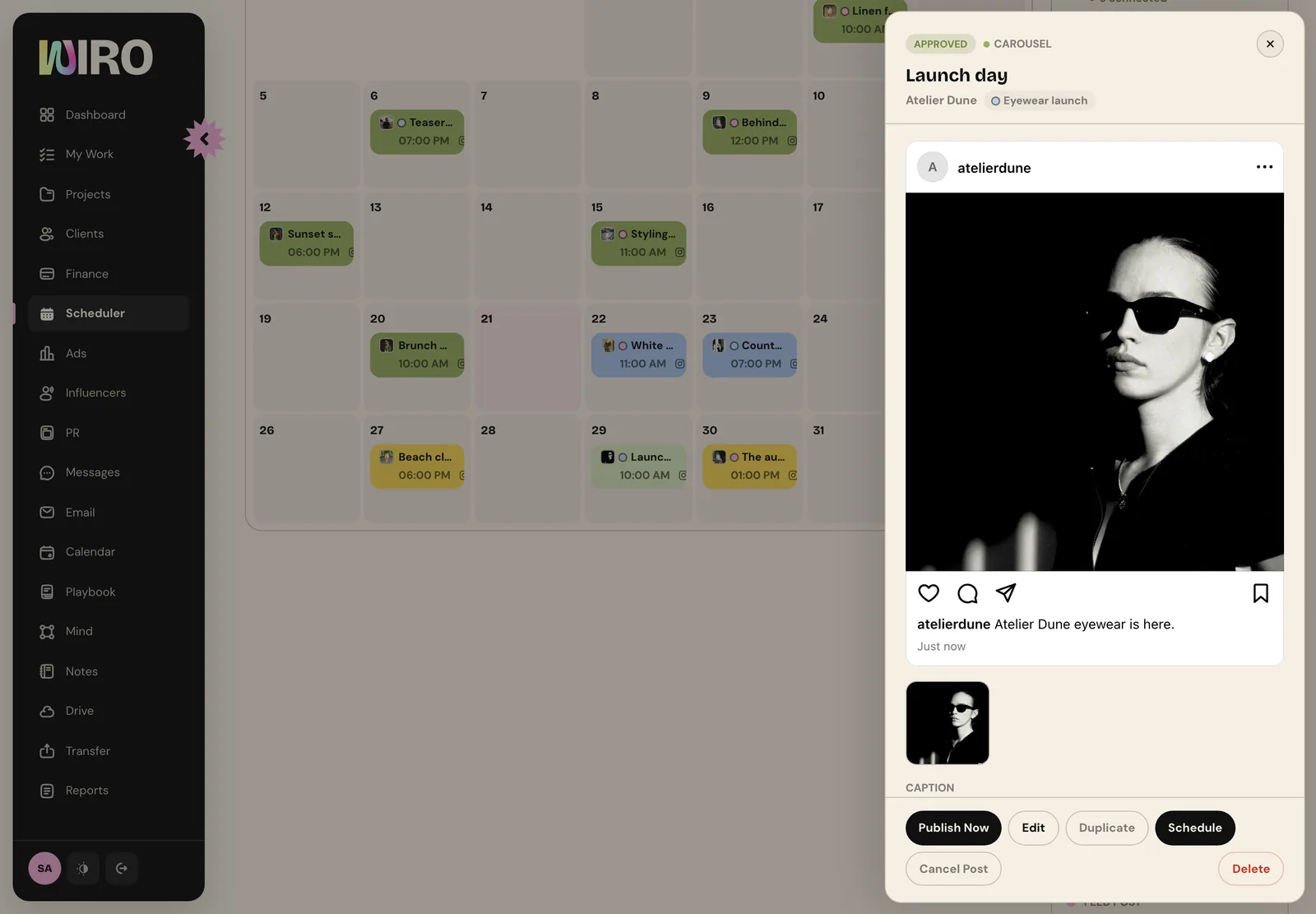
When the client approves, the page confirms it and the post's status changes in Wiro. Back in the Scheduler the post is marked approved and can be scheduled or published like any other. If they asked for changes, the post stays pending with their comment on it, and the team edits it and sends the same link again.
A few habits that keep approvals moving
- Send the link once per batch, not once per post. A client who gets one message a week answers it; one who gets ten mutes you.
- Agree a turnaround in the contract, for example two working days, and plan posts that far ahead.
- Put the brief in the first comment, in one sentence: what the post is for. Approvals go faster when the client knows what they are judging.
- Keep feedback in the comments. If a change arrives on WhatsApp, paste it under the post so the record stays in one place.
The point of an approval is not the yes. It is knowing, three weeks later, exactly what was agreed and by whom.
With approvals on, nothing reaches a client's audience that the client has not seen, and nobody has to scroll a chat to prove it.